
A desktop PC that will not start can fail at several different points: completely dead, turning off again after one second, fans running with no image, stopping at the motherboard logo, showing "No boot device", asking for BitLocker, or entering a Windows 11 repair loop.
Do not start by buying a power supply, motherboard or graphics card on guesswork. Follow the order below and note what happens when you press the power button: lights, fans, beeps, debug LEDs, screen image, error code and whether the PC restarts. Stop earlier if you smell burning, a breaker trips, there has been liquid inside, or important files are not backed up.
1. Check power before opening the PC
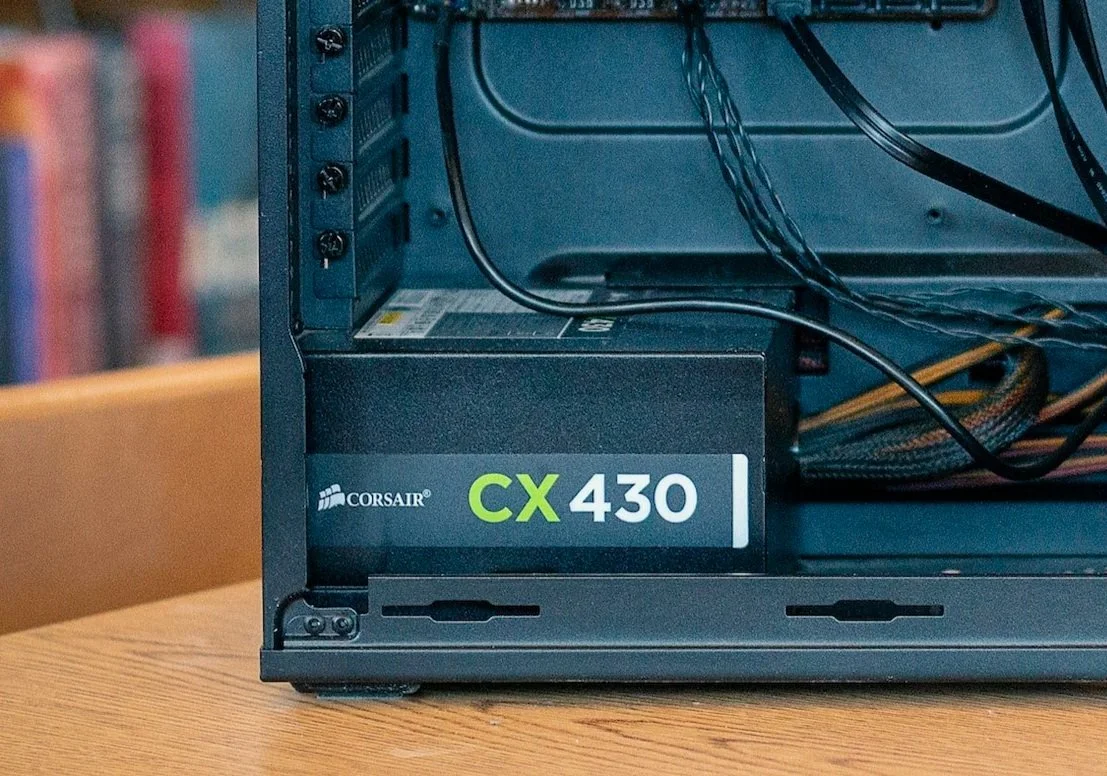
Connect the PC directly to a wall outlet during testing, without a power strip, UPS or extension lead. Try another power cable if you have one. Check that the switch on the back of the power supply is set to I, that the cable is fully seated in the power supply, and that the monitor also has power.
If the PC is completely dead, look for small standby lights on the motherboard, network port, power button or USB devices. No lights can point to incoming power, the power supply, front power button, motherboard or a short. If it smells burnt, pops, the power supply clicks, or a breaker trips: unplug it and do not try again. Power supplies should not be opened at home.
If the PC has a modular power supply, do not mix cables from another power supply even if the plugs physically fit. Pin layouts can differ between brands and models, and the wrong cable can destroy a drive, graphics card or motherboard. Use only the cables that belong to that exact power supply.
If you need to force it off, hold the power button for about 10 seconds. Then wait a moment before trying again. Repeated forced shutdowns are not a repair; if the machine gets power but drops out every time, further testing should be controlled.
2. Disconnect everything not needed
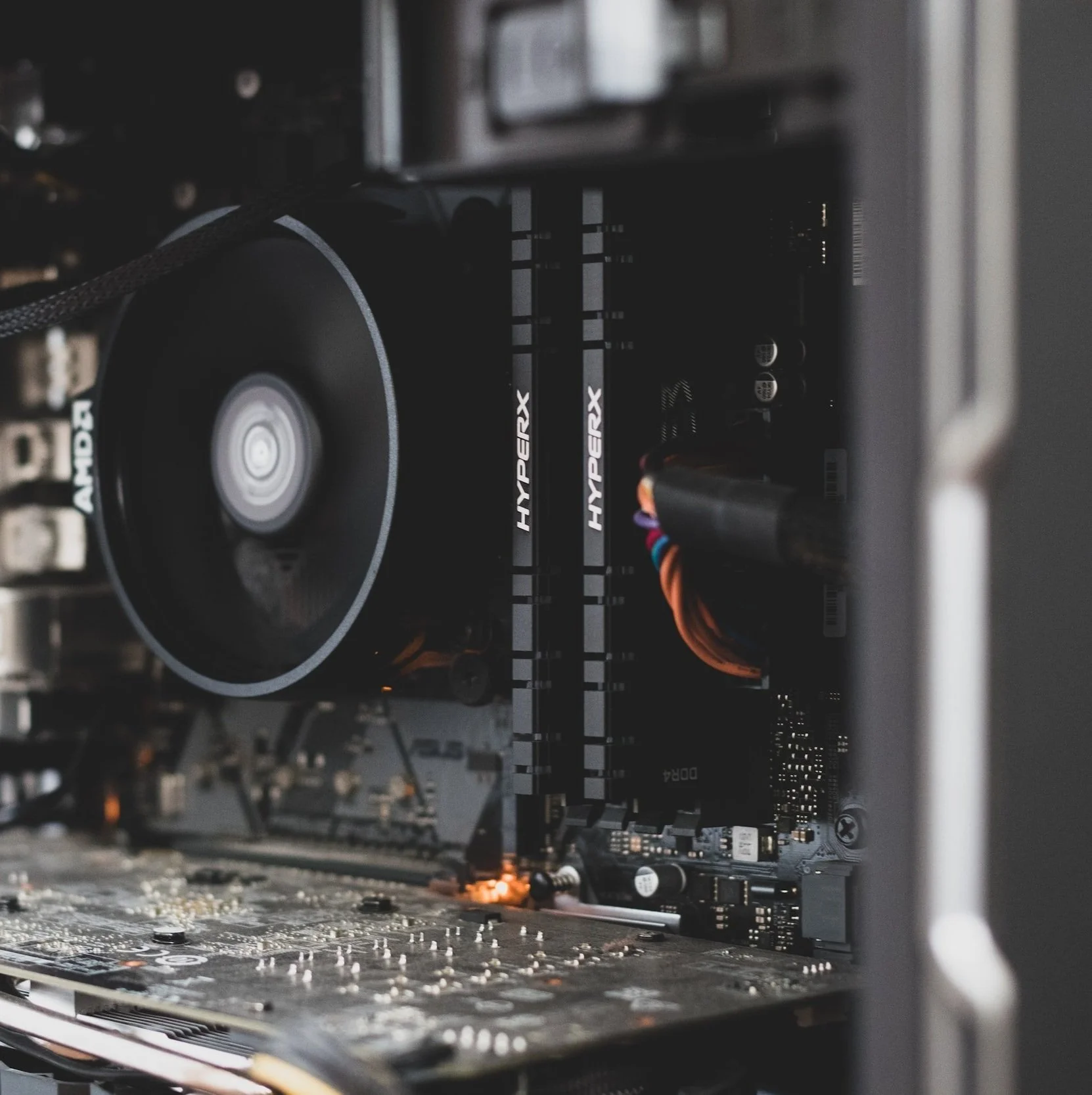
Remove USB drives, memory cards, printers, VR equipment, docks, extra monitors, USB hubs and anything not required for startup. Start with power, keyboard, mouse and one monitor. If the PC starts then, reconnect one device at a time until the fault returns.
Also look at the motherboard debug LED or code display if it has one. Many boards use CPU, DRAM, VGA and BOOT. A DRAM light often points to memory or memory settings, VGA to the graphics card or display output, BOOT to drive/startup, and CPU to processor, CPU power or motherboard. Note the light before moving parts.
Also note whether Caps Lock or Num Lock responds, whether the motherboard beeps, and whether the screen shows a blinking cursor. A blinking cursor before the Windows logo often means BIOS/UEFI cannot find the correct boot drive. A black screen with a mouse pointer after sign-in more often points to a Windows process, Explorer or display driver than to the power supply.
3. If fans start but the screen is black
Check the simple things first: the monitor must be on the correct input, the display cable must be fully seated, and the cable must go into the graphics card if the PC has a dedicated graphics card. Many PCs are connected to the motherboard HDMI/DisplayPort by mistake after being moved. Try another cable, another display input or another monitor/TV if possible.
If the PC sounds like it reaches Windows, press Windows + Ctrl + Shift + B to restart the graphics driver. Also try Ctrl + Alt + Del or Ctrl + Shift + Esc. If Task Manager opens on a black screen, choose Windows Explorer > Restart. If Windows Explorer is not listed, choose Run new task, type `explorer.exe` and press Enter. If the desktop returns, back up files before updating or rolling back the display driver.
Check that the graphics card is seated straight in the PCIe slot and that PCIe power cables are connected if you can do that safely. Shut down, unplug power and wait before opening the case. If the processor actually has integrated graphics and the motherboard has a display output, you can test without the dedicated graphics card. If the processor has no integrated graphics, the motherboard display output will not produce image.
4. RAM, power plugs and minimal startup
Disconnect power before touching internal parts. It can help to press the power button once after the power cable is unplugged to discharge remaining power. If you are comfortable with PC building, reseat the RAM and test one stick at a time in the slot recommended by the motherboard manual. Do not use force; RAM should click evenly into place.
Check the 24-pin motherboard power plug, the 4/8-pin CPU power plug at the top of the board, graphics card power, and any SATA power/data cable to a drive. A newly built or recently moved PC can also have the front-panel power-button cable wrong or loose. If you are not comfortable with this, bring the PC to EasyPC for a free diagnosis before moving more cables.
On a new build, check that the motherboard is mounted on the correct standoffs, CPU_FAN is connected, CPU 8-pin has not been confused with PCIe 8-pin, and RAM is in the slots recommended by the manual. Do not start a PC without a cooler mounted on the CPU. If something needs force to fit, it is probably the wrong way around or the wrong cable.
5. CMOS, BIOS and settings that can stop startup
Wrong BIOS settings, a failed XMP/EXPO memory profile, power loss during firmware update or overclocking can prevent startup. Use the Clear CMOS button or jumper if the motherboard has one, or remove the CMOS battery for a few minutes after power is disconnected. Use the motherboard manual, take a photo before changing anything, and do not short random pins.
Do not update BIOS as a random attempt on an unstable PC. Do not change RAID/AHCI, Secure Boot, TPM, CSM/Legacy or UEFI settings without understanding the consequence. These changes can stop Windows from starting and can trigger BitLocker recovery. If the BitLocker key is missing and the files matter, stop and get diagnosis first.
6. BOOT light, "No boot device" or missing drive
If the motherboard stops at BOOT, BIOS does not show the SSD/hard drive, or the screen says "No boot device", Windows is not necessarily destroyed. The drive may have a loose cable, wrong M.2 slot, wrong boot order, BitLocker, file system damage or physical drive failure.
Do not choose Initialize, Format, Delete, Clean or reinstall Windows if the files matter. First check whether the drive appears in BIOS/UEFI with the correct model name. If the drive clicks, disappears, makes the PC very slow or does not appear reliably, protect data before repairing Windows. At EasyPC, we can assess the drive and data before anything is erased.
7. If Windows 11 starts loading but stops
If the PC gets past the motherboard logo but stops at the Windows logo, a black/blue stop screen, Automatic Repair or spinning dots, power and basic POST are probably not the main issue. Take a photo of the stop code, driver name or message. Microsoft separates a blank screen with no text from a Windows crash with a message such as "Your device ran into a problem and needs to restart"; the stop code is an important clue. Microsoft describes Windows Recovery Environment as the place for Startup Repair, Startup Settings, Uninstall Updates, System Restore and reset.
You can enter Windows Recovery by interrupting startup twice: start the PC, wait for the Windows or manufacturer logo, hold the power button until it shuts off, and repeat. On the third start, Automatic Repair should appear. Choose Advanced options. If you have a Windows USB, choose Repair your computer, not Install now, when the goal is repair.
Try Troubleshoot > Advanced options > Startup Repair first. If the fault started after an update, try Uninstall Updates. If you need Safe Mode, go to Startup Settings > Restart, then choose 4/F4 for Safe Mode or 5/F5 for Safe Mode with Networking. If Safe Mode starts, back up files before removing a recent driver, display driver, antivirus or app.
On newer Windows 11 installations, Advanced options may also show Quick Machine Recovery. It can connect to the network from Windows Recovery Environment and download a targeted repair from Windows Update if Microsoft has a known fix for the startup failure. Try it before reset if the option is available, but do not treat it as backup or data recovery.
If Safe Mode works and the issue started after a display driver, open Device Manager > Display adapters > Properties > Driver and try Roll Back Driver if the button is available. If you uninstall the driver, restart and install the correct driver from Windows Update, the PC manufacturer or the graphics-card manufacturer. Avoid random driver packages from unofficial websites.
8. BitLocker, reset and reinstall: stop before data is lost
Microsoft describes the BitLocker recovery key as a 48-digit key that can be required during startup after a security risk or hardware change. Note the key ID shown on screen and find the matching key through https://aka.ms/myrecoverykey, a work/school account, a printout or a USB drive. Microsoft Support cannot recreate a lost key.
Reset this PC should come late in the order. Keep my files reinstalls Windows but removes apps and settings. Remove everything deletes personal files, apps and settings. Reinstalling from installation media can also remove everything on the selected drive. If you are unsure about backup, drive health, BitLocker or which drive is correct, bring the PC to EasyPC for a free diagnosis before reset or reinstall.
Only if Windows can still start to the desktop, a repair install may be better than a clean reinstall. Download the Windows 11 ISO from Microsoft, right-click the ISO file > Mount, open the new drive in File Explorer, open Terminal or Command Prompt in that drive and run `setup.exe /product server`. The window may say Windows Server Setup, but if you choose Keep personal files and apps it should repair/upgrade the existing Windows 11 installation without deleting everything. This is an advanced workaround, not data recovery: back up first, do not use it if the drive may be failing or BitLocker status is unclear, and bring the PC to EasyPC for a free diagnosis if you are unsure.
What EasyPC checks before recommending parts
Power supply, motherboard, RAM, graphics card, SSD, BIOS settings and Windows can create almost identical symptoms. During diagnosis, we test power, POST, debug LEDs, RAM, graphics card, storage, cables, BIOS/UEFI and Windows repair in the right order. That is often cheaper than buying the wrong component first.
Bring the power cable, any BitLocker key, and tell us whether the files matter. You can bring a desktop PC to EasyPC for a free diagnosis, so you know whether the cause is power supply, graphics card, RAM, drive, Windows or motherboard before deciding on repair.