
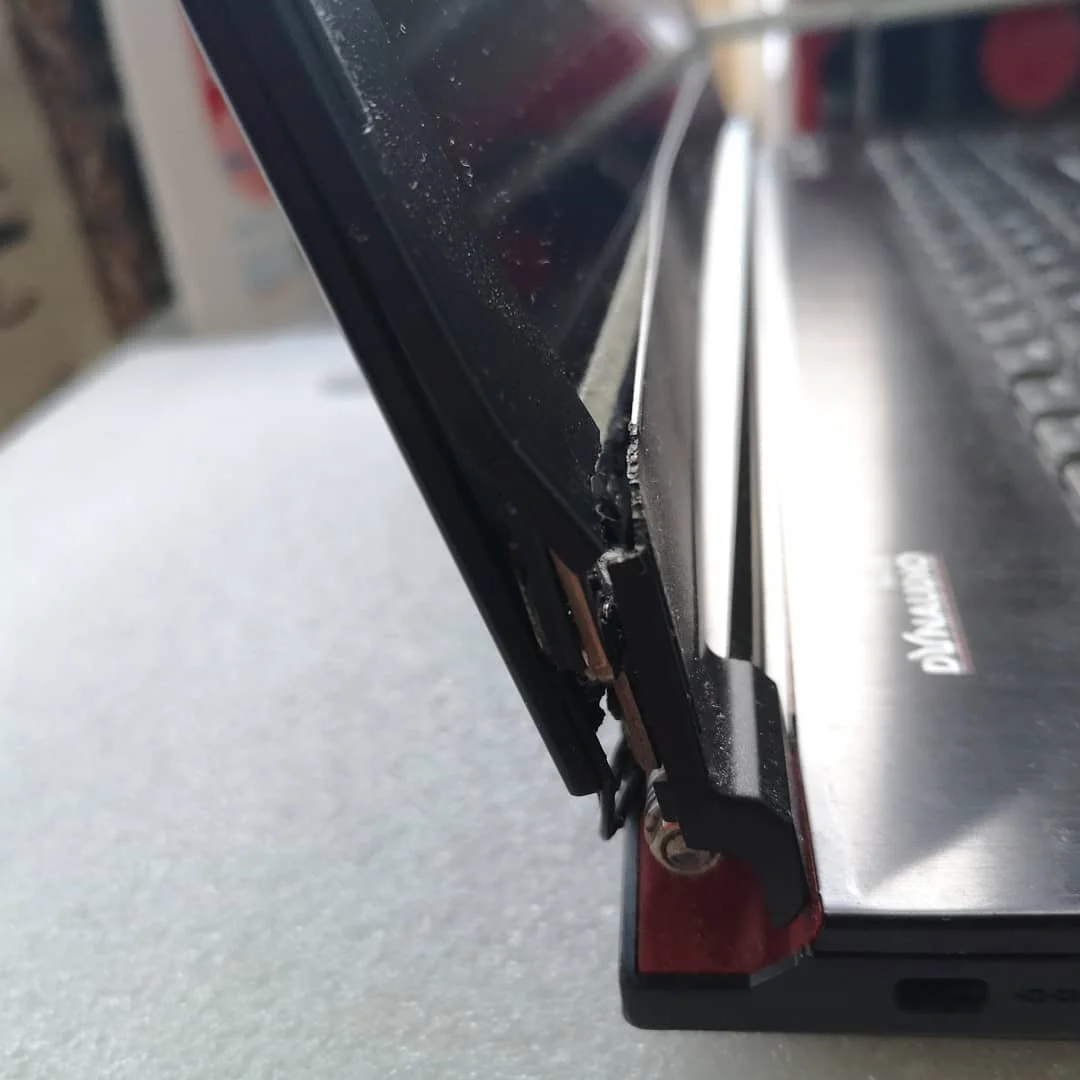
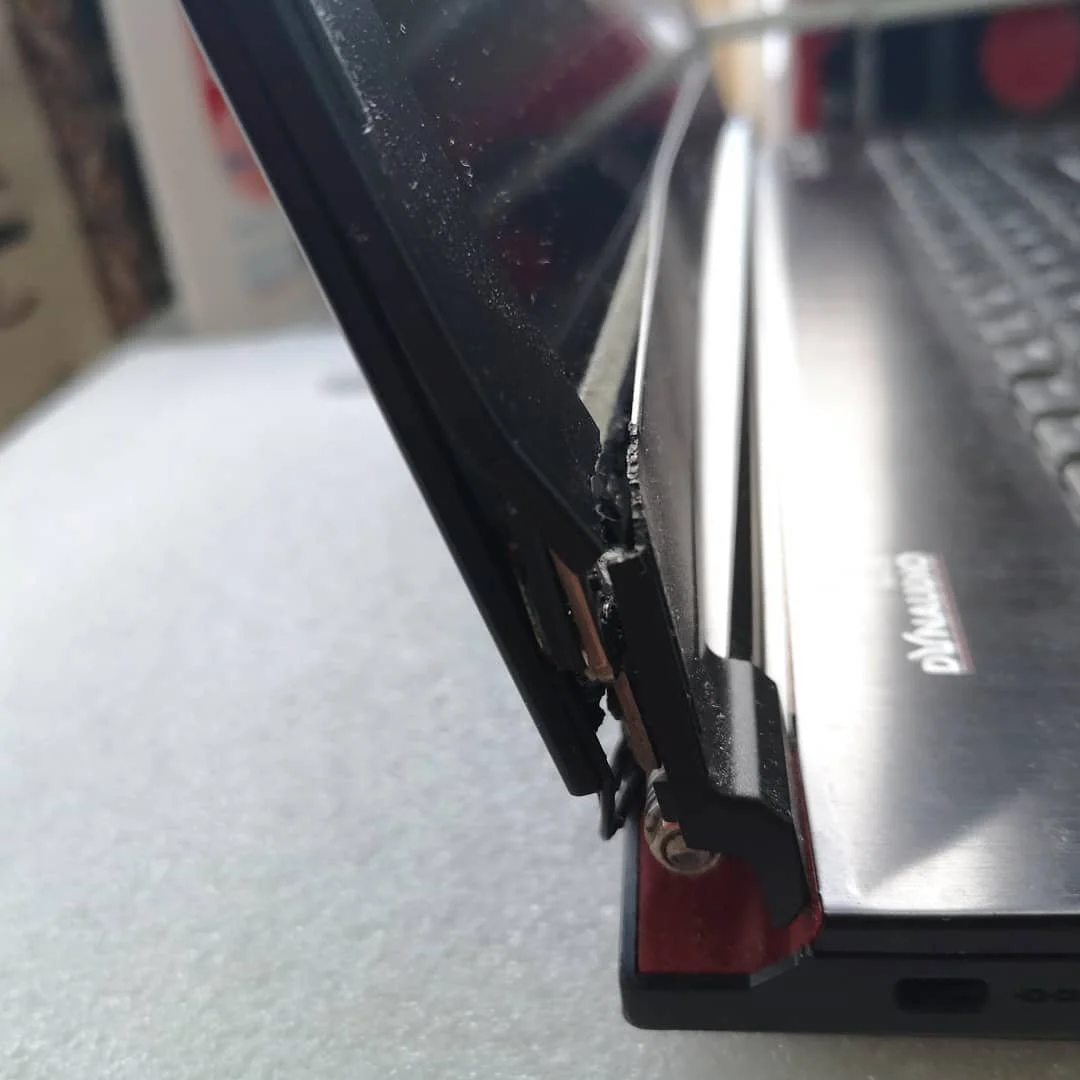
A broken laptop hinge almost always gets worse each time the lid is opened and closed. It can start as minor looseness, but end with a torn display cable, broken bezel, cracked rear cover, loose Wi-Fi antenna, failed camera, motherboard damage or pressure against the battery.
Stop early if the screen bezel lifts, you hear cracking sounds, cable or metal becomes visible, the picture flickers when the lid moves, Wi-Fi or camera stops working, the palmrest bulges, the bottom cover opens, or the battery looks swollen. Do not force the lid. Leave the machine in one position and bring it to EasyPC for a free diagnosis if you are unsure.
1. Back up files before moving the lid more
If the machine still starts, back up first. Copy important files to an external drive or cloud storage before opening the laptop, removing the SSD, disconnecting the battery or changing BIOS/UEFI settings. A hinge repair is mechanical, but a wrong cable movement or an encrypted drive without the key can make data access much harder.
On Windows 11, check BitLocker before service: go to Settings > Privacy & security > Device encryption, or Control Panel > System and Security > BitLocker Drive Encryption on Pro/business machines. Find the recovery key at aka.ms/myrecoverykey if the PC uses a Microsoft account. On Mac, check Apple menu > System Settings > Privacy & Security > FileVault and know the password, Apple Account or recovery key before service or disassembly.
2. Use it temporarily without making the damage worse
Do not keep opening and closing the lid to "test" it. Each movement can tear more plastic loose, pull on the display cable or pinch antenna and camera cables. If you must use the machine before repair, leave the lid fixed at one angle, use an external monitor, keyboard and mouse, and never lift the laptop by the screen.
If the picture flickers, shows lines, goes black, or changes when you move the lid, stop. The display cable may already be partly damaged. Continuing to flex the lid can turn an inexpensive hinge repair into display cable, panel or motherboard work.
3. Identify where the hinge has broken loose
Display-side damage is likely when the screen bezel opens, the corner of the rear cover separates, the webcam stops working, Wi-Fi becomes worse, or the picture changes when the lid moves. The mounts in the display cover may have broken, and cables often run close to the hinge.
Keyboard-side damage is likely when the palmrest lifts, the bottom cover gaps, screws no longer hold, the area around the power button/USB/charging port cracks, or the whole lid twists the keyboard deck. The metal inserts in the palmrest or bottom frame may have pulled out. On some models, the hinge mount sits under the motherboard, so further disassembly should be assessed before you take the risk yourself.
4. Do not open it until battery and screws are under control
Before opening a laptop: shut it down completely, unplug the charger, remove loose jewelry, work on a clear table and avoid static electricity. Sort screws by location. Many laptops use different screw lengths, and one long screw in the wrong place can damage the motherboard, battery or display panel.
Once the bottom cover is off, disconnect the battery before moving hinges, the display cable or other internal cables. If the battery is swollen, smells sweet/chemical, is warm without load, or is being pressed by a broken cover, do not squeeze, puncture, charge or glue around it. Stop and bring the machine in for a free diagnosis.
5. Choose the repair: reinforcement or part replacement
Internal reinforcement with suitable adhesive or epoxy can make sense when the machine is older, cosmetics are less important, and enough plastic or metal remains to hold the hinge at the correct angle. The hinge must be held in place while the material cures, and there must be free clearance for the display cable, antennas, camera, covers and screws afterwards.
Part replacement is better when the mounts are torn out completely, the rear cover or palmrest is cracked, the hinge is bent, the display sits crooked, the machine is insured, or you want a clean long-term repair. Typical parts are a hinge set, rear display cover, display bezel, palmrest/top case or bottom cover.
Do not try to glue the hinge from the outside with superglue while the machine is assembled. Glue can run into the bezel, screw holes, keyboard, fan, port or battery area, and it makes later repair harder. Instead, take photos of the damage, model number and serial number, and have reinforcement or part replacement assessed.
6. After repair: test before tightening everything
Before final assembly, gently test that the lid opens and closes without lifting the cover. Check the picture at several angles, Wi-Fi, camera, microphone, keyboard, trackpad, charging and sleep/wake. If the screen flickers or the machine loses Wi-Fi/camera after repair, a cable is probably pinched or damaged.
If the repair uses adhesive or epoxy, do not load the hinge normally until the cure time is over. Some materials feel firm after a few hours, but often need 24-48 hours before normal use. A repair moved before it has cured can break again and tear out more plastic than the first failure.
When should EasyPC look at it?
Bring the machine to EasyPC for a free diagnosis if you do not have a recent backup, the BitLocker/FileVault key is missing, the screen flickers or goes black, the battery is swollen, the machine has been dropped or had liquid damage, the hinge mount sits under the motherboard, or you are unsure whether part replacement is worth it. We can assess damage, parts, data risk and price before you decide.