
A laptop that makes a lot of noise is usually trying to remove heat. The cause can be high CPU use, dust in the cooling system, old thermal paste, blocked heatsink, aggressive fan profile or a worn fan.
Check programs first
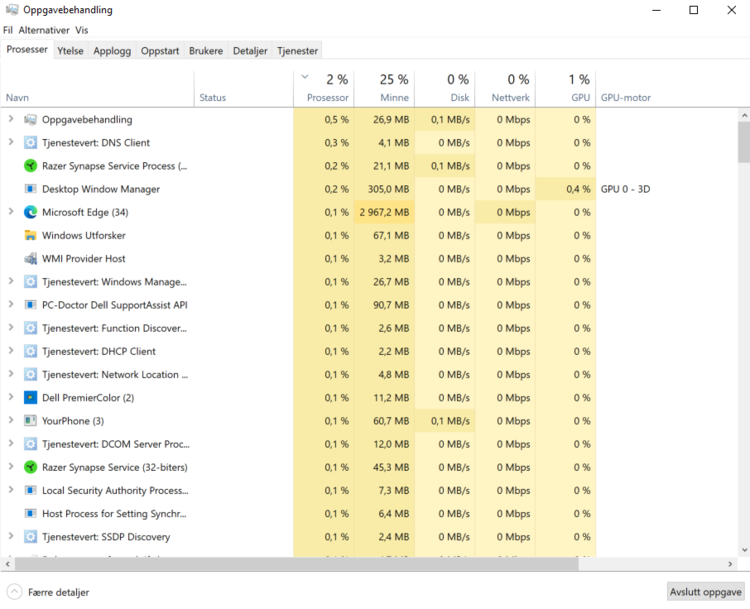
Open Task Manager and see whether CPU, memory or drive usage is high when the machine should be idle. A stuck program can make the fan run constantly even when the machine is not doing useful work.
If CPU usage stays high over time, for example above roughly 20 percent while you are not doing anything heavy, find the program causing it. If load is low but the fan still runs hard, cooling, dust or fan profile settings are more likely.
On some models, fan profiles can be adjusted in the manufacturer utility or BIOS. Search with the exact model number plus “reduce fan noise” or “fan control”, and be careful with advice written for a different model.
When physical cleaning helps
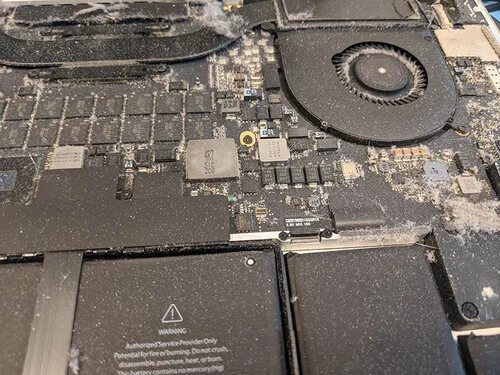
If the machine is noisy even during light use, or gets hot quickly, the cooling system may need cleaning and new thermal paste. This can reduce temperature, noise and the risk of throttling.
Dust can build up like a wall inside the heatsink. The fan may blow hard without actually moving hot air out. Old thermal paste can cause a similar result because heat no longer transfers efficiently from the processor to the heatsink. Over time, high heat can cause slow performance, random shutdowns and, in the worst case, damage to the motherboard or graphics hardware.
Signs of a faulty fan
Scraping, ticking, whining, vibration or fan errors at startup suggest that the fan may be worn. The fan should be replaced before it stops completely.