
This is the updated Windows 11 version of the old EasyPC wallpaper guide. It keeps EasyPC's pack of 50 high-resolution wallpapers and shows how to use them as an automatically rotating desktop background.
You do not need theme tools, registry changes or system file modifications to make Windows look better. Use Windows built-in settings for wallpaper, slideshow, dark mode, accent colors and lock screen. That makes it easy to change back later.

How to download the pack
Use the download button above. Google Drive opens in a new tab. Use the download icon in the top right corner to download the ZIP file. Do not download other files, do not install programs, and do not run EXE files to make the wallpapers work.

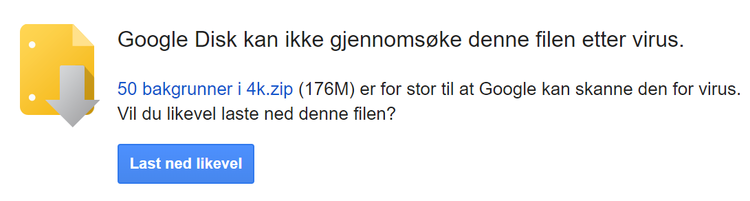
Because the ZIP file is large, Google may say that it cannot scan the file automatically. Only download it if you trust the source and expected the file. You can scan the ZIP file with Windows Security before extracting it.
Move the folder to Pictures
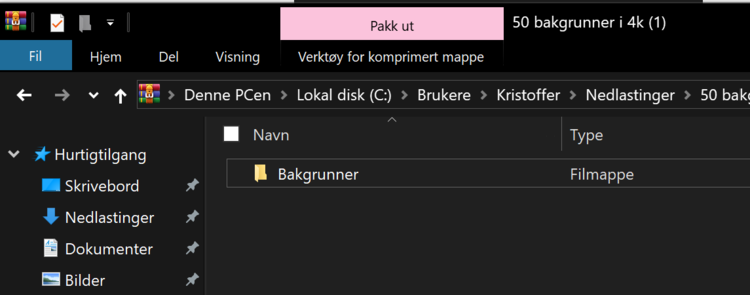
After the ZIP file has downloaded, right-click it and choose Extract all. Put the folder somewhere like Pictures > EasyPC wallpapers. Do not extract it into Windows, Program Files or system folders. This makes the pictures easy to find from the desktop background settings.
Set up a slideshow
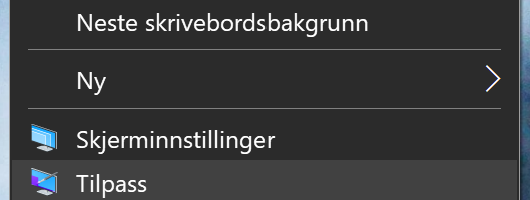
Right-click the desktop and choose Personalize, or go to Start > Settings > Personalization > Background. In the Personalize your background menu, you can choose Picture, Solid color, Slideshow or Windows Spotlight. For the EasyPC pack, choose Slideshow, press Browse and point Windows to the wallpaper folder.
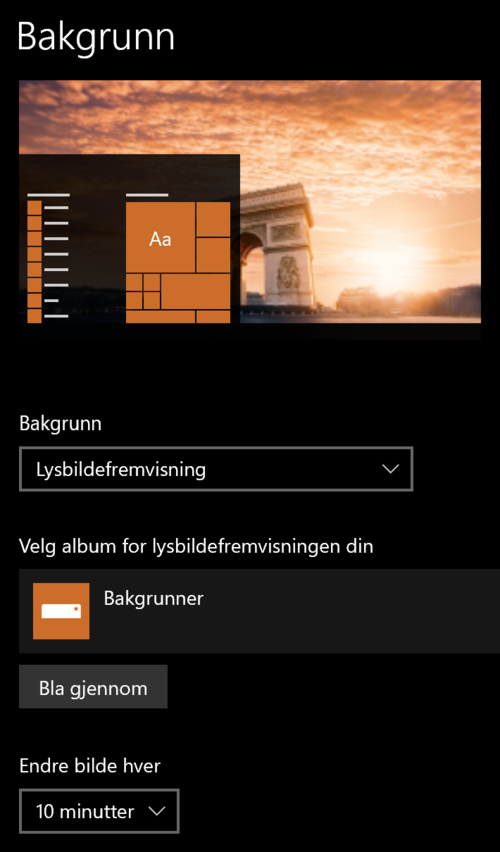
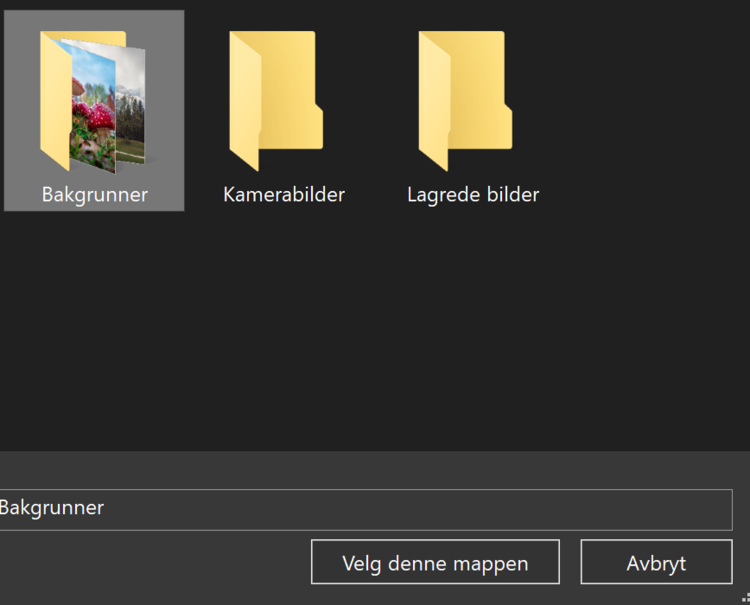
After that you can choose how often the images should change, whether Windows should show them in random order, and whether the slideshow should run on battery. If an image is cropped strangely, change the fit setting to Fill, Fit, Stretch, Tile, Center or Span. Use Fit or Center if you want to avoid cutting off the subject.
Match colors and dark mode
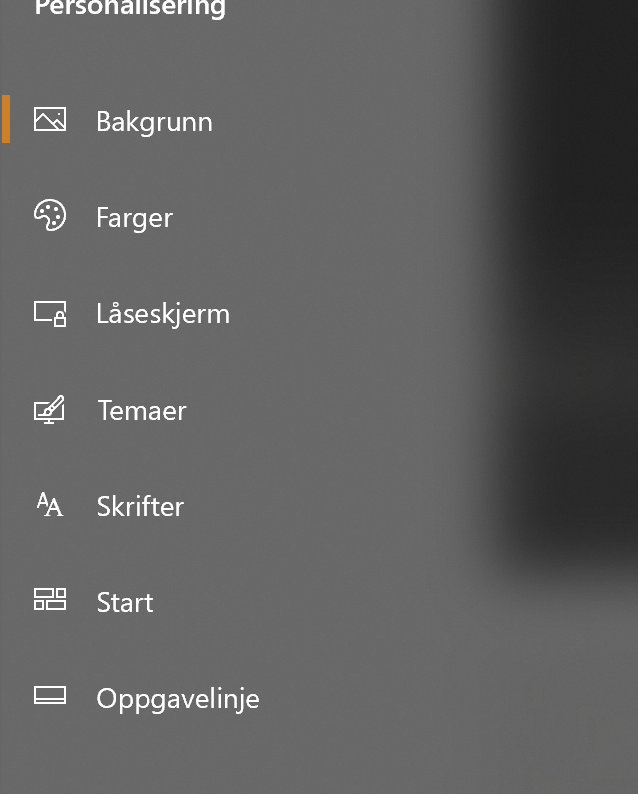
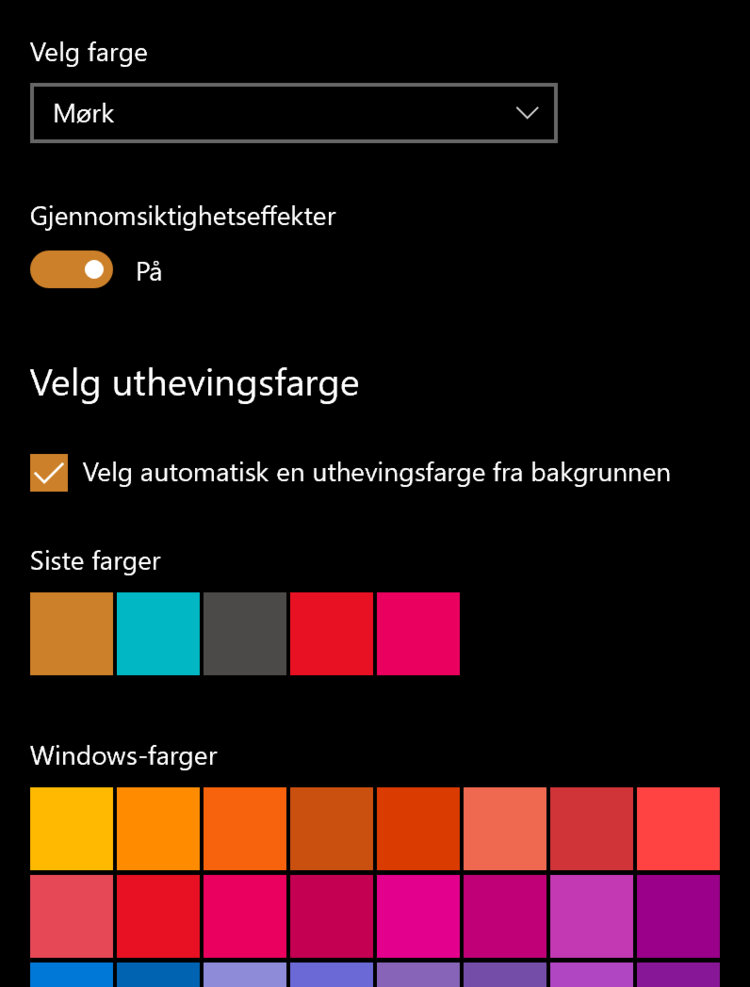
Go to Start > Settings > Personalization > Colors. Under Choose your mode, use Light, Dark or Custom. Dark mode makes menus calmer, while Custom lets Windows and apps use different light/dark modes.
Under Accent color, choose Automatic so Windows picks a color from the wallpaper, or choose a fixed color yourself. Options for showing accent color on Start, taskbar, title bars and window borders can vary a little depending on light/dark mode.
The lock screen is separate
The desktop background and lock screen are controlled separately. If you also want to change the image before sign-in, go to Start > Settings > Personalization > Lock screen. There you can choose Windows Spotlight, Picture or Slideshow and optionally turn off content/widgets you do not want to see.
Microsoft describes Windows Spotlight as a feature that can show new images on the lock screen and desktop background. On newer Windows 11 installs, Spotlight can become the default after updates. If you want to keep the EasyPC images fixed, choose Picture or Slideshow instead of Windows Spotlight under both Background and Lock screen.
Skip to the next image
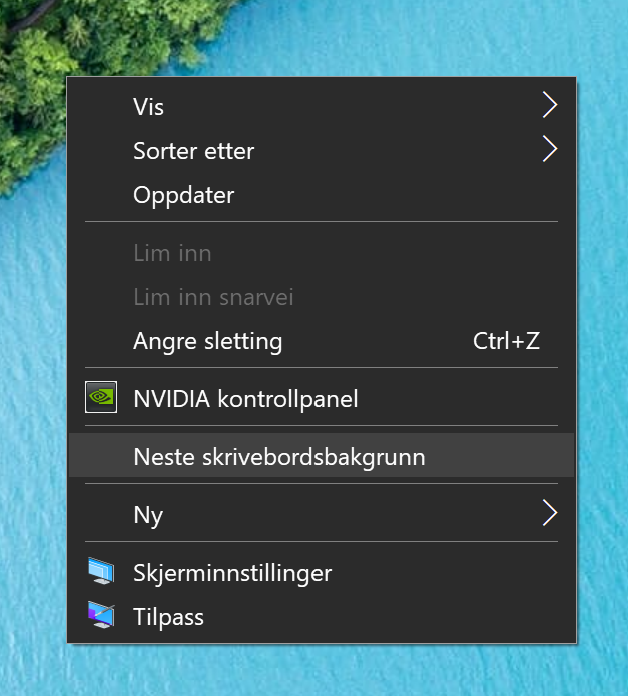
When slideshow is active, you can right-click the desktop and choose Next desktop background to jump to the next image.
Avoid heavy theme tools
Tools that modify the Windows shell, menus, icon packs and system files can cause slowdowns or odd bugs after updates. Prefer built-in settings for colors, dark mode, wallpaper, themes and taskbar. If a guide asks you to replace system files, patch Windows or run unknown scripts for appearance, stop.