
A noisy PC fan can be caused by heat, dust, high load, fan profile settings or worn bearings. Before replacing the fan, find out whether the fan is actually faulty or whether the machine is simply running too hot.
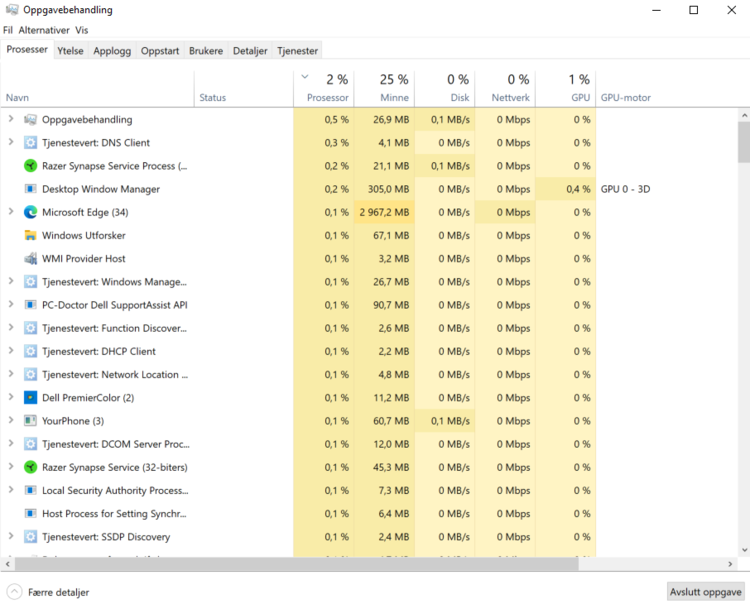
High load makes fans loud
Games, updates, browser tabs, syncing and stuck programs can make the fans spin hard. Check resource usage before assuming the fan is defective.
Open Task Manager and look at CPU usage while you are not doing anything heavy. If the processor stays high over time, for example above roughly 20 percent while the machine should be idle, find the program using resources and stop, update or uninstall it. If CPU usage is low but the fan is still noisy, cooling, fan condition or an aggressive fan profile is the more likely cause.
Some PCs have fan settings in the manufacturer utility or BIOS. Search with the exact model number plus “reduce fan noise” or “fan control” before changing anything, and only follow advice for the same model.
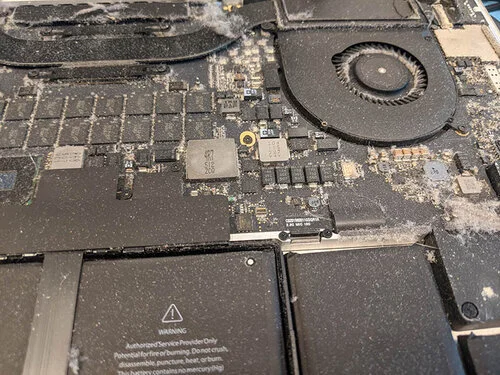
Dust and thermal paste
When heatsinks and air paths are blocked by dust, the fan has to work harder. Old thermal paste can also reduce heat transfer. Cleaning and new thermal paste are often the right fix when temperatures are high.
If the heatsink cannot get airflow, it does not help much that the fan spins faster. The machine can still run hot, slow down or shut off. In that case it should be opened, cleaned properly and given new thermal paste where needed.
When the fan should be replaced
If the fan makes mechanical noise, stops, starts unevenly or gives an error message, it should be replaced. A stopped fan can cause overheating and more serious damage.
Clicking, squealing, scraping or a sound like the fan is hitting something often points to worn bearings. Cleaning alone usually does not fix that long term; the fan should be assessed for replacement.