
The cheapest PC is not always the cheapest over time. In 2026, do not only ask whether a machine can run Windows 11. Ask whether it will feel comfortable for several years, update safely, have enough storage for Windows Update, and avoid locking you into weak hardware that cannot be upgraded.
Microsoft minimum requirements for Windows 11 are useful for compatibility, but they are not a good shopping list. 4 GB RAM and 64 GB storage may be enough to install Windows, but it is too little for a new PC that should run comfortably with browser tabs, online banking, Office, Teams, photos and updates.
1. Start with the job, not the sale sign
Write down what the machine will actually be used for: banking and email, school, home office, many browser tabs, photo work, gaming, CAD, development or video editing. That decides whether battery life, low weight, display quality, keyboard, ports, graphics or maximum performance matters most.
If the old PC is only slow, hot or full, consider diagnosis before buying new. An SSD, more RAM, cleaning or a tidy Windows installation may be cheaper than a new machine. If you are unsure whether repair or replacement makes sense, you can bring the old machine to EasyPC for a free diagnosis before buying anything.
For many laptops, upgrading the machine you already have is a real alternative. A typical upgrade at EasyPC is often around NOK 2,500-4,000, depending on storage size and what needs to be transferred. You get a specific price after diagnosis before we do the work.
Do not recycle the old machine until files, photos, email, browser data, banking setup, software licenses, BitLocker recovery key and any work or school accounts are under control. Data is often easier to move while the old PC still starts.
2. Avoid PCs that only almost support Windows 11
For a new or used Windows PC, Windows 11 support should be real, not based on workarounds. Look for a compatible 64-bit processor, TPM 2.0, UEFI, Secure Boot capability, DirectX 12 graphics and enough storage. On a used Windows 10 machine, check Start > Settings > Update & Security > Windows Update, or use PC Health Check, before buying.
Windows 10 still works technically, but normal support has ended. Do not buy a used PC that can only be used safely with Windows 10 if the goal is normal internet use for several years. If the seller says Windows 11 is installed "unofficially", ask about updates, drivers, BitLocker, TPM, Secure Boot and whether Windows can be reinstalled without special tricks.
On a used Windows 11 PC, the seller should be able to show Settings > System > About, Settings > System > Activation and Windows Update without hidden error messages. Also check Device Manager for yellow warnings. Organization management, work/school management, missing activation or BitLocker without a recovery key should stop the purchase.
3. RAM: 8 GB is minimum, 16 GB is normal
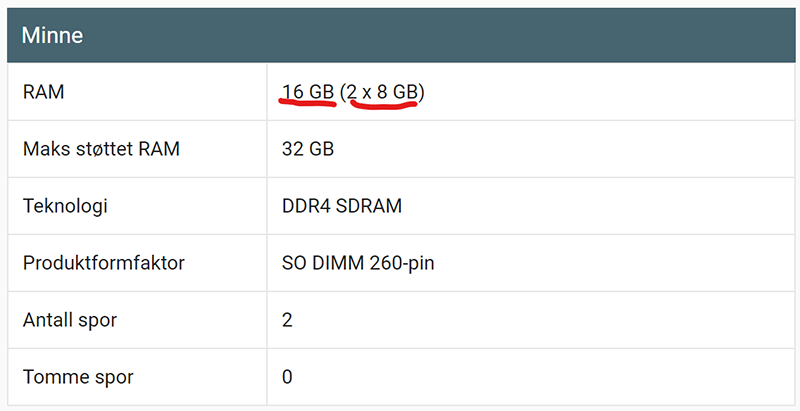
Avoid 4 GB RAM on a new Windows 11 PC. 8 GB can work for simple use, but 16 GB is a better starting point for a machine that should last. Many browser tabs, Teams, banking apps, cloud backup, photos, school work and normal updates use more memory than a simple spec sheet suggests.
Choose 32 GB or more if the machine will be used for heavier photo work, 4K video, development, virtual machines, CAD or larger games. Also check whether RAM is soldered. Soldered RAM is common on thin laptops, and then you must buy enough memory from the start.
Specifications such as 8 GB x 1 or 8 GB x 2 may suggest replaceable memory modules, but do not rely on that alone. Look up the exact model number before buying. If the store does not say whether RAM is soldered or upgradeable, clarify that before paying.
4. Storage: choose SSD, avoid eMMC and tiny drives
Choose SSD, preferably NVMe SSD. Avoid new Windows PCs with a mechanical hard drive as the system drive, and be skeptical of eMMC. eMMC is common in very cheap machines, and is often slow, small and difficult or impossible to replace.

64 GB and 128 GB storage should normally be avoided on a new Windows 11 PC. 256 GB can work for simple cloud-based use, but 512 GB is a more practical start for most people. Choose 1 TB or more if you store many photos, videos, games, large projects or local work files.
A larger SSD also makes it easier to keep enough free space for updates. If you buy a used PC, check drive health and whether the drive is encrypted with BitLocker. Do not buy a machine where the seller cannot sign in, remove accounts or prove that the drive can be erased and Windows reinstalled.
5. Processor: do not trust Core i5 or Ryzen 5 alone
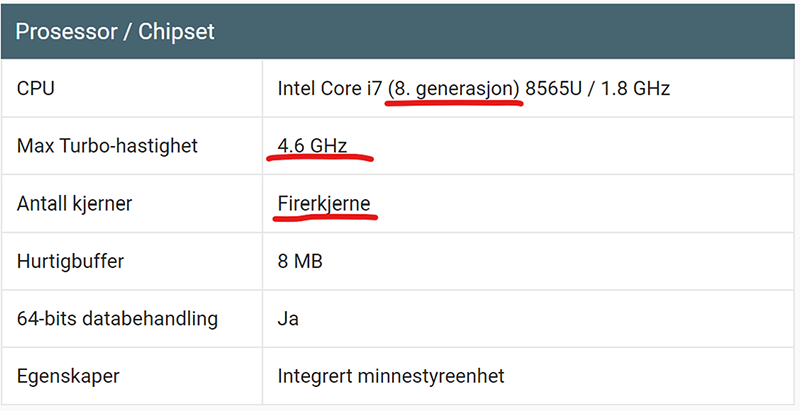
The processor is the general work engine of the computer. Names such as Core i5, Core i7, Ryzen 5 and Ryzen 7 do not say enough by themselves. Check the full model number, generation, core count, whether the chip is built for low power use, and whether that exact laptop can cool it well enough to keep performance up.
A thin laptop with a strong processor can become hot, noisy or slow itself down under load. A slightly thicker model with better cooling can feel faster in real use. Search the exact model together with reviews, temperature, noise and battery life, not only the processor marketing name.
6. Graphics card, Copilot+ and AI PC: pay only for what you use
For browsing, Office, online banking, school and normal home office work, you usually do not need a dedicated graphics card. Dedicated graphics adds price, heat and shorter battery life. It matters for games, 3D, machine learning, CAD or heavy video and photo work.
Copilot+ PC is also a concrete hardware requirement, not just a sticker. Microsoft requires, among other things, an NPU with 40+ TOPS, 16 GB DDR5/LPDDR5 and at least 256 GB SSD/UFS for the Copilot+ PC class. Buy it if you actually need the features, battery life or platform, but do not pay extra for vague AI promises if normal Windows 11 use is the goal.
Many Copilot+ PCs use Arm/Snapdragon processors. They can have strong battery life, but check your exact software before buying: printer drivers, VPN, accounting tools, games, older USB equipment and specialist apps may have their own requirements. If you depend on niche Windows software or old equipment, confirm compatibility in writing before choosing Arm instead of Intel or AMD.
7. S mode, bundled software and accounts
Some cheap Windows laptops ship in S mode. That can be fine for simple locked-down use, but Windows 11 in S mode can only install apps from Microsoft Store. Switching out of S mode is free, but one-way. If you need banking software, older printer software, specialist tools or apps outside the Store, check this before buying.
You can usually check S mode under Settings > System > Activation. Switching out of S mode goes through Microsoft Store and cannot be undone. If a seller or shop says "you can just fix that later", first confirm that your apps will actually work outside S mode and that you are comfortable making a one-way choice.
Also be skeptical of trials, extra antivirus and optimizer apps that push paid subscriptions. Windows Security is enough for many home users, and a clean Windows installation can make a new PC noticeably better. Do not pay extra for a "service app" you do not understand or need.
8. Display, keyboard, ports and Wi-Fi
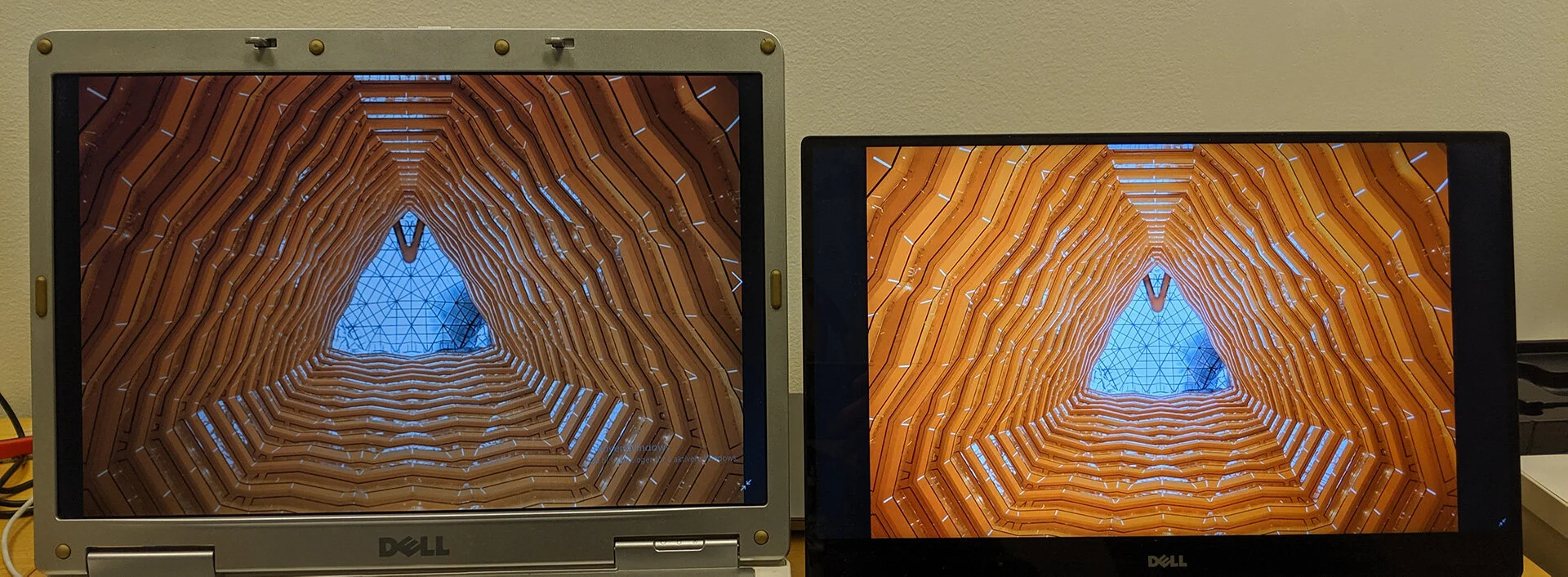
The display is something you notice constantly. On new laptops, Full HD, meaning 1920 x 1080, should be the minimum. IPS or OLED usually gives better viewing angles and colors than cheap TN panels. Also check brightness, matte or glossy finish, aspect ratio and whether the display is comfortable for text.
Test the keyboard, trackpad and hinges if you can. Poor hinges, weak plastic and too much display-lid flex are signs that the machine may not handle daily use well. Also check ports: USB-C charging, HDMI, card reader, headphone jack, USB-A, Thunderbolt/USB4 or Ethernet if you actually need them.
Do not assume every USB-C port can charge the PC. Look for USB-C Power Delivery, the correct charger wattage, and whether charging works on the port you will actually use. If you need a 4K monitor, dock or multiple displays, check HDMI version, DisplayPort over USB-C, Thunderbolt/USB4 and charger requirements before buying.
Wi-Fi 6 is fine for many users, while Wi-Fi 6E and Wi-Fi 7 can help with the right router. Microsoft says full Wi-Fi 7 functionality in Windows 11 requires Windows 11 version 24H2 or later, a compatible network adapter, drivers and a Wi-Fi 7 router. Do not pay much extra for wireless networking you cannot use at home.
9. Used or refurbished: check locks and battery before paying
On a used PC, the seller should be able to show that the machine starts, charges and has a working keyboard, trackpad, camera, Wi-Fi, sound, USB ports and display. Check battery health, charger, service history, serial number, physical damage and whether there is a BIOS password, management lock, BitLocker, school/work account or remote management.
If the seller allows it, run `powercfg /batteryreport` from Terminal or Command Prompt and compare Design capacity with Full charge capacity. Also test whether the machine starts without the charger, charges reliably when the cable is moved gently, and does not become hot near the charging port. Poor battery life is not always a dealbreaker, but it must be reflected in the price.
Do not buy a machine you cannot test, a PC stuck on a BitLocker screen without the key, or a machine where the seller cannot remove accounts and passwords. If you buy used to save money, keep some budget for a new SSD, battery, charger or cleaning if the condition is uncertain.
For store refurb, ask about warranty, battery threshold, original charger, return rights, keyboard layout, refurbishment grade and whether Windows is activated with a valid license. For private sales, meet the seller, test on site and avoid machines with locked BIOS, remote management, liquid damage, swollen battery, broken hinge or unclear ownership history.
Short checklist before buying
Prefer: real Windows 11 support, 16 GB RAM, 512 GB or larger NVMe SSD, good display, solid hinge, comfortable keyboard, the right ports, documented working USB-C charging, good battery life and little unnecessary software. Usually avoid: 4 GB RAM, 64/128 GB storage, eMMC, very low display resolution, unclear used-PC history, Windows 11 only through a workaround, BIOS password, BitLocker without key and machines you cannot test.
Bring the old PC to EasyPC for a free diagnosis if you are unsure whether slowness, battery, display, charging, drive, heat or Windows faults make replacement necessary. Then you can compare the real repair cost with the cost of a better new machine.