
When a PC will not start, the first job is to place the fault correctly. A completely dead PC, a PC with lights but black screen, a PC that stops at the manufacturer logo, and a Windows 11 machine that goes to BitLocker, blue screen or Automatic Repair need different troubleshooting.
Do not start with reinstallation, BIOS changes or disk repair just to try something. Microsoft describes Windows Recovery Environment as the place for Startup Repair, Startup Settings, Uninstall Updates, System Restore and Reset this PC. Some choices can remove apps, settings or files, so clarify backup and BitLocker before going further.
1. Stop first if there is damage or data risk
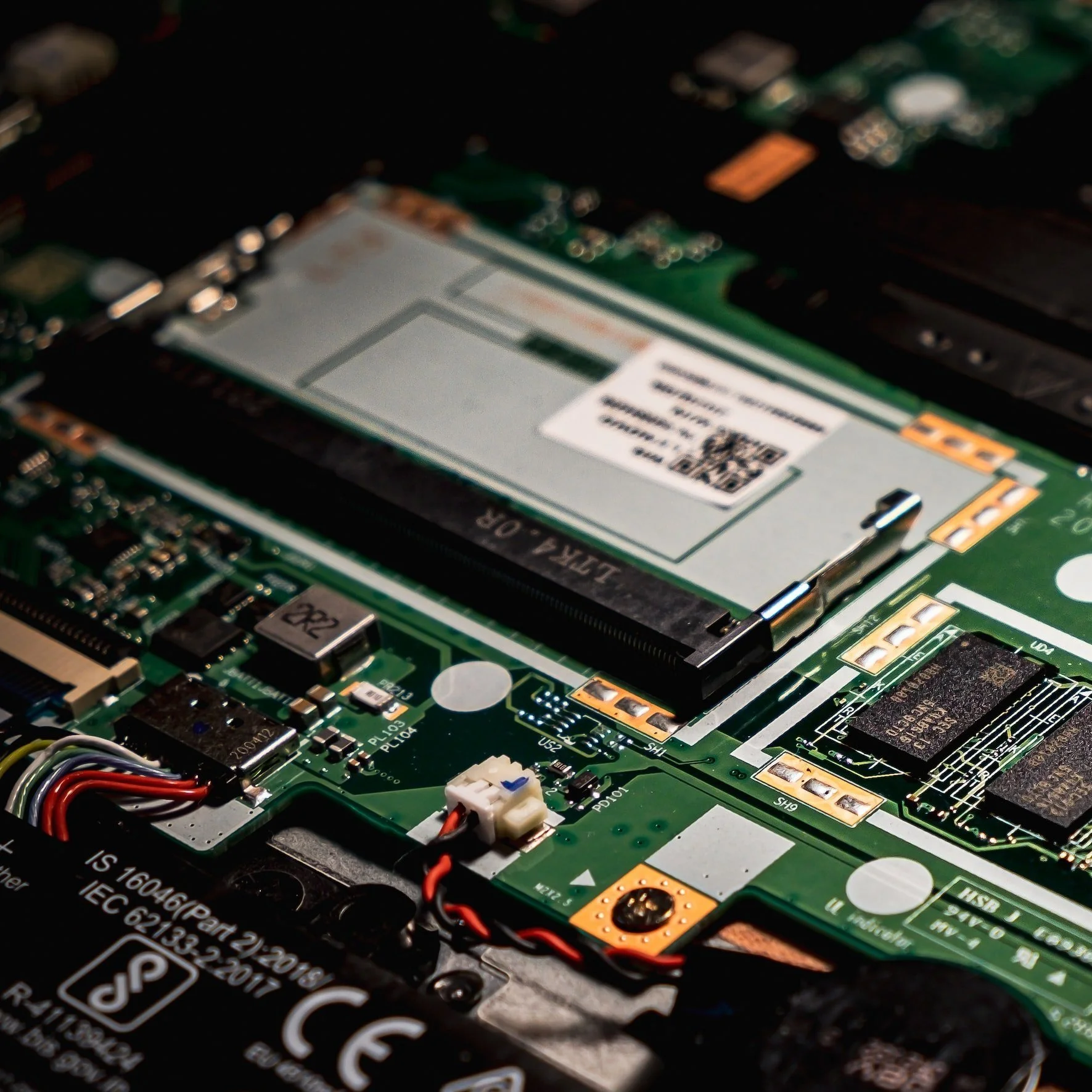
Disconnect the charger or power cable and stop normal troubleshooting if the machine had liquid inside, smells burnt, makes a popping sound, gets warm without starting, has a swollen battery, clicks from the hard drive, or contains important files without backup. More startup attempts can make a weak drive, short circuit or liquid damage worse.
This is a good point to bring the PC to EasyPC for a free diagnosis. We can check power, charger, battery, charging port, SSD, RAM, motherboard and data before anything is done that could lock or delete files.
2. Completely dead, lights but black screen, or Windows fault?
Press the power button and watch exactly what happens. No lights, no fan and no charging light point toward charger, power supply, charging port, battery, power button or motherboard. Lights, fans or keyboard backlight with black screen more often point toward display, RAM, graphics, BIOS/UEFI or startup before video appears.
If you see the manufacturer logo, Windows logo, spinning dots, BitLocker, a blue error code, "No boot device" or Automatic Repair, the PC has power. The next step is Windows and drive troubleshooting, not just a new charger.
3. Check power without opening the machine
On a laptop: use the correct charger, test directly in a wall outlet, disconnect docks and USB accessories, and leave a fully empty machine charging for 10-15 minutes. Hold the power button for about 20-30 seconds, release, connect the charger and try again. If the charging port is loose or hot, do not twist the cable to get contact.
On a desktop PC: test another power cable and wall outlet, check the switch on the back of the power supply, and look for standby lights on the motherboard or network port. If a breaker trips, the power supply clicks, or it smells burnt, unplug and stop. Do not open the power supply itself.
4. If the PC has lights but the screen is black
Connect an external monitor or TV directly with HDMI, DisplayPort or USB-C without a dock if possible. Select the correct input on the monitor. If Windows may have started, press Windows + P, press P once more and Enter to change display mode. You can also try Windows + Ctrl + Shift + B to restart the graphics driver.
On a desktop PC, the monitor cable must go into the graphics card if the machine has a dedicated graphics card, not into the motherboard display output. If external image works, the fault points toward the internal display, cable, backlight or display setting. If no display works anywhere, continue to RAM, graphics card, BIOS/UEFI or motherboard.
5. Disconnect accessories and assess RAM carefully
Remove USB devices, memory cards, external drive, docking station, extra monitors and other accessories. Start with only power and one display. If the PC starts then, reconnect one item at a time until you find what blocks startup.
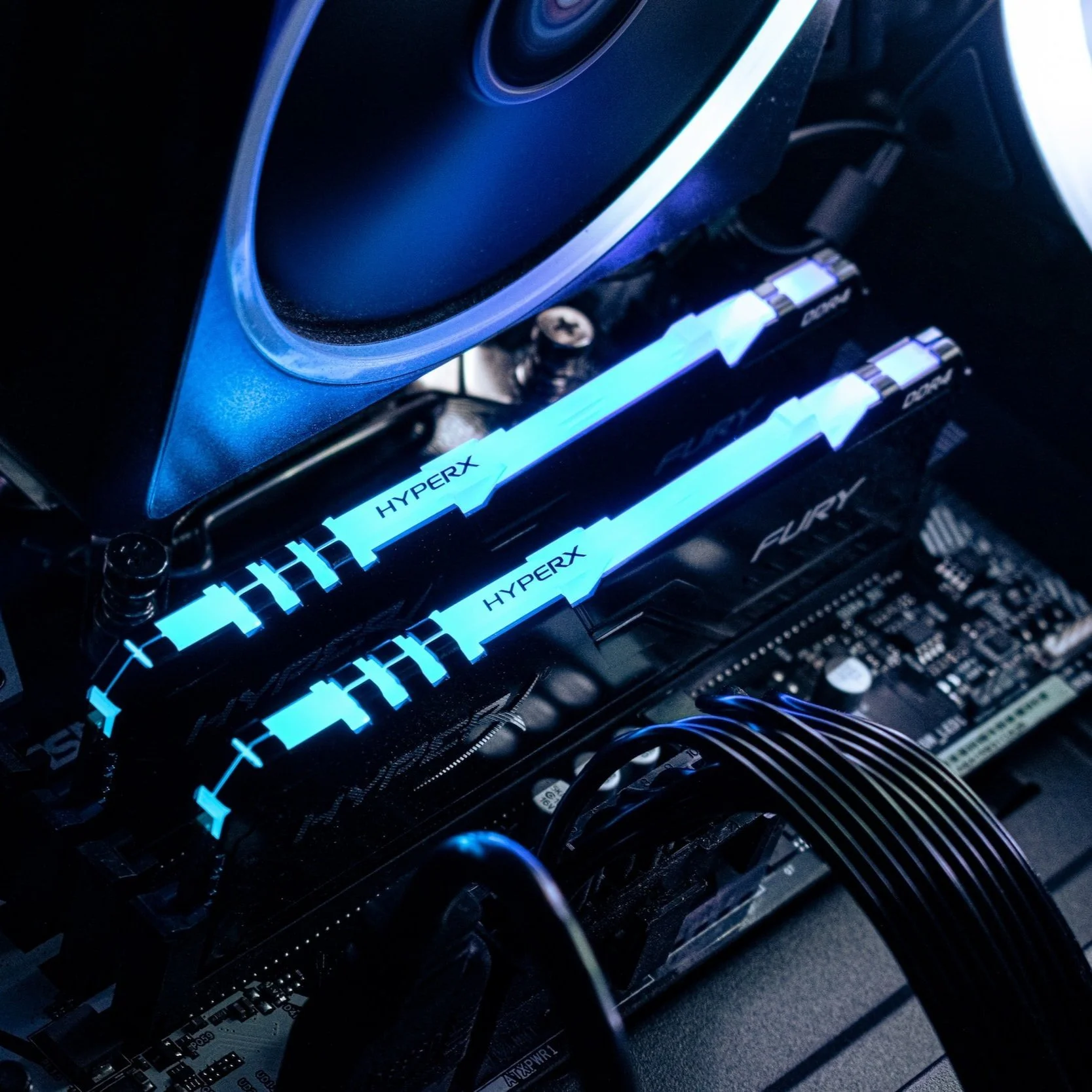
Poor RAM contact can prevent startup or give a black screen. On desktop PCs, RAM can often be removed and reseated, or tested with one stick at a time in the recommended slot from the motherboard manual. On laptops it varies a lot: some have accessible RAM, others have soldered memory or require full disassembly. Always disconnect power first, and do not open the machine if you are not comfortable with the job.
6. If Windows 11 starts loading but stops
If the PC reaches the manufacturer logo, Windows logo, spinning dots, blue screen or Automatic Repair, power is probably not the main issue. Take a photo of the error or stop code. To enter Windows Recovery Environment, interrupt startup twice: start the PC, wait for the Windows or manufacturer logo, hold the power button until it turns off, and repeat. On the third start, Automatic Repair should often appear. Choose Advanced options. Do not repeat this many times if the drive clicks, the machine gets hot or files are not secured.
If Windows still reaches sign-in, you can hold Shift while choosing Power > Restart. If you have a Windows USB, choose Repair your computer, not Install now, when the goal is repair.
7. Use Advanced options in a safer order
Try Troubleshoot > Advanced options > Startup Repair first. Microsoft describes this as a built-in tool for common startup problems such as damaged system files, boot data and some driver issues. If the fault started after an update, try Uninstall Updates. If System Restore exists, it can roll back system files and drivers without being the same as a full reset.
For Safe Mode, go to Startup Settings > Restart and choose 4/F4 for Safe Mode or 5/F5 for Safe Mode with Networking. If Windows starts in Safe Mode, back up files first. Then remove the latest graphics driver, antivirus, VPN, startup app or update. If the fault does not happen in Safe Mode, it often points toward a driver, service, startup app or recent program.
On newer Windows 11 installations, Advanced options may also show Quick Machine Recovery. Microsoft describes this as cloud-based repair for known, widespread startup issues: WinRE connects to Microsoft through Ethernet or supported Wi-Fi and downloads a targeted repair if one exists. Try it before reset when the option is available and networking works, but do not treat it as backup, data recovery or proof that the SSD is healthy.
8. BitLocker, drive and BIOS: stop before files are lost
Many newer Windows 11 machines have device encryption or BitLocker. If you are asked for a 48-digit recovery key, note the key ID and find the matching key through https://aka.ms/myrecoverykey, a work or school account, a printout or a USB drive. Microsoft Support cannot recreate a lost BitLocker key for you.
Do not randomly switch between UEFI/Legacy, RAID/AHCI, Secure Boot or TPM to see whether the PC starts. Those changes can stop a Windows installation that could otherwise be repaired, and can trigger BitLocker. If BIOS/UEFI does not show the SSD/hard drive, if the drive clicks, or if the screen says "No boot device", do not reset or reinstall Windows before data is assessed.
9. Reset and reinstall are last resorts
Reset this PC can help when Windows is damaged, but it is not a data recovery tool. Keep my files reinstalls Windows and removes apps and settings. Remove everything deletes personal files, apps and settings. Microsoft recommends backup and the BitLocker key before reset.
If Windows starts again and the real goal is a Windows 11 upgrade or repair install without deleting everything, one advanced method is to download the official Windows 11 ISO from Microsoft, right-click the ISO > Mount, open the new drive and run `setup.exe /product server` from Terminal or Command Prompt in that drive. The window may say Windows Server Setup, but confirm that the choice is Keep personal files and apps before continuing. This is an unofficial workaround: use it only with a fresh backup, BitLocker key, power connected and a stable drive, never on a PC with suspected drive failure.
When should you bring it in?
Bring it in if the PC has liquid damage, burnt smell, clicking drive sounds, a BitLocker key you cannot find, important files without backup, loose charging port, black screen with no external image, or if power supply, motherboard, RAM and graphics card can all be possible causes. A free diagnosis gives a better answer than random parts replacement, BIOS changes or reset.