
A black screen does not always mean the display is broken. First place the fault in the right category: the PC has no power, the PC lights up but never shows a logo, Windows shows a logo but stops, or Windows has started but the desktop is black.
The order matters. A wrong cable, wrong display output or wrong display mode can be simple. Liquid damage, drive failure, BitLocker, reset or BIOS changes can make data inaccessible if you keep trying random fixes for too long.
1. Stop first if there is liquid, smell, heat or important files
Do not continue repeated startup attempts if the machine has had liquid inside, smells burnt, gets hot near the charging port or motherboard, the drive clicks, or important files are on a possibly damaged drive. Disconnect the charger and avoid more testing until the machine has been assessed.
If you need the files, do not start with reset, reinstall, chkdsk or deleting partitions. Bring the PC to EasyPC for a free diagnosis instead, so we can assess data, drive and cause before anything risky is done.
2. Find out whether the PC actually starts
Look for signs of life: fan, keyboard light, charging indicator, Caps Lock light, startup sound or manufacturer logo. If Caps Lock or Num Lock reacts when pressed, the machine is probably alive, and the fault is more often display, graphics, driver or display mode. If no lights or keys react, start with power, charger, battery and motherboard instead.
Disconnect USB devices, USB-C hubs, dock, external drives, memory cards, printers and extra displays. Hold the power button for about 20 seconds, wait briefly, connect the correct charger or power cable and try again. On a desktop PC: check that the monitor has power, the correct input and a firmly connected cable. If the PC has a dedicated graphics card, the display cable normally belongs in the graphics card, not the motherboard video output. Try another HDMI or DisplayPort cable if you have one.
3. If Windows may be running but the picture is black
Press Windows + Ctrl + Shift + B. Windows then tries to restart the graphics driver. If it works, you may hear a beep or see the screen flicker. This fits especially when the machine is on, the keyboard responds, but the picture is gone.
Press Windows + P, press P once more and then Enter. Repeat calmly a couple of times. This switches between display modes such as PC screen only, duplicate and extend. It can help if Windows sends the image to the wrong display.
Press Ctrl + Alt + Delete. If the security screen appears, Windows is running. Open Task Manager, find Windows Explorer and choose Restart. If Windows Explorer is not listed, choose File > Run new task, type `explorer.exe` and press Enter. If the desktop returns, back up files before changing drivers, updates or startup apps.
4. Test an external monitor and backlight
Connect an external monitor or TV and wait briefly. Confirm the correct monitor input, brightness and cable. On some laptops you need the correct USB-C port with display support, the HDMI port, or an Fn key for display switching. If an external monitor shows image, the fault points toward the internal display, display cable, backlight, lid sensor or panel. Use the external monitor to back up files before the machine is opened or the display assembly is flexed more.
Shine a flashlight at an angle toward the laptop screen. If you see a very faint image, the backlight or display power may be the problem. If the image appears and disappears when the lid moves, the display cable, hinge area or the display itself is often involved.
5. If the black screen started after an update or driver
If the picture disappeared after Windows Update, a graphics driver, a new program or a display setting, try Windows Recovery Environment. Interrupt startup two to three times by holding the power button when Windows begins to start. Microsoft points to Startup Repair as the first choice when Windows does not start or keeps loading: Troubleshoot > Advanced options > Startup Repair.
If Startup Repair does not help, go to Troubleshoot > Advanced options > Startup Settings > Restart. Try 3/F3 for low-resolution video, 4/F4 for Safe Mode or 5/F5 for Safe Mode with Networking. If the display works there, the cause points toward driver, resolution, refresh rate, startup app or Windows fault. In Safe Mode, open Device Manager > Display adapters and roll back or uninstall the recent graphics driver.
You can also try Advanced options > Uninstall Updates or System Restore if the fault started recently. On newer Windows 11 installations, Advanced options may also show Quick Machine Recovery, which can download a Microsoft remediation from Windows Update for known, widespread startup problems when networking works. Use it before reset if the option is available, but not as a replacement for backup or data recovery.
If Windows needs the BitLocker recovery key, find it first. Microsoft describes the key as 48 digits, and Microsoft Support cannot retrieve or create a lost key. Note the first 8 digits of the key ID on screen and check https://aka.ms/myrecoverykey, a work or school account, printout or USB drive. Do not reset the PC before you know the files are safely stored.
If Windows actually starts stably again and the goal is a repair install or Windows 11 upgrade without deleting apps and files, an advanced in-place method is to mount an official Windows 11 ISO inside Windows and run `setup.exe /product server` from Terminal or Command Prompt in the mounted drive. Confirm that Setup offers Keep personal files and apps before continuing. Do not use this with suspected drive failure, heat shutdowns, an unstable machine, missing backup or unclear BitLocker status; bring the PC to EasyPC for a free diagnosis instead.
6. If the screen is black before any logo appears
If the machine lights up but never shows a manufacturer logo on the internal or external display, the fault is often before Windows: RAM, graphics, BIOS/UEFI, power supply, motherboard or a shorted component. On a desktop PC, the wrong display port, loose RAM or a loose graphics card can cause the same symptom. Note beep codes, blink patterns or motherboard error LEDs before powering off.
If you are comfortable opening a desktop PC, shut it down fully, unplug the power cable, press the power button once to drain residual power, and be careful with static electricity before reseating RAM and graphics card in a controlled way. Never open the power supply itself. On a laptop, you normally should not open the machine without model-specific guidance. Many modern laptops have adhesive, hidden clips and a battery that must be disconnected safely.
If the screen shows a blinking cursor, No boot device or similar message, BIOS/UEFI cannot find the correct startup drive. Do not randomly switch Legacy/UEFI, RAID/AHCI or Secure Boot. Those changes can stop an existing Windows installation and trigger BitLocker. If the drive is missing in BIOS or files are important, stop and have the drive and data assessed.
7. When the screen is physically damaged
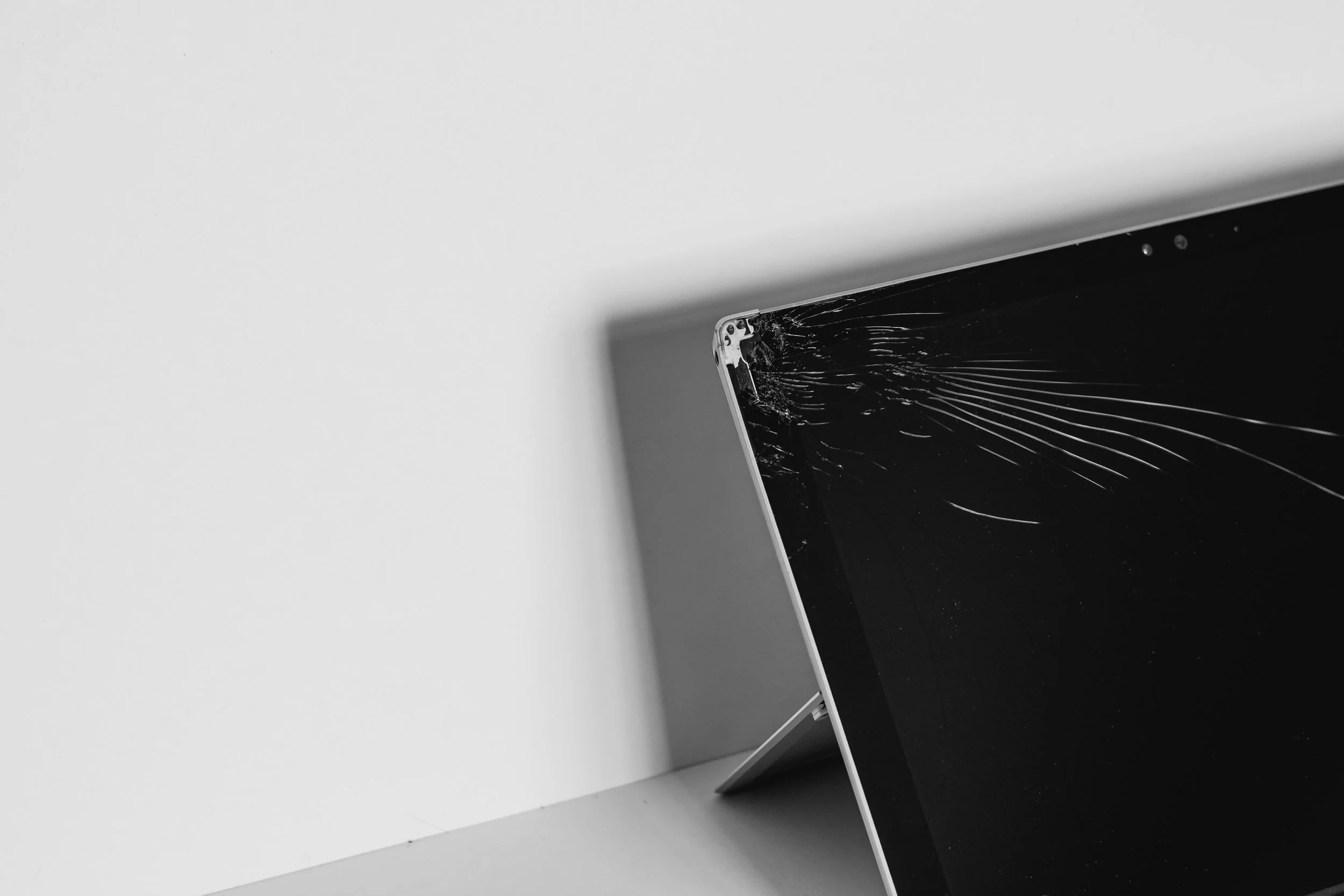
Cracks, ink-like spots, color lines, flickering or an image that changes when the lid moves can indicate the display, display cable or backlight. Do not press the lid together and do not keep bending the display to get an image. Back up through an external monitor if possible. Price depends on panel type, size, resolution and model.
What we check at the workshop
We test power, display, external video output, backlight, display cable, RAM, drive or SSD, graphics and motherboard before recommending parts replacement. The goal is to avoid buying a screen if the real problem is Windows, RAM, drive, graphics or motherboard.
Bring the PC in for a free diagnosis if an external monitor also shows no image, the BitLocker key is missing, the machine has important files, it has had liquid or impact damage, or you are unsure whether it should be opened. Then you know what is actually wrong before deciding on repair.