
A PC that keeps freezing can have software issues, but the cause is often the drive, RAM, heat, drivers or power. The key is to separate occasional sluggishness from a machine that fully locks up.
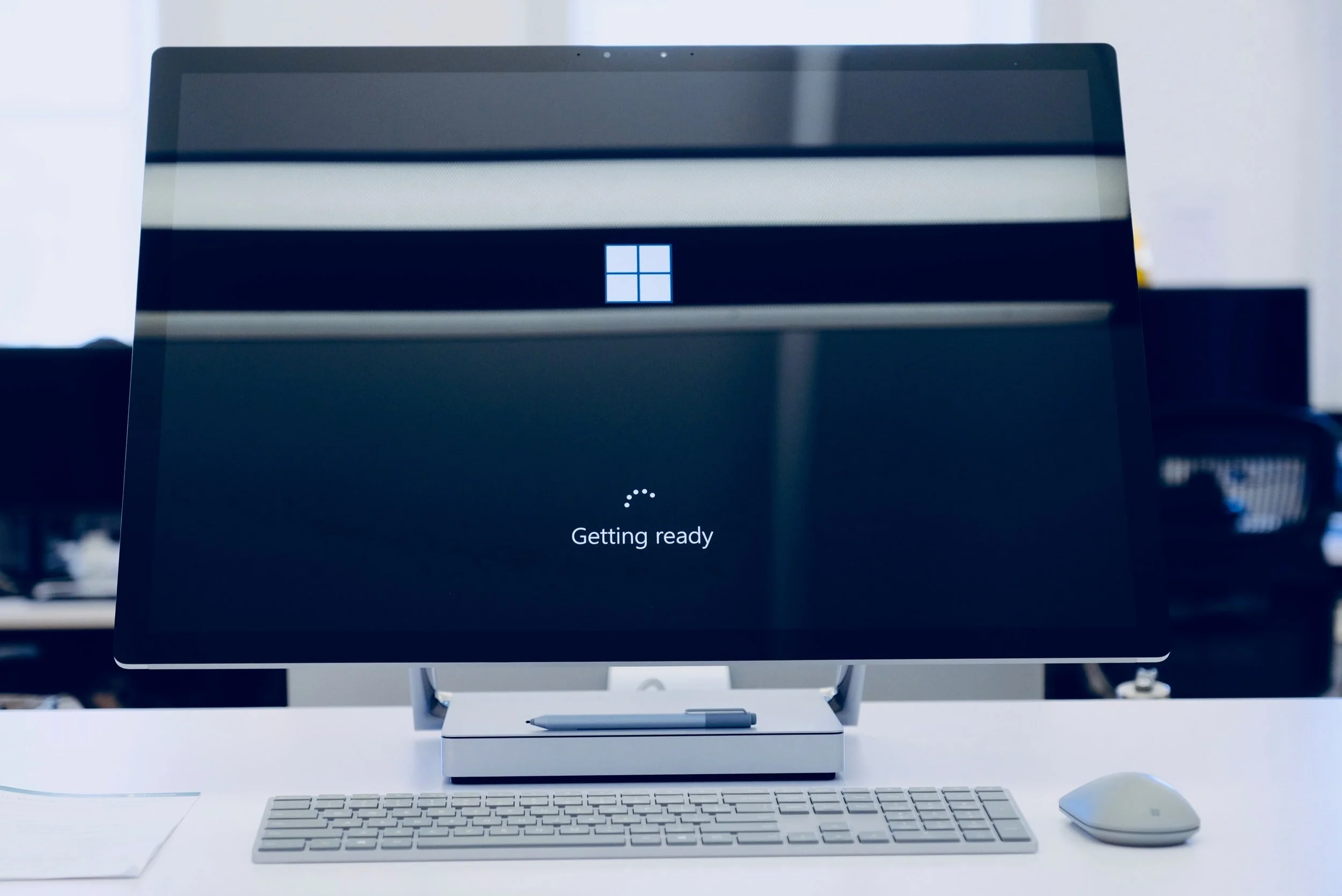
Start with the symptom
If only one program freezes, that program may be the issue. If the whole machine locks up, the mouse stops, or you have to hold the power button, hardware and Windows should be checked more thoroughly.
Check the simple things before reinstalling
Before reinstalling Windows, check whether the problem appears after a specific program, a browser with many tabs, low free storage or malware. Sometimes cleanup, uninstalling the problem app or freeing space is enough.
Drive and storage are common causes
A worn hard drive or SSD with faults can cause slow startup, programs that stop, blue screens or missing files. Back up before running heavy repair attempts if the files are important.
Even when a drive is damaged, the content can often be recovered if you stop early enough. Avoid repeated restarts, large copy jobs and new install attempts on the same drive before the most important files are secured.
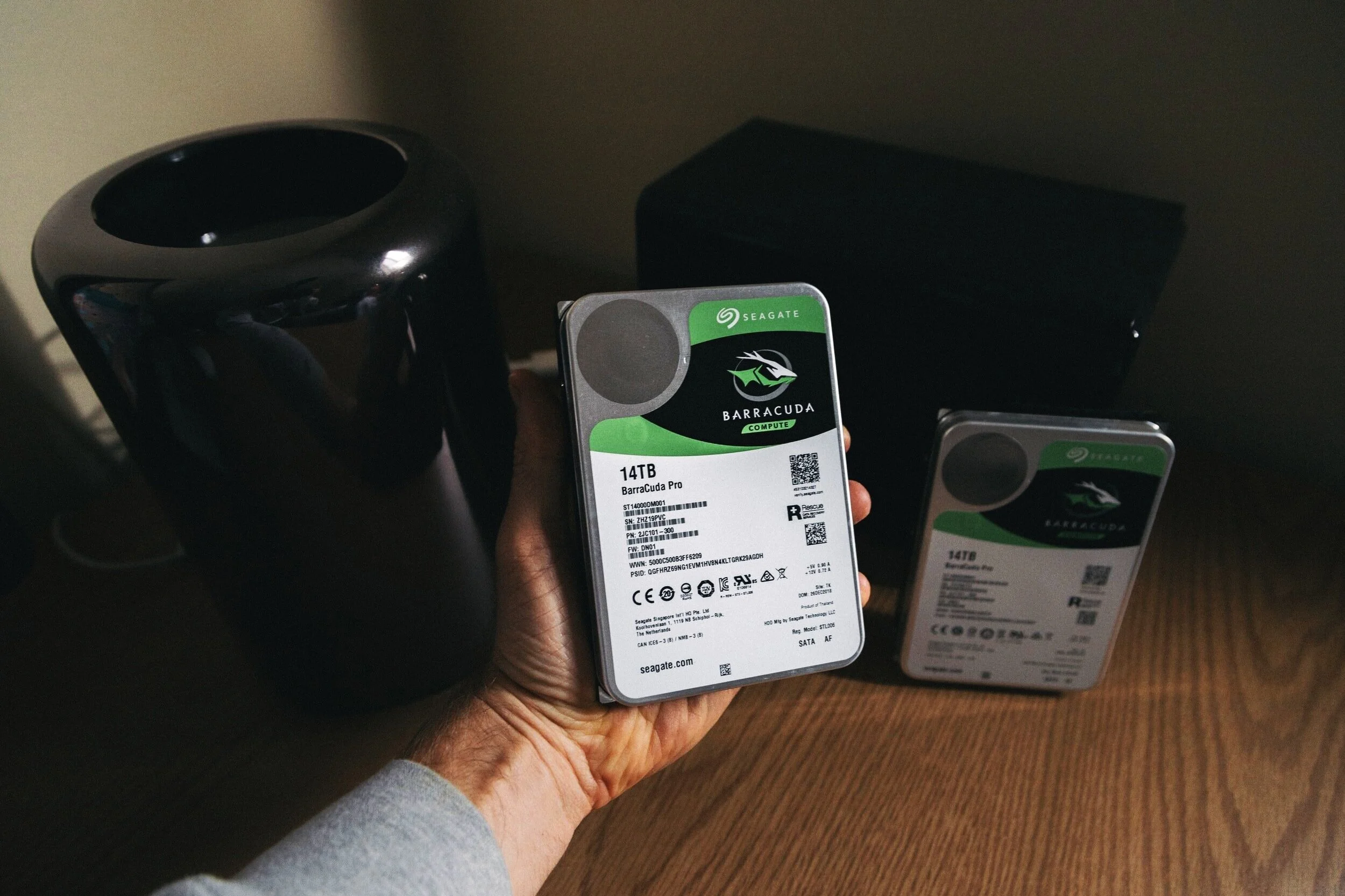
If the PC has a mechanical hard drive, drive failure is one of the first things to rule out. Sometimes a clean Windows installation is enough, but if the drive has bad sectors or declining health, it should be replaced before reinstalling the system.
Heat, RAM and drivers
Overheating can make the PC throttle or stop. RAM faults can cause random crashes. Bad drivers can freeze the system when using display, audio, network or external monitors. Logs and testing decide what should be done.
Should you reinstall Windows?
A clean Windows installation can help with software faults, but it can delete files if done incorrectly. If the machine contains important files or may have drive damage, backup and drive health should be checked first.
Use official installation media on USB, boot from the boot menu and choose the correct drive. Stop if you see several drives or partitions and are not sure which one contains your files. The wrong choice can erase everything.
When a new drive is the right fix
If the machine freezes during copying, makes clicking sounds, takes an extremely long time to start, or Windows installation fails repeatedly, a new drive is often better than more software attempts. An SSD can also make an older PC noticeably faster.
When to stop and get diagnosis
Stop if the files are important, if the machine gets worse with each attempt, or if it shuts down during testing. It is safer to assess drive, RAM, temperature and power before continuing.