
Liquid damage on a laptop, PC or Mac is first about power and time. Liquid near the motherboard, battery, charging port, keyboard or SSD can cause shorts while the machine has power, and corrosion can develop even if the machine appears normal at first.
The goal is not to get the machine to start. The goal is to make it safe, prevent more damage and protect files. If the machine contains important data, or you are unsure about the BitLocker or FileVault key, this is a good point to bring it to EasyPC for a free diagnosis.
1. First minute: shut down and disconnect everything
Hold the power button until the machine is fully off. Unplug the charger from both the wall and the machine. Disconnect USB equipment, docking station, external displays, memory cards and external drives. Do not press more keys to test whether it still responds.
On a desktop PC: turn off the switch on the back of the power supply if it has one, unplug the power cable from the wall, and do not open the power supply itself. If liquid entered through the top, rear fan, front panel or USB ports, do not start the PC to look for lights. The power supply, graphics card and motherboard can be damaged further by one extra test start.
If the battery can be removed without opening the machine, remove it. If the battery is internal, swollen or the machine must be unscrewed, do not disassemble it under stress. Put the machine on a dry towel with the opening or spill point positioned so liquid can drain out, but do not shake it hard.
Write down the time, liquid type and where it hit: keyboard, vent, charging port, display hinge, underside or bag. Coffee, soda, beer, salt water and sugary liquid are more aggressive than clean water because they leave residue and conduct electricity better.
2. Do not charge, do not power on, do not "just test"
Do not reconnect the charger until the machine has been checked or you are completely sure the connectors are dry. Apple warns that charging with a wet Lightning or USB-C connector can cause corrosion and permanent damage to pins and cables. The same principle applies to USB-C charging on laptops.
If the machine smells burnt, gets warm without starting, makes sounds from the battery, or the casing bulges, place it on a non-flammable surface and keep it away from paper, fabric and sofas. Do not puncture or bend the battery. If there is smoke or fire, safety comes before repair.
3. Do not put the PC in rice
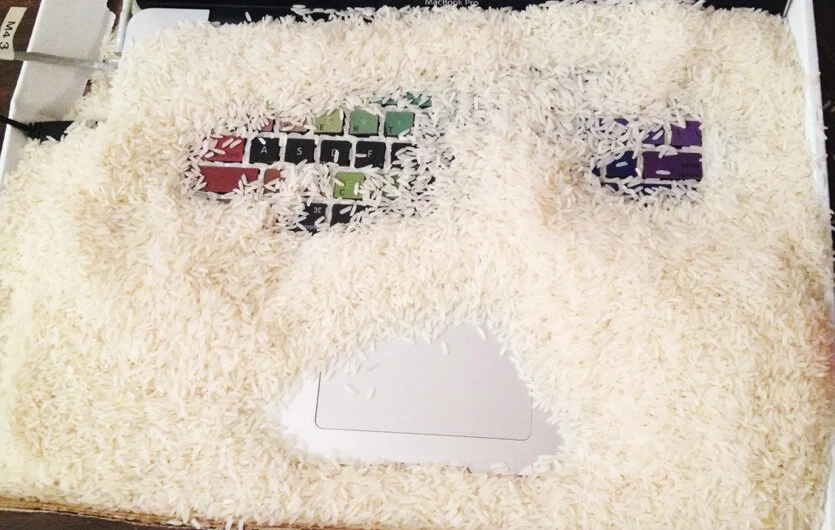
Rice does not dry the inside of a laptop quickly enough, and it can leave dust and particles in ports, keyboards and fans. Apple also says rice can damage a wet iPhone because small particles can get into the device. A laptop has even more openings and more exposed electronics.
Do not use a hair dryer, oven, space heater or compressed air. Heat can deform plastic, damage the battery and drive liquid farther in. Compressed air can push liquid under chips and connectors. Drying the outside is good, but the inside needs proper assessment.
4. When it "works" afterwards
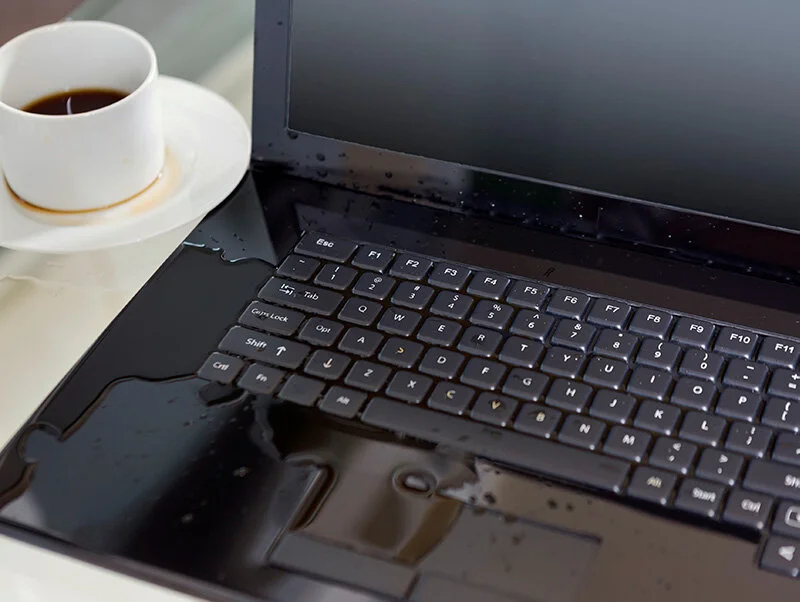
A machine that starts afterwards is not necessarily safe. Liquid can remain under the keyboard, touchpad, display connector, RAM, SSD or motherboard shields. Corrosion can show up later as random shutdowns, keyboard faults, charging faults, black screen or drive problems.
If you absolutely must retrieve files and the machine actually starts, copy the most important documents first to an external drive or cloud storage. Do not run Windows Update, stress tests, virus scans, chkdsk, reset or reinstall on a liquid-damaged and unstable machine. Every extra operating hour can make file recovery harder.
5. Data, BitLocker and passwords before repair
Tell the workshop immediately if files are important. Many Windows 11 machines use device encryption or BitLocker. Microsoft describes the BitLocker key as a 48-digit recovery key, often stored in a Microsoft account, work/school account, printout or USB drive. If the key is missing, data handling must be planned before changing drive or motherboard state.
Do not reset the PC to "fix" liquid damage. Microsoft separates reset from reinstall: reset can keep personal files but removes apps and settings, while reinstalling from installation media usually removes files, apps and settings. Liquid damage is not fixed by a Windows reset anyway.
6. What EasyPC checks during free diagnosis
We open the machine carefully, disconnect the battery if safe, look for liquid and corrosion, and assess keyboard, touchpad, charging port, display cable, SSD, battery and motherboard. The first goal is to see whether data can be secured, whether the machine is safe to test, and whether repair is worth it.
When should a workshop inspect it?
Bring it in quickly if liquid reached the keyboard, vents, charging port, display hinges, underside or bag, if the liquid was coffee/soda/beer/salt water, if the machine does not start, if the battery is hot or swollen, or if the files are important. A free diagnosis is safer than rice, heat or repeated test starts.