
A slow PC does not always mean the computer is finished. Common causes include startup apps, low free storage, an aging hard drive, too little RAM, overheating or Windows errors. Some of this can be checked before you buy a new machine.
This guide is updated for current Windows machines. Windows 10 has reached end of support from Microsoft, so older advice about installing Windows 10 is no longer the right default. For compatible machines, Windows 11 should be the first choice.
1. Remove unnecessary startup apps
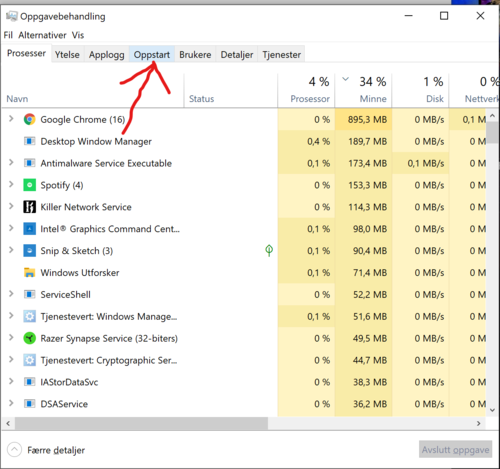
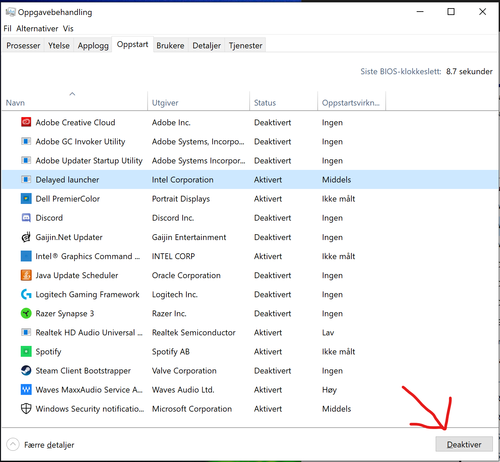
Apps that start with Windows can make the machine slow from the first minute. Open Task Manager, go to Startup apps and disable programs you do not need immediately. Do not disable security software or drivers you do not recognize.


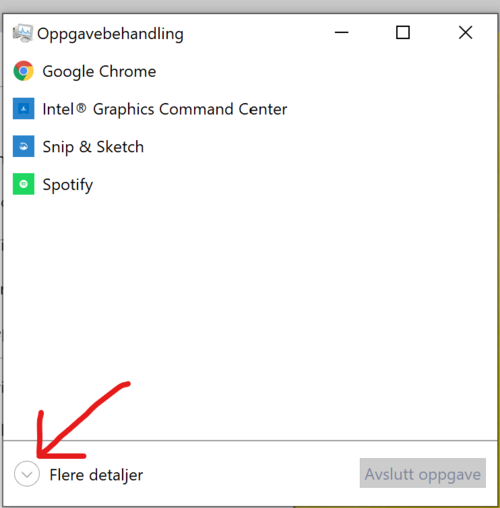
If Task Manager only shows a small window, click More details. Then open Startup or Startup apps. Look for programs with high startup impact and disable the ones you recognize and do not need every time the computer starts.
2. Clean up storage and programs
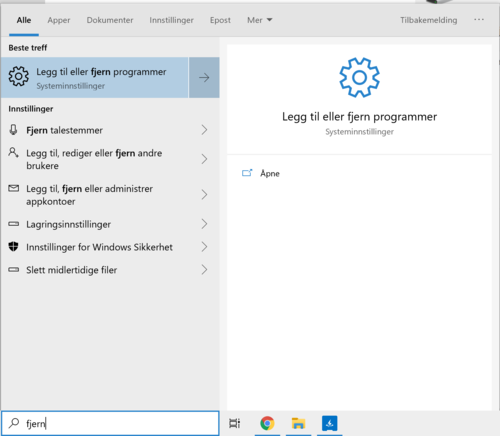
Low free space can make Windows sluggish, especially when the drive is nearly full. Remove programs you do not use, clear downloads, and move photos or video to an external drive or cloud storage. Back up important files before deleting large folders.
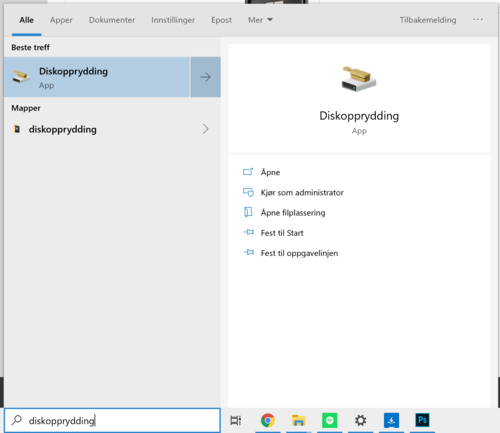
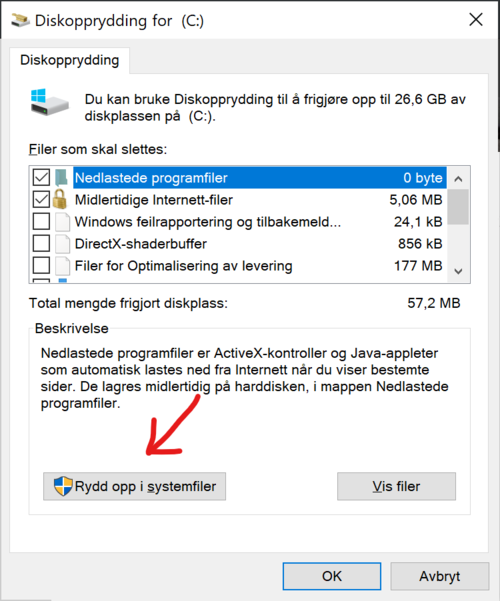
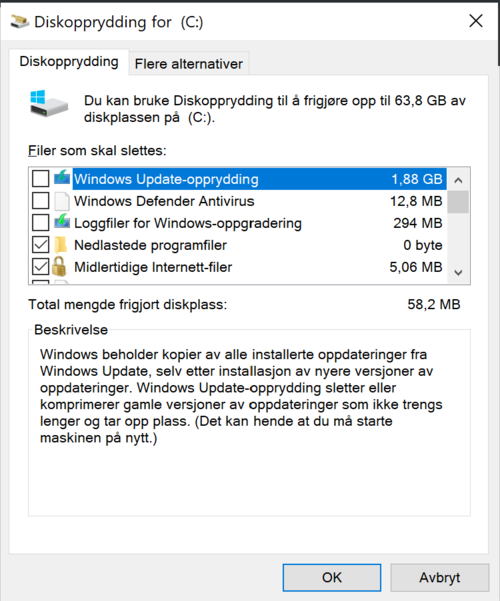
Start with Disk Cleanup or Storage Sense in Windows. Search for Disk Cleanup from the Start menu, choose system files if offered, and read what each category means before deleting it. Be especially careful with Downloads, since many people keep important files there.
3. Check drive, RAM and heat
An old hard drive is one of the most common causes of slow startup and programs that take a long time to open. Upgrading to an SSD can make a major difference on older machines. Limited RAM can also slow down multitasking, while dust and old thermal paste can make the CPU reduce speed to avoid overheating.
For basic office use, 8 GB of RAM is often a practical minimum, while heavier browser use, photo editing and many apps at once usually need more. If the machine still has a mechanical hard drive, an SSD is often the single upgrade you will feel the most.

4. Consider a clean Windows installation
If the machine has many old programs, errors or failed updates, a clean Windows installation can help. Always back up first. On machines that do not support Windows 11, get a concrete assessment before spending money on software work.
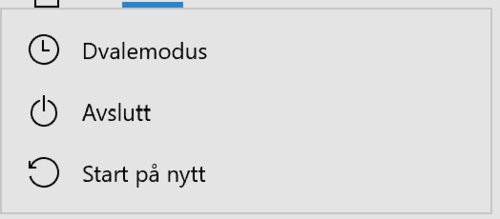
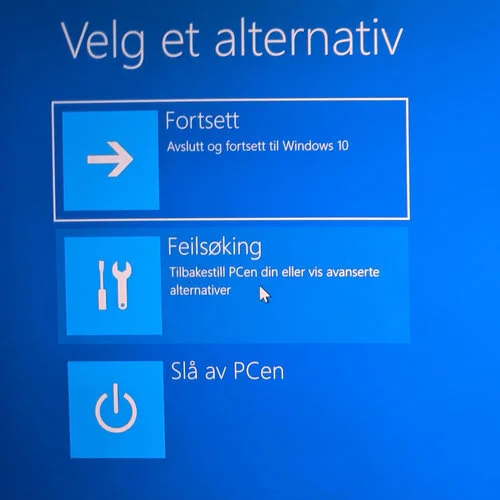
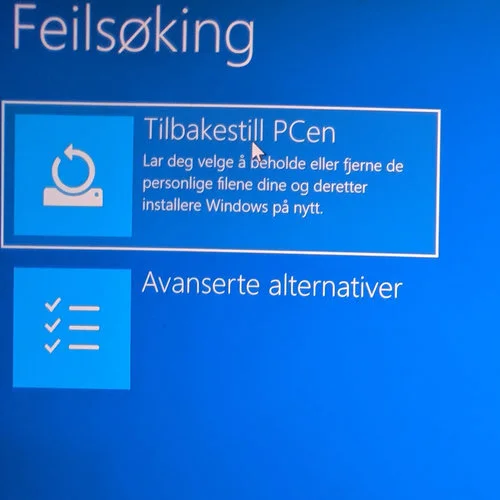
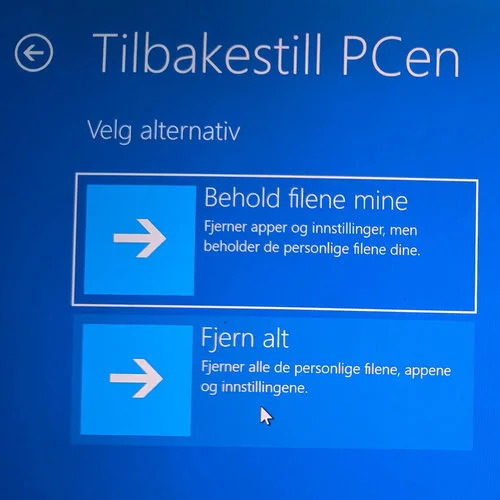
You can start reset from Windows Settings. If the computer does not boot normally, you can often hold Shift while choosing Restart, open Troubleshoot and then Reset this PC. Choose Keep my files only if you already have backup under control and understand what will remain.
What about viruses?
Windows has built-in security that is good enough for many users. Running several antivirus tools at once can make the machine slower and create extra warnings. If you are unsure whether a security program is needed, assess it before simply uninstalling it.
When is repair worth it?
Repair or upgrade is often worth it when the machine has a good screen, a solid chassis and a modern enough processor. If the motherboard is faulty, the battery is dangerously swollen, or the machine cannot run the software you need, replacement may be the better option.