
A slow Mac does not always need repair, but you should separate software, low storage, weak drive, heat and hardware before deleting anything or reinstalling macOS. The safest free checks are backup, storage, login items, Activity Monitor, Safe Mode and Disk Utility.
Stop before doing more if the Mac clicks, freezes while copying files, does not start reliably, has important data without a confirmed backup, has an unclear FileVault key, or becomes very hot. More testing can make data recovery or repair harder. EasyPC can do a free diagnosis before you risk files.
1. Protect data and FileVault first
If the Mac still starts, back up before cleanup, Disk Utility First Aid or reinstalling macOS. Connect an external drive and go to Apple menu > System Settings > General > Time Machine > Add Backup Disk. Apple recommends a backup disk with ideally at least twice as much storage as the Mac. Open the backup afterwards and confirm that important folders are actually there.
If Time Machine asks to erase an external drive, that means the drive is being prepared as a backup disk. Do not choose a drive that contains the only copy of files you want to keep. If you choose encrypted backup, store the password safely; without it, the backup can be unusable when you need to restore.
Also check Apple menu > System Settings > Privacy & Security > FileVault. If FileVault is on, the password, Apple Account or recovery key must be under control before disk repair, user changes, reinstalling or file transfer. If this is missing, do not guess your way forward.
2. Check storage the right way
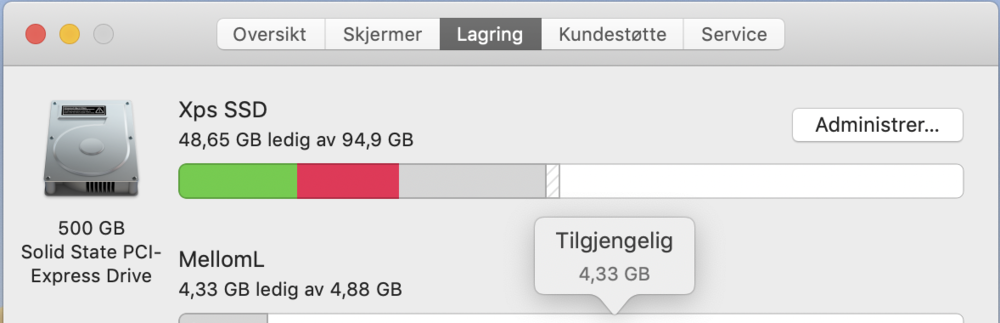
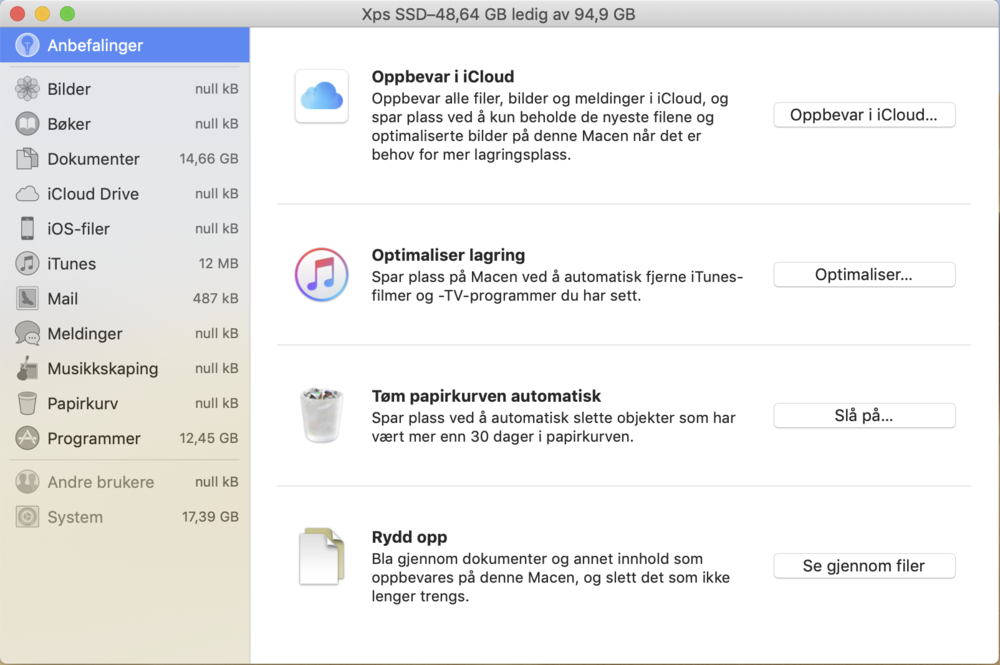
On macOS Ventura 13 and later, go to Apple menu > System Settings > General > Storage. On older macOS versions, use Apple menu > About This Mac > Storage. Wait until the categories finish calculating, and check whether the drive is almost full.
Low free space can make a Mac slow even when the hardware is healthy. Start with safe things you recognize: Downloads, old installers, unused apps, large videos, old iPhone/iPad backups, Trash and large Mail attachments. Do not manually delete Photos libraries, iCloud folders, mail archives, project folders, Library folders or "System Data" without a backup.
If storage is almost full and you temporarily need space for a macOS update, Safe Mode can clear some system caches. That is not a permanent fix. If the space disappears again after a few hours or days, you need to find what is filling the drive.

3. Clean up login and background apps
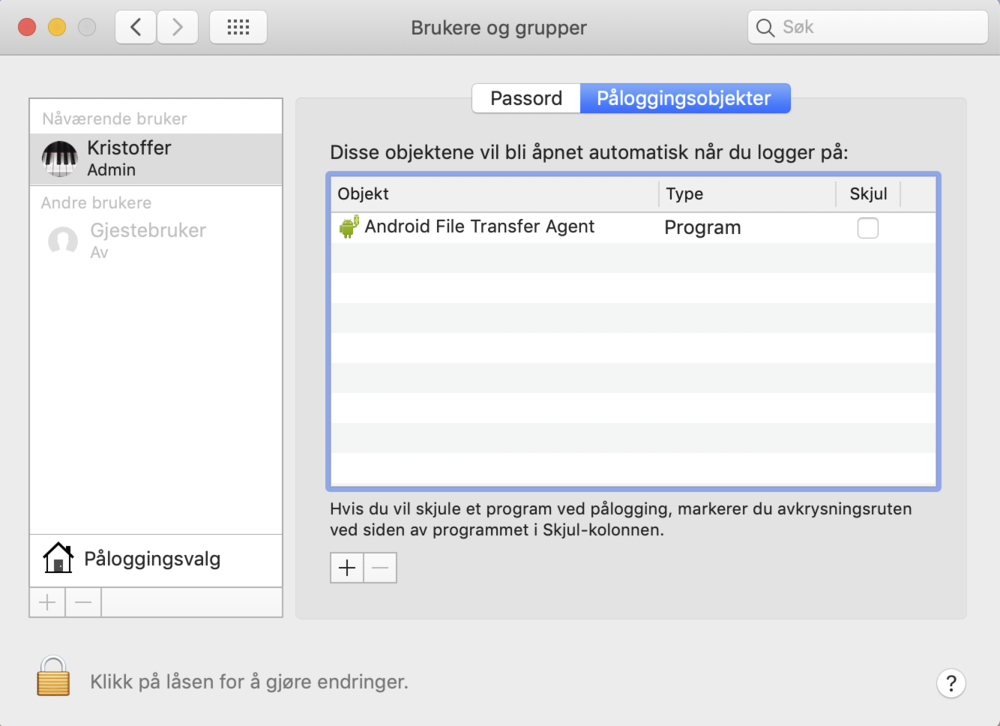
Go to Apple menu > System Settings > General > Login Items & Extensions. Remove known apps you do not need at startup, and review background items. Do not disable security software, backup tools, cloud storage or printer utilities if you do not know what they do.
Restart the Mac after the change. If it is fast during the first minutes after login but slows when a specific app starts, a startup app or background sync is likely involved. If it is already slow before you open anything, continue with Activity Monitor and disk checks.


4. Find the bottleneck in Activity Monitor
Open Applications > Utilities > Activity Monitor. Leave the Mac idle for one minute without opening new apps. On the CPU tab, check whether one app keeps using the processor. On Memory, check whether memory pressure is high and the Mac is using a lot of swap. On Disk, check whether storage is busy while the machine feels slow.
If one known app stays at the top, update, quit or test without it. If "kernel_task", system processes, Spotlight indexing, a cloud client or antivirus uses a lot of resources for a long time, the cause can be syncing, a driver, weak drive, low storage or heat. On MacBook, the Energy tab can also reveal apps that drain the battery and make the machine warm.
5. Test Safe Mode
Safe Mode helps separate macOS and startup software from hardware. On a Mac with Apple silicon: shut down, hold the power button until startup options appear, select the startup disk, hold Shift and choose Continue in Safe Mode. On an Intel Mac: turn it on or restart and hold Shift until the login window appears.
If the Mac is clearly better in Safe Mode, look at login items, extensions, printer drivers, antivirus, cloud storage, fonts and old apps. If it is still slow in Safe Mode, think more about drive, RAM, heat, battery or other hardware. Restart normally to leave Safe Mode.
6. Check heat, battery and physical risk
If the fan is loud, the machine gets warm during light use, performance drops after a few minutes, or the bottom is unusually hot, the cooling path may be dusty, the thermal paste may be old or the battery may be weak. On MacBook, a swollen battery is serious: stop using it if the bottom cover bulges, the trackpad lifts or the machine no longer sits flat.
Do not open a MacBook or iMac just to "take a look". Many models have glued batteries, display adhesive, fragile cables or soldered storage. Wrong disassembly can damage the display, battery, logic board or data. Bring the machine in for a free diagnosis if you suspect heat, battery, liquid damage, weak drive or that an upgrade may not be worth it.
7. Use Disk Utility and Apple Diagnostics correctly
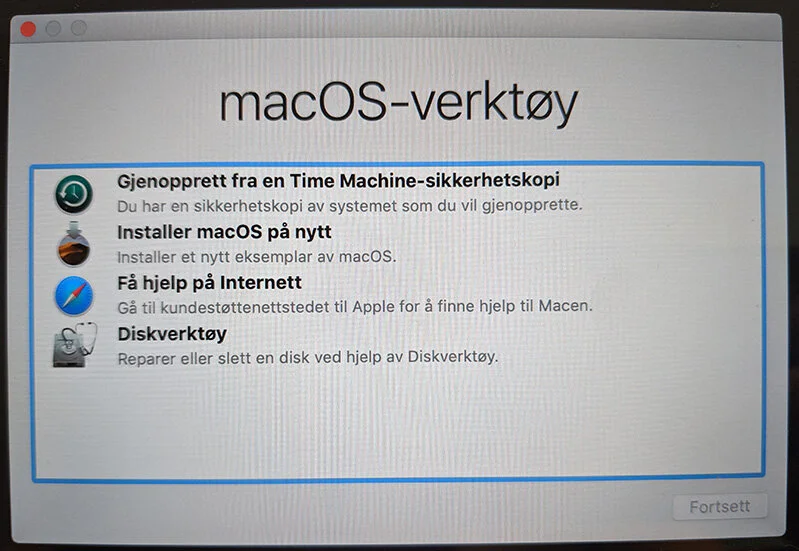
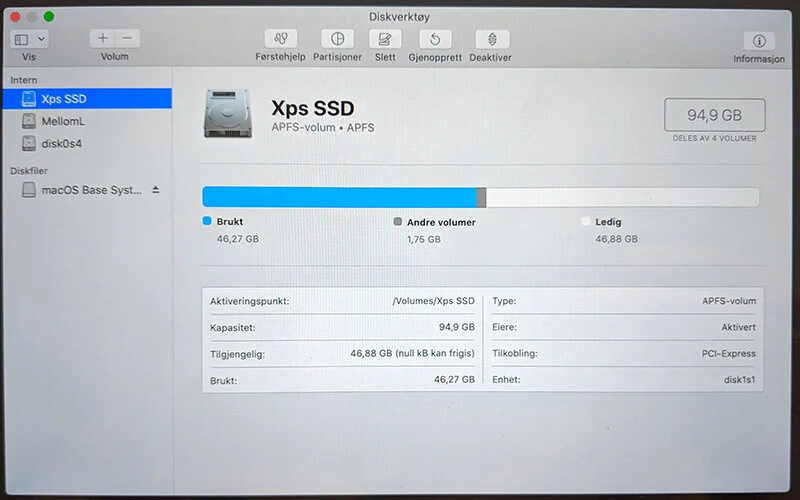
Disk Utility > First Aid can repair file system errors, but Apple recommends backing up first. Open Disk Utility from Applications > Utilities, choose View > Show All Devices, and run First Aid on the volume, container and drive if everything appears normally. If the Mac does not start fully, Disk Utility can be opened from macOS Recovery.
Stop if Disk Utility cannot see the drive, First Aid freezes, the same error returns, or the machine clicks. Apple Diagnostics can be used for hardware indicators: disconnect unnecessary devices, shut down, then start the test with Command-D from startup options on Apple silicon or D/Option-D during startup on Intel. In macOS Tahoe 26 and later, Apple Diagnostics can also ask you to choose a specific test, such as display, keyboard or trackpad. Error codes mean the machine should be assessed, not that you should replace a random part.
8. When reinstalling actually makes sense
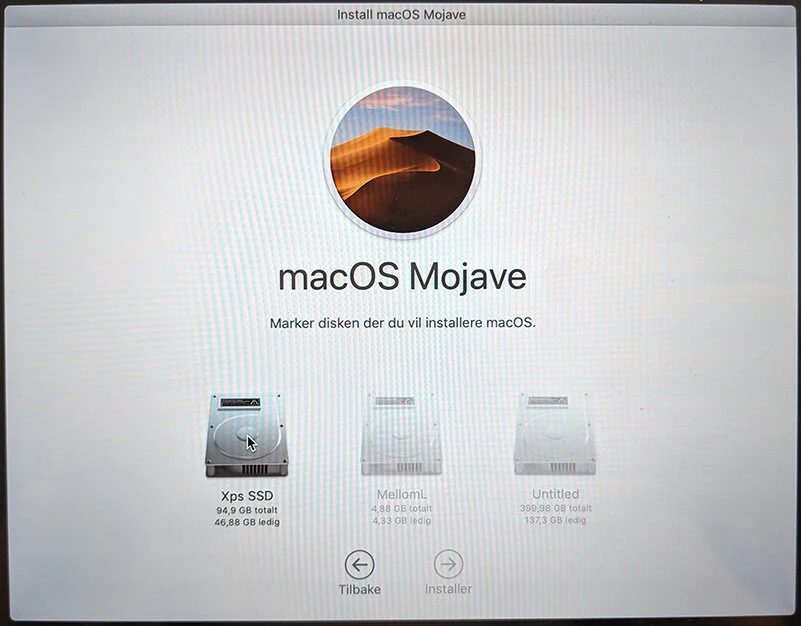
Reinstalling can help when macOS has years of old drivers, app leftovers and failed updates, but it should not be the first step. Confirm Time Machine, Apple ID, passwords, license keys, FileVault and important files before starting. Choosing the wrong option in recovery can erase data.
When to get a free diagnosis
Bring the Mac to EasyPC if data matters, Time Machine is not confirmed, FileVault is unclear, the drive clicks or disappears, Disk Utility shows errors, the Mac gets hot during light use, the battery is swollen, or you are unsure whether cleaning, battery, SSD, reinstalling or a newer Mac is right. You get a concrete answer before spending money or risking files.