
An iMac can become slow for several reasons at the same time: low free storage, too many login items, an app using the processor, memory pressure, an old mechanical hard drive, a failing Fusion Drive, heat, dust or a macOS version that is no longer a good fit for the model.
Do not start with a reset or opening the machine. Use the steps below to find what is actually slowing it down. If the iMac clicks, freezes while copying files, has no backup, has an unknown FileVault key or contains important files, stop and bring it to EasyPC for a free diagnosis before doing anything that can affect the data.
1. Back up and check FileVault first
Before cleanup, disk repair or reinstalling macOS: connect an external drive and go to Apple menu > System Settings > General > Time Machine. Choose a backup disk and run a backup. Afterwards, confirm that you can actually see important folders in the backup.
If Time Machine asks to erase an external drive, that means the drive is being prepared as a backup disk. Do not choose a drive that contains the only copy of files you want to keep. If you choose encrypted backup, store the password safely; without it, the backup can be unusable when you need to restore.
Also check Apple menu > System Settings > Privacy & Security > FileVault. If FileVault is enabled, you need to know the password or have the recovery key. Without this, disk repair, user changes or reinstalling macOS can become much harder. If you are unsure, a free diagnosis at EasyPC is safer than guessing.
2. Check whether storage is almost full
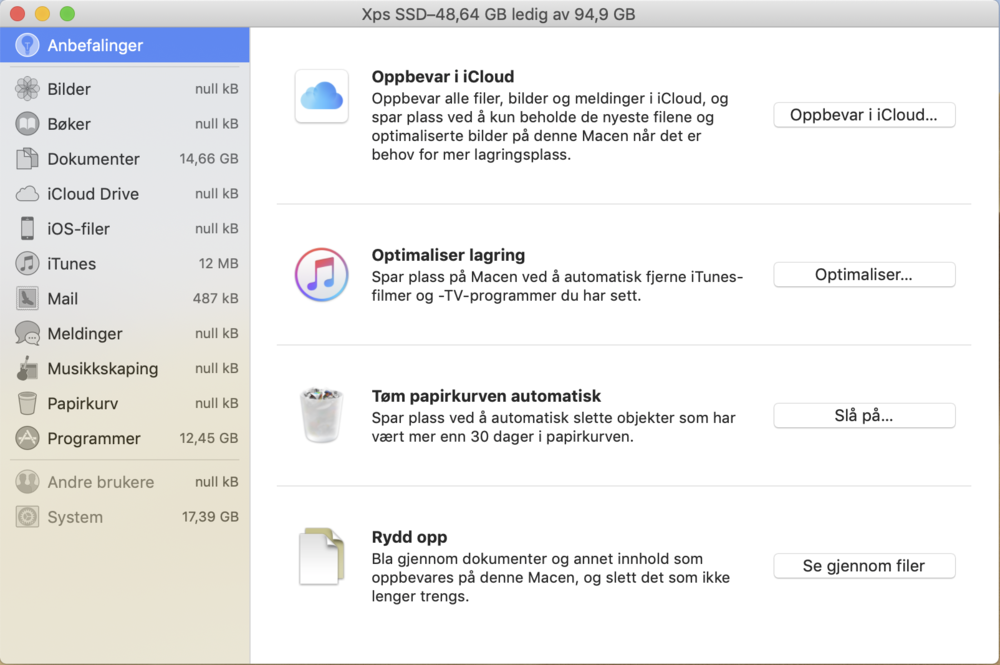
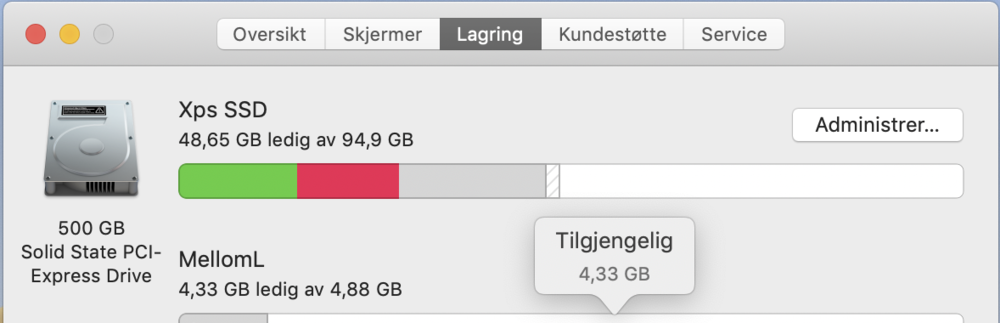
Open Apple menu > System Settings > General > Storage. Wait until the categories finish calculating. If the drive is nearly full, macOS has little room for updates, temporary files and memory swap, and the whole iMac can feel slow.
Start by cleaning things you recognize: Downloads, old installers, large videos and apps you do not use. Do not delete Photos libraries, iCloud folders, mail data, project folders or unknown system folders before the backup has been checked. If storage fills up again by itself, the next step is to find which app or user data is growing.


3. Clean up login items and background apps
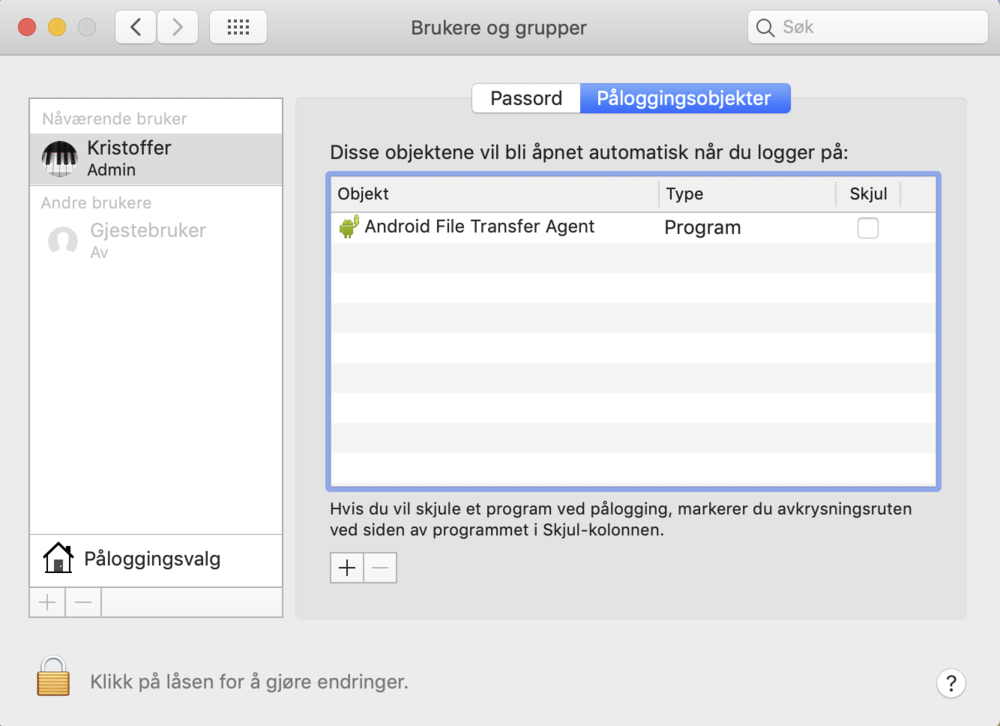
Go to Apple menu > System Settings > General > Login Items & Extensions. Remove apps you recognize and do not need at startup. Also review background items. Leave security software, backup tools, cloud storage and printer utilities alone if you do not know what they do.
Restart the iMac after the change. If it becomes faster during the first minutes after login, a startup app or background tool was probably part of the problem. If it is still slow before you open apps, continue with Activity Monitor and disk checks.
4. Use Activity Monitor to see what is slowing it down
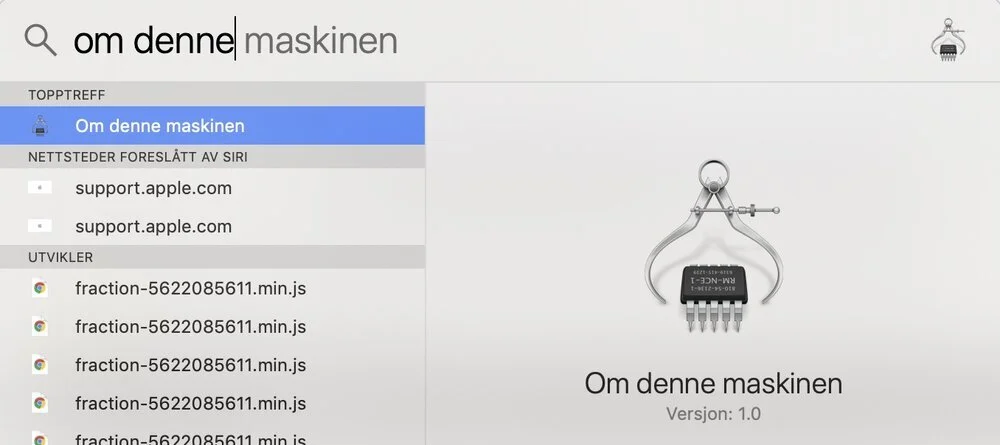
Open Applications > Utilities > Activity Monitor, or use Spotlight with Command and Space. Leave the iMac idle for one minute without opening new apps. Check CPU, Memory and Disk.
If one process stays high on CPU while you are doing nothing, quit or update that app. If Memory shows clear memory pressure and the iMac is using a lot of swap, you have too many heavy apps open or too little RAM for your workload. If Disk shows heavy activity while the machine is slow, storage, indexing, backup or a weak drive is often suspect.
5. Test Safe Mode
Safe Mode starts macOS with fewer add-ons and can show whether login items, extensions, drivers or caches are making the machine slow. On an iMac with Apple silicon: shut down, hold the power button until startup options appear, select the startup disk, hold Shift and choose Continue in Safe Mode. On an Intel iMac: turn it on and hold Shift until the login window appears.
If the iMac is clearly faster in Safe Mode, look at login items, old extensions, printer drivers, antivirus tools, cloud storage and apps that run in the background. If it is still just as slow in Safe Mode, storage, RAM, heat or hardware is more likely.
6. Run Disk Utility only after backup
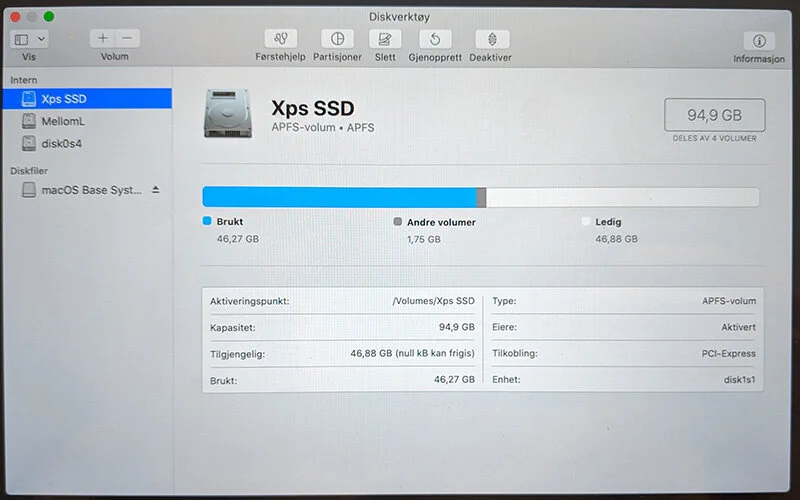
Disk Utility can find and repair file system errors, but disk work should not be the first step when data matters. Back up first. Open Disk Utility from Applications > Utilities, choose View > Show All Devices, and run First Aid on the volumes, the container and then the physical drive if everything appears normally.
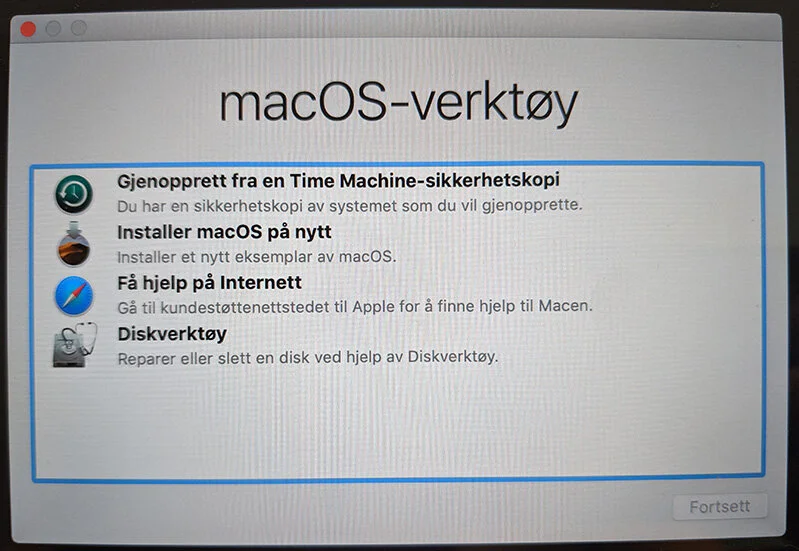
Stop if Disk Utility cannot see the drive, the machine freezes during First Aid, you hear clicking, or the same error returns. Continued attempts can make file recovery harder. Bring the iMac in for a free diagnosis if the files matter.
7. Consider hard drive, Fusion Drive and SSD
Many older iMacs shipped with a mechanical hard drive or Fusion Drive. Typical signs are long startup time, slow login, beachballs when opening apps and heavy disk activity in Activity Monitor. APFS and newer macOS versions usually feel best on an SSD.
An SSD upgrade can make a large difference if the rest of the iMac is healthy, but it is not always the right choice. Check the model year, supported macOS versions, display, graphics issues, RAM options and cost compared with a newer used Mac first. On some models an external SSD can be a temporary workaround; an internal SSD is cleaner, but requires opening the machine.
8. Heat and dust can force performance down
If the fan is loud, the back becomes very warm, or the iMac is fast after startup but slow after a few minutes, the cooling path may be clogged with dust or the thermal paste may be old. Cleaning and fresh thermal paste can reduce temperature and improve stability.
Opening a thin iMac with a glued display is a risk point. The display must be cut loose with the correct tool, cables must be disconnected without damage, and the display must be reinstalled with new adhesive strips. When the machine is already open, it is often worth considering SSD, cleaning, thermal paste and RAM where the model supports it. EasyPC can do a free diagnosis before you decide.
9. When reinstalling macOS or replacing the Mac is better
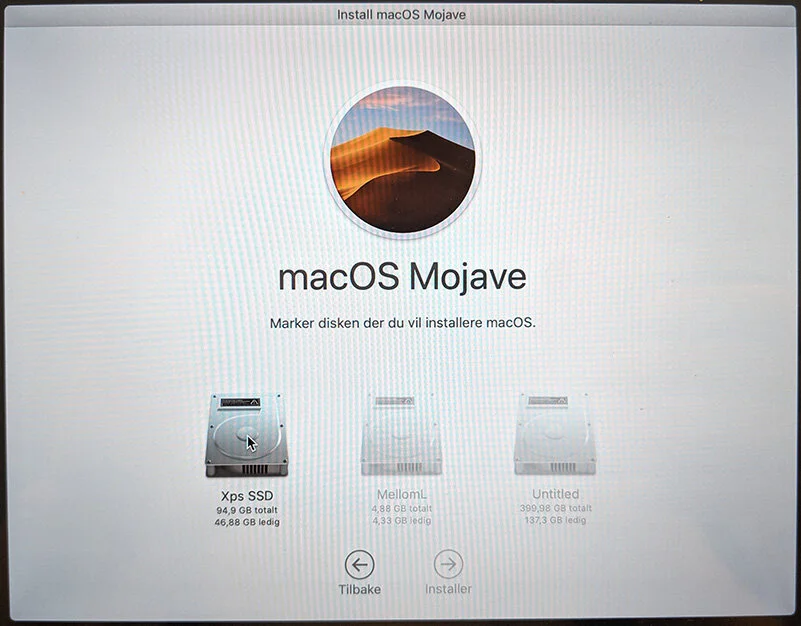
Reinstalling macOS can help when the system has years of old drivers, app leftovers and many upgrades behind it. This is a risk point: confirm Time Machine, important passwords, Apple ID, license keys and FileVault before starting. Choosing the wrong option in recovery can erase files.
If the iMac cannot run a macOS version supported by the apps you need, has weak graphics, a faulty display, logic board problems or an upgrade cost close to a newer used Mac, replacement is often more sensible. Bring it to EasyPC and we can check the drive, temperature, model year and repair value without a diagnosis fee.