
Backup matters before repair, Windows installation, drive replacement and major updates. The best backup is one you have actually tested, and that lives somewhere other than the machine that can fail.
What should be backed up?
Start with documents, photos, desktop, downloads, accounting files, browser bookmarks, email archives and project folders. Also remember license keys, two-factor codes and logins for programs you use.
Backup through Control Panel
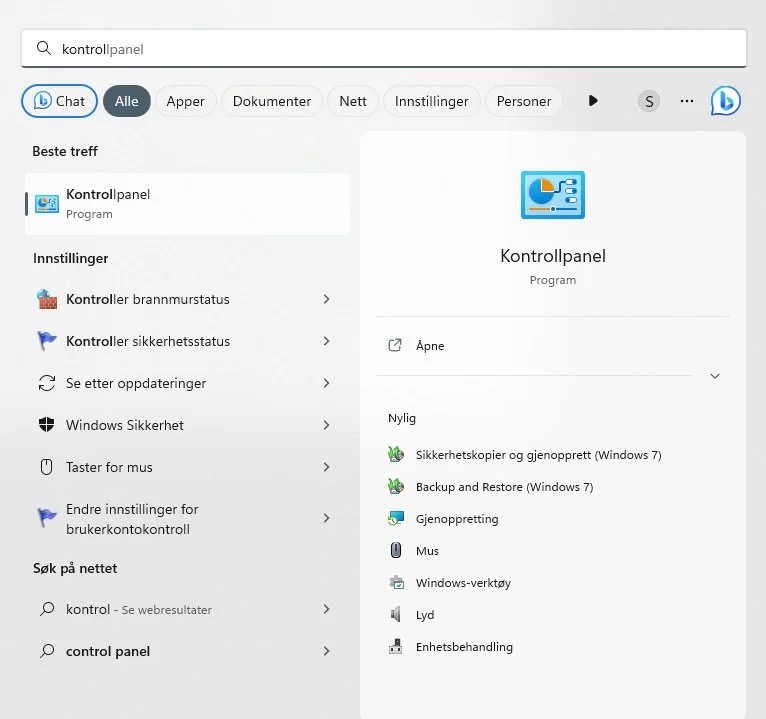
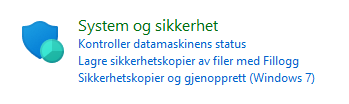
Windows still includes Backup and Restore in Control Panel. Connect an external drive, search for Control Panel from the Start menu, open System and Security, and choose Backup and Restore.

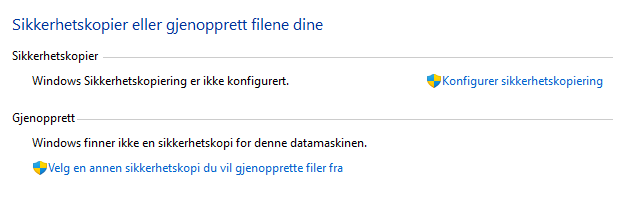
Choose Set up backup, point Windows to the external drive, DVD or a network folder, and select what should be included. For most people, personal files matter most, but a full system image can be useful before drive replacement or major repair.
Use more than one method
An external drive is fast and simple. Cloud storage protects better against theft, fire and liquid damage. For important files, you should ideally have both. If you use an external drive, unplug it when the backup is finished so it is not hit by the same fault, deletion or damage as the PC.
A useful rule is 3-2-1: three copies, on two different types of storage, with one copy stored somewhere else. For personal use, that can be the PC, an external drive and cloud storage. Set a fixed schedule in Windows if the drive is often connected, or run it manually before repair, reinstalling Windows and major changes.
How to test the backup
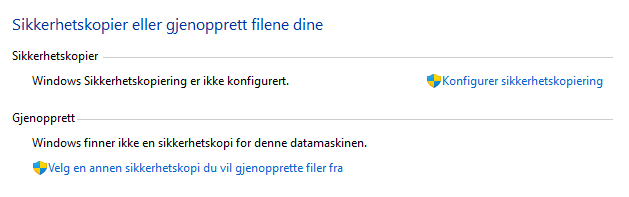
Having a backup is not enough if it does not work. Open the external drive or cloud storage, find a few important files and confirm that they actually open. Check photos, documents and desktop folders.
Restoring later
If you only need individual files, they can often be copied back directly. If you use the Windows tool, go to Backup and Restore, choose Restore my files, point to the correct backup and choose whether the files should return to their original location or a new folder.
For a system image, you may need Windows installation media: boot from the USB drive, choose Repair your computer, open Advanced options and use system image recovery. Be careful with full restore operations: they can overwrite newer files or the entire drive. If the goal is file recovery from an unstable drive, do not start large restore jobs before the most important files are secured.
Before bringing the machine in for repair
Back up if the machine starts. If the drive makes noise, the machine freezes, or files are missing, do not stress it with large copy jobs. File recovery may be safer first.