
Windows 11 should be downloaded from Microsoft's official Windows 11 page, not from old ISO files, forum links or random USB drives. As of June 20, 2026, the normal download for existing PCs is Windows 11 2025 Update, version 25H2. Microsoft also lists Windows 11 version 26H1 for new devices that came to market in early 2026, but it is not a normal in-place update from 24H2 or 25H2 on existing PCs. Always use Microsoft's page on the installation day, because the tool fetches current setup files and security updates.
Before a major upgrade, also check Microsoft's Windows release health / known issues page for the current version. If Microsoft or the PC manufacturer lists a problem with your exact model, driver, BitLocker, storage or business-critical software, wait or make a full backup first. If Windows Update does not offer 25H2 yet, it may be due to intelligent rollout, a compatibility hold or a known issue, not necessarily a reason to force installation.
Before you start
First decide what you are actually doing: upgrading the PC you are using, creating USB media for another PC, or downloading an ISO. If you only want to upgrade a working and supported Windows 10/11 PC, the safest start is Settings > Windows Update > Check for updates. Windows 11 Installation Assistant is the next option if the PC is x64, supported and Windows Update does not offer the upgrade yet. If you are reinstalling or repairing another PC, use Create Windows 11 Installation Media.
You need a blank USB flash drive of at least 8 GB, a stable internet connection and enough time. The USB drive is erased when setup media is created. Installation Assistant also needs enough free space on the PC, and Microsoft lists 9 GB of free disk space for the download. On normal Intel and AMD machines, use the x64 tool. If you have an Arm-based PC, such as some Snapdragon laptops, check Microsoft's Arm guidance or Arm64 ISO instead of blindly using the x64 tool.
If you are doing a clean install, prepare what you need before erasing anything: take a photo of Settings > System > About, note whether the machine has Home or Pro, download Wi-Fi, storage, chipset and graphics drivers from the manufacturer if the model often lacks network after installation, and disconnect external drives that should not be touched.
Also check that the machine supports Windows 11: 64-bit processor, 4 GB RAM, 64 GB storage, UEFI with Secure Boot capability, TPM 2.0 and compatible graphics. Use PC Health Check or Windows Update if Windows still starts, and write down the exact blocker if a requirement fails. If the machine has important files, BitLocker or a possible drive fault, back up first or bring it to EasyPC for a free diagnosis before installing.
The most important choice is how you start Setup. If you start setup.exe from an already running Windows installation, you can often keep files and apps. If you boot the PC from the USB drive, you are effectively moving toward repair or clean installation, and drive selection becomes much more risky.
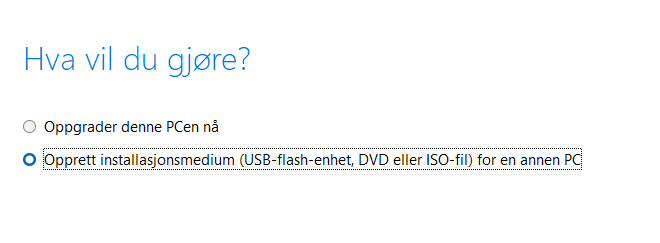
Choose the right Microsoft tool
Microsoft's download page gives you three main choices. Installation Assistant upgrades the PC you are already using. Create Windows 11 Installation Media creates bootable USB or ISO media for reinstalling and clean installation. Download Windows 11 Disk Image is for ISO files, for example virtual machines or manual USB creation.
For repair or installation USB media, choose Create Windows 11 Installation Media. Run the tool as administrator, accept the license terms, choose language and edition, select USB flash drive and let the tool finish. Do not remove the USB drive until the tool says it is ready.
If you download the ISO directly, choose the same language as the Windows installation you are upgrading, and use Microsoft's Verify your download / SHA256 check if the file will be used on several machines or you are unsure about the download. Do not use modified ISO files or third-party USB media that removes requirements unless you understand the risk; they can make troubleshooting, activation, security and warranty harder.
Upgrade without erasing: Windows Update, Installation Assistant or ISO
If Windows still starts and the PC is supported, use the safest order: back up, connect the charger, go to Settings > Windows Update > Check for updates, and see whether Windows 11 is offered there. Microsoft recommends this route first. If not, Windows 11 Installation Assistant can be used on x64 PCs already running Windows 10 version 2004 or newer, as long as the hardware is approved and there is no known hold for the model.
Another supported option is the ISO from Microsoft. Download Windows 11 Disk Image, right-click the ISO file and choose Mount. Open the new virtual drive in File Explorer and double-click setup.exe. Do this from Windows, not by booting from USB, if the goal is to keep files and apps.
Before pressing Install, look for Change what to keep. Choose Keep personal files and apps if that is the goal. If that option is not offered, the language, edition, architecture or startup method is often wrong. Stop instead of continuing with a choice that removes apps or files.
Older PC: setup.exe /product server without booting USB
On some older PCs, normal Windows 11 Setup stops at the requirement check even when you only want an in-place upgrade and want to keep files and programs. A known unofficial method is to start Setup from the existing Windows installation with the command `setup.exe /product server` from the mounted Windows 11 ISO or USB drive.
The safest way to try it, if you choose to proceed, is: make a full backup, find the BitLocker recovery key, connect power, disconnect external drives you do not need, mount the ISO, open Terminal or Command Prompt as administrator, go to the correct drive letter, for example `D:`, and run `setup.exe /product server`. During setup, confirm that it actually offers to keep personal files and apps before continuing.
This is not Microsoft’s normal supported upgrade path for Windows 11 clients. Microsoft warns that installing on PCs that do not meet the minimum requirements is not recommended, can cause compatibility issues and can affect support, update entitlement and warranty. Do not use this method if the drive is unstable, backup is missing, the BitLocker key is missing, the PC is work/school managed, or you do not understand the choices Setup shows. In that case, a free diagnosis at EasyPC is safer.
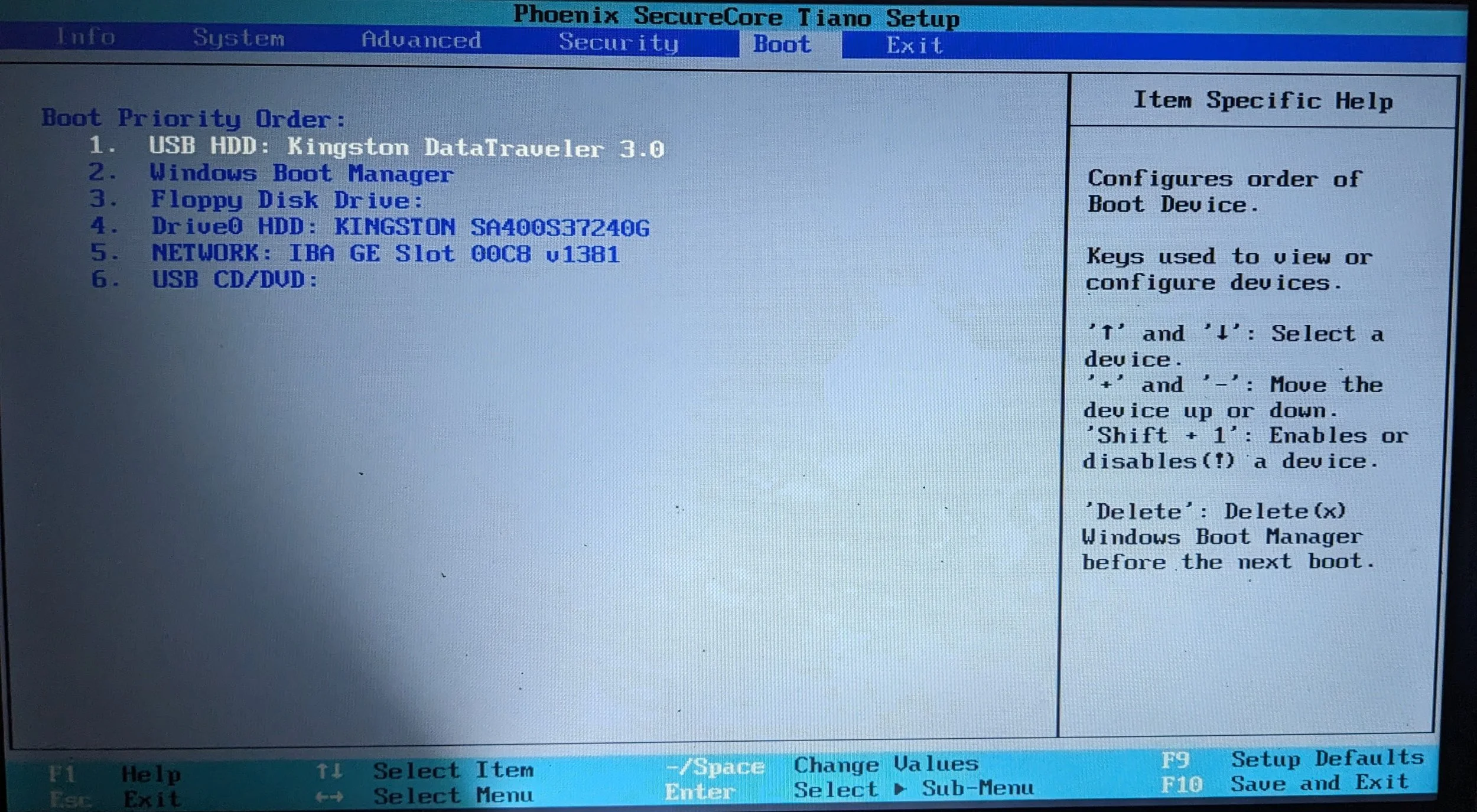
Boot from USB for clean install or repair
Boot from USB when Windows will not start, when the SSD has been replaced, or when you are intentionally doing a clean installation. Microsoft warns that installing by booting from installation media can wipe the drive contents and install a fresh copy of Windows. Do not boot from USB if the goal is to keep apps and files. Insert the USB drive in the machine you want to install, restart and open the boot menu, often with F12, F10, F2, Esc or Delete right after startup. Choose the UEFI version of the USB drive if it appears.
If the USB drive does not appear, check that it was actually created with Microsoft's tool, try another USB port, and check whether BIOS/UEFI is set to UEFI mode. Do not disable Secure Boot or change storage mode casually. The wrong BIOS change can stop an existing Windows installation from booting, and BitLocker may ask for the recovery key after such changes.
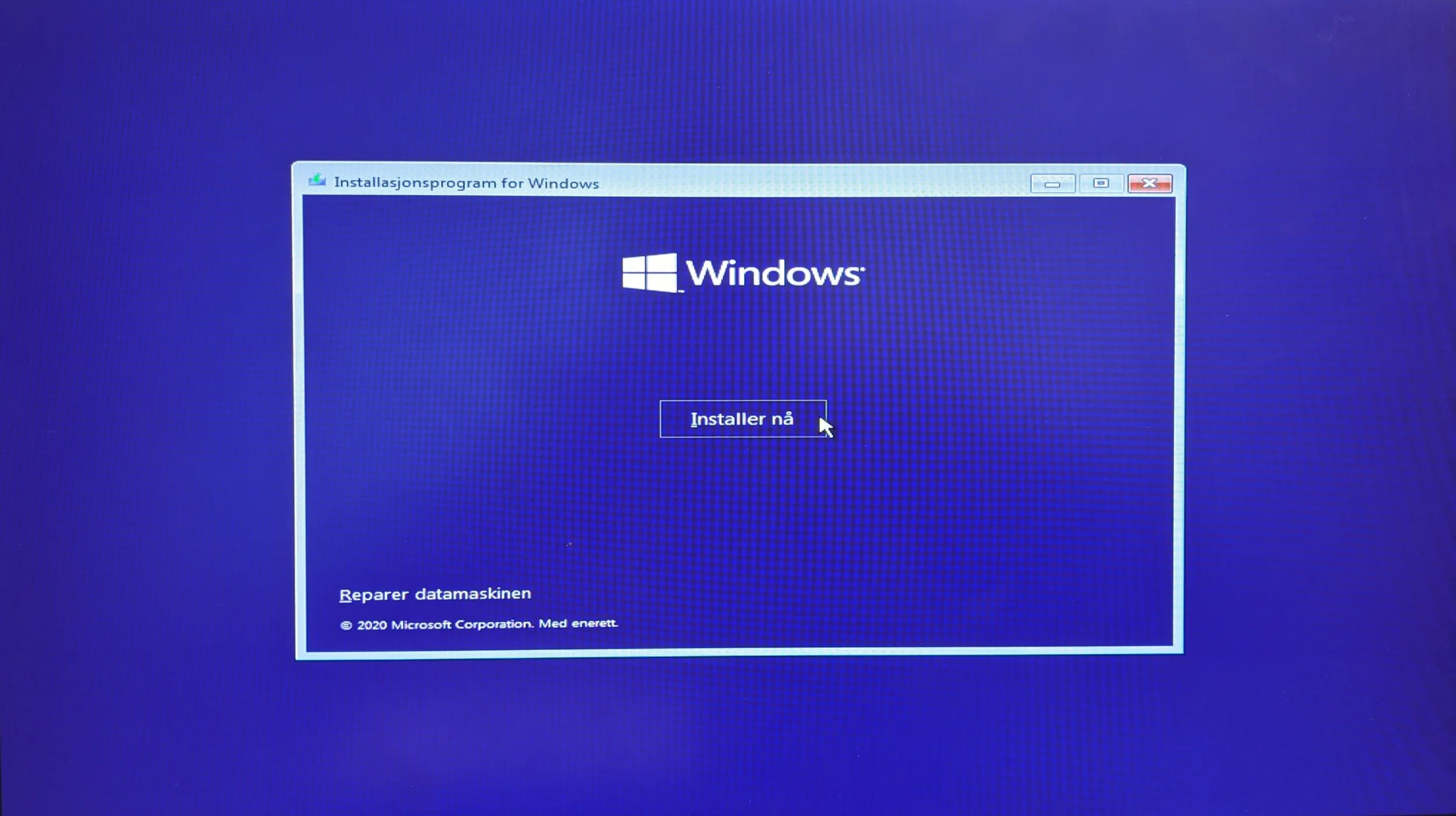
Be careful when choosing drive
When Windows Setup asks where Windows should be installed, this is where files are most often lost. If you delete partitions, format a drive or choose a clean installation, content can disappear. If the machine has multiple drives, identify the correct drive before pressing Delete or Next.
On a desktop PC, it is often safest to disconnect extra internal storage drives before a clean install so Setup only sees the SSD you actually intend to use. On a laptop, at least recognize the drive size and name. Do not delete EFI, Recovery or data partitions just because they look small, unless you are intentionally doing a clean install on the correct drive and the backup has been checked.
When setup asks for a product key, you can often choose I do not have a product key if the PC already has a digital Windows license. Choose the same edition as before, such as Home or Pro, otherwise activation can fail afterwards. If you are unsure which edition the PC has, check before erasing the old installation: Settings > System > About.
For a clean installation, choose Custom: Install Windows only. After installation, complete first-time setup, connect to the internet, sign in or create an account, run Settings > Windows Update > Check for updates and install manufacturer drivers if anything is missing.
Windows 11 Home and Windows 11 Pro for personal use normally require an internet connection and Microsoft account during first-time setup. Have the network password and Microsoft account ready before starting, especially if you are installing for someone else.
After installation: run Settings > Windows Update several times, check Advanced options > Optional updates for drivers, and get missing Wi-Fi, graphics, audio or chipset drivers from the PC manufacturer. If you performed an in-place upgrade, check that programs, files, activation and BitLocker still look correct before deleting old setup files.
When should EasyPC do the job?
We can install Windows 11, drivers, updates and basic setup. Bring the machine in for a free diagnosis if you are unsure about drive selection, BitLocker, missing drivers, a weak SSD, unsupported installation, setup.exe /product server, or whether files should be recovered before installation.