
A fresh Windows installation can solve slowness, system errors, damaged system files and failed updates, but the wrong method can also delete files, programs and users. Start with the least risky route: repair Windows if possible, use an in-place installation if Windows still starts, and choose a clean installation only when backup, BitLocker and the correct drive are clear. Clean installation is the last resort, not the first step.
Do not boot straight from USB if your goal is to keep files and programs. Booting from USB can quickly put you into a clean installation. If Windows starts, work from the Windows desktop first. If Windows does not start, try startup repair and recovery before deleting partitions.
Choose the right method first
If Windows still starts, first try Settings > System > Recovery > Fix problems using Windows Update > Reinstall now. This Windows 11 feature downloads a repair version of the same Windows version, repairs system files and components, and is designed to preserve apps, files and settings. Keep the PC connected to power and internet for the whole process. The option may be missing on work- or school-managed PCs and on older Windows 11 installations that have not received newer recovery updates.
If Windows does not start, let the machine try Windows Recovery Environment first. Choose Troubleshoot > Advanced options > Startup Repair. If that does not work, System Restore or Uninstall Updates can be safer than reinstalling. Use installation USB when Windows cannot be repaired, or when you deliberately want to reinstall Windows.
On newer Windows 11 installations, Advanced options may also show Quick Machine Recovery. It tries to connect to Microsoft through Ethernet or supported Wi-Fi from Windows Recovery Environment and download a targeted repair for known, widespread startup failures. Try it before reset or clean installation if the option is available, but do not treat it as backup or drive diagnosis.
1. Back up before anything else
Copy documents, photos, desktop files, downloads, browser data and any accounting or specialist software files you need. Windows Backup is useful for OneDrive folders and settings, but also make a separate copy to an external drive if the files matter. OneDrive alone is not a controlled repair backup if sync has stopped or the account is full.
Also write down the Wi-Fi password, Microsoft account, two-factor sign-in, license information for programs that must be reinstalled, and which Windows edition the machine uses. Check the edition in Settings > System > About. If you choose the wrong edition, for example Home instead of Pro, activation can fail even when the machine has a digital license.
Check BitLocker before changing boot order, BIOS/UEFI settings or installation type. Go to Settings > Privacy & security > Device encryption, or Control Panel > System and Security > BitLocker Drive Encryption. If BitLocker is active, find the 48-digit recovery key before continuing. At the BitLocker screen, note the first 8 characters of the key ID, go to https://aka.ms/myrecoverykey from another device, and also check a work or school account if the PC has belonged to an organization. Microsoft cannot recreate a lost key.
If the machine freezes, the drive disappears, Windows asks for a BitLocker key you cannot find, or files are already missing, stop before reinstalling. Data should be recovered before the drive is stressed further. Bring it to EasyPC for a free diagnosis before pushing an unstable drive or risking the files.
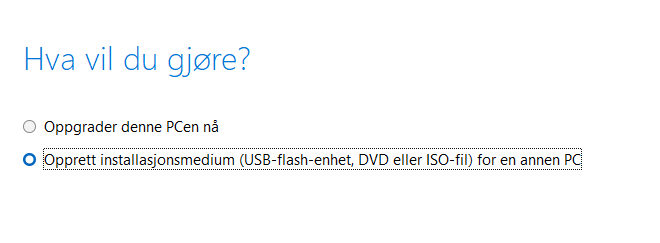
2. Create USB with the official tool
Use Microsoft's official Windows 11 download page. For existing PCs, Microsoft's download page shows Windows 11 2025 Update, version 25H2, as of June 20, 2026. Windows 11 requires, among other things, a 64-bit processor, UEFI, Secure Boot capability, TPM 2.0, at least 4 GB of RAM and at least 64 GB of storage. Do not use old ISO files if the goal is a safe, up-to-date installation.
You usually need another working PC and a blank USB flash drive of at least 8 GB. When the tool asks what you want to do, choose Create Windows 11 Installation Media, language and edition, and USB flash drive. The USB drive is erased when created, so do not use a drive that contains files you need. Microsoft's media tool is for x64 PCs; an Arm-based Windows PC needs Arm/Arm64 media or a Windows Update route from Microsoft, not a random x64 USB. If Windows still starts and you only need to repair the installation, an ISO file can be better than bootable USB because the ISO can be mounted directly in Windows.
3. Boot the machine from USB
Insert the USB drive into the machine that will be installed. Right after powering it on, open the boot menu or BIOS/UEFI. Common keys are F2, F9, F10, F12, Esc or Delete. Choose the USB device if you get a boot menu, or place USB first in the boot order if you are in BIOS. Use the boot menu when possible, because it is usually a temporary change.
If the machine just starts normal Windows again, shut it fully down and try the boot menu again. If the USB drive does not appear, try another USB port and check that the PC uses UEFI. Do not change storage mode, TPM, Secure Boot or firmware without a concrete reason; those changes can trigger BitLocker, make the old Windows installation inaccessible or stop setup. If you must change BIOS/UEFI settings, note the original settings first.
4. Choose the correct install type
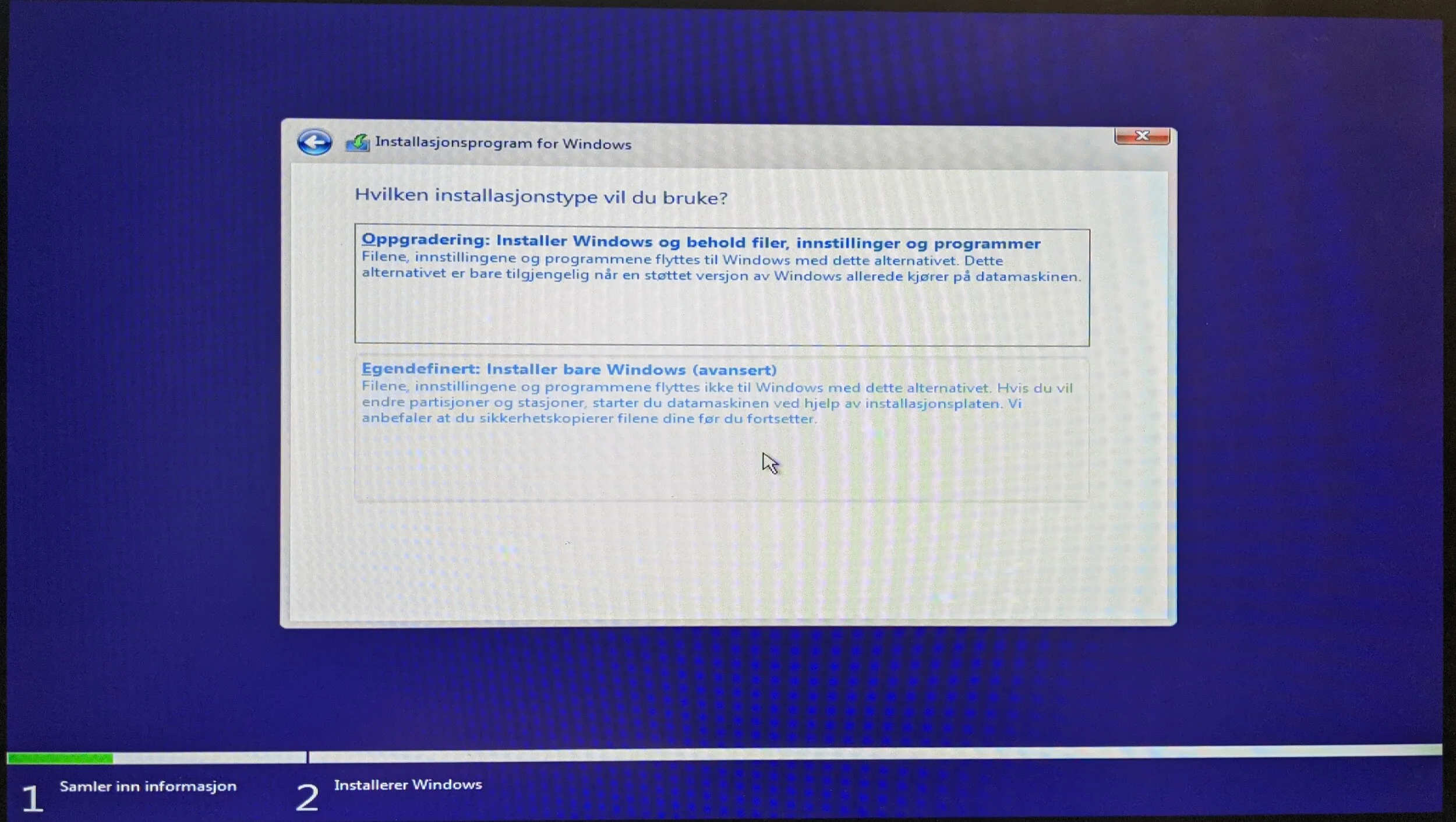
If Windows still starts and you open setup.exe from the USB drive or a mounted ISO inside Windows, you can often choose Change what to keep. Keep personal files and apps is the least disruptive. Keep personal files only removes apps. Keep nothing removes files, apps and settings. Read the choice carefully before pressing Install, and stop if setup does not offer to keep what you need.
On some Windows 11 machines, normal setup.exe does not offer an in-place installation that keeps apps, even though Windows still starts. In that case, from a mounted ISO or USB, open Terminal or Command Prompt as administrator, switch to the installation drive, for example `D:`, and run `setup.exe /product server`. Run the command from Windows, not after booting the PC from USB, if the goal is to keep files and programs. This is an unofficial workaround that often makes setup offer Keep personal files and apps. Confirm that exact choice before continuing. Use it only when you have backup, power, enough free space and the BitLocker key. Do not use it on a drive that clicks, disappears, freezes or already has missing files.
If you boot from USB for a clean installation, the risk is higher. Windows 11 Setup may ask you to confirm that everything will be deleted, and a clean installation can remove personal files, apps, manufacturer customizations and settings. Do not continue unless backup, BitLocker key and the correct drive are under control. If you are unsure whether to repair, upgrade or erase, bring the machine to EasyPC for a free diagnosis before choosing.
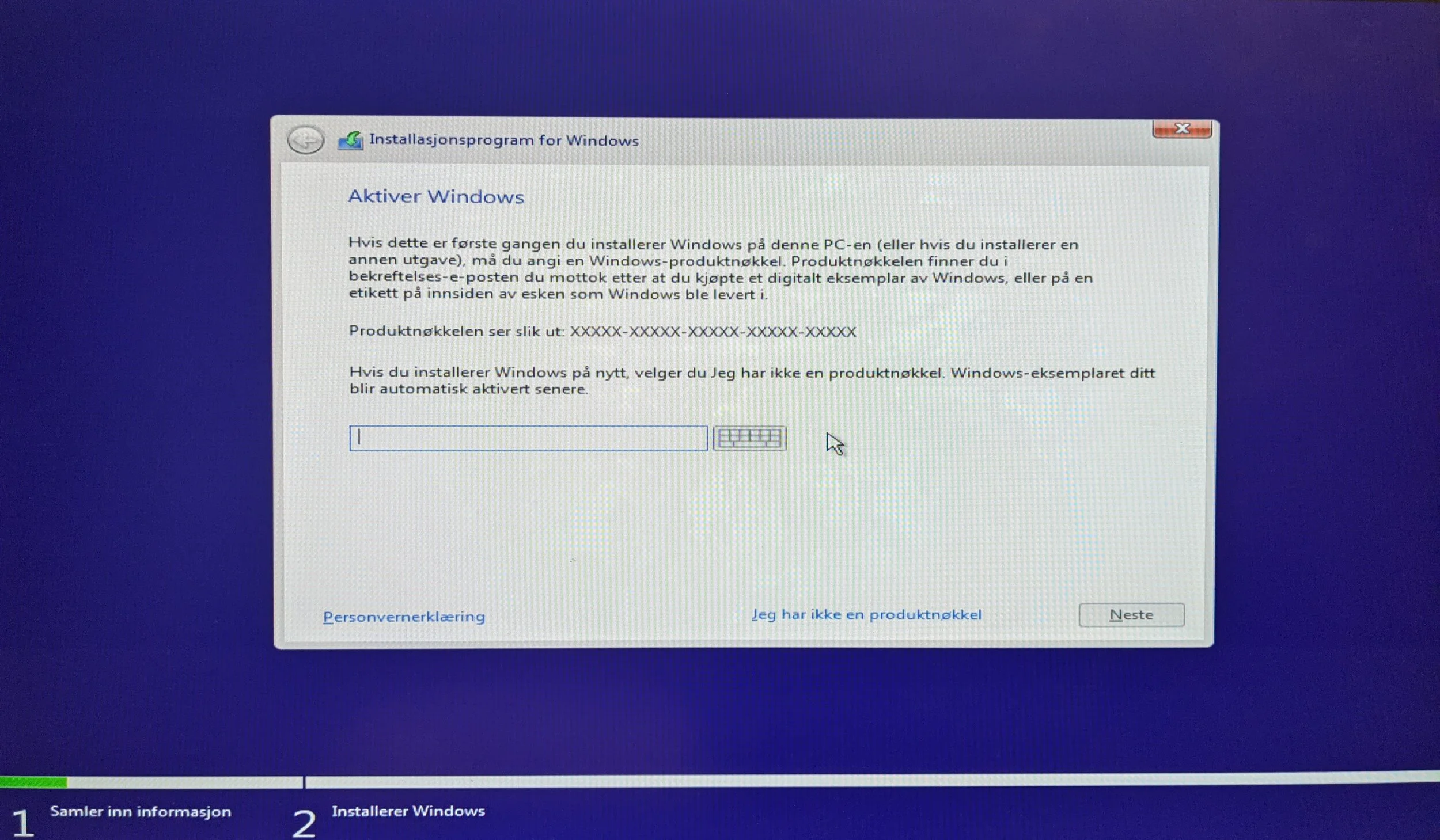
If setup asks for a product key, you can often choose I do not have a product key on machines that already have a digital Windows license. Choose the same edition as before, such as Home or Pro, otherwise activation can fail. Check the edition in Settings > System > About before erasing the old installation if you are unsure. If you neither have a product key nor know that the digital license is linked to the machine or Microsoft account, stop before continuing.
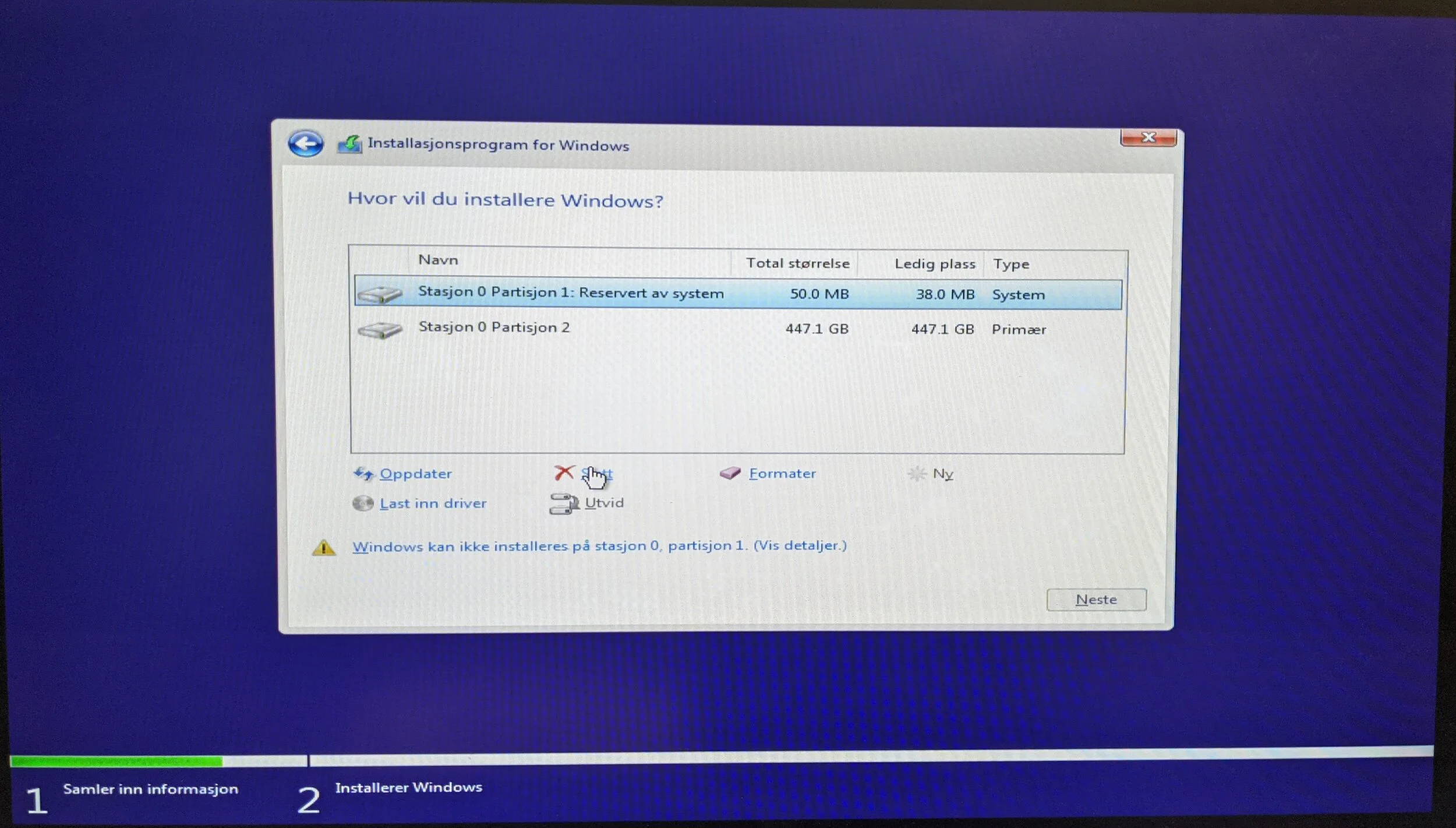
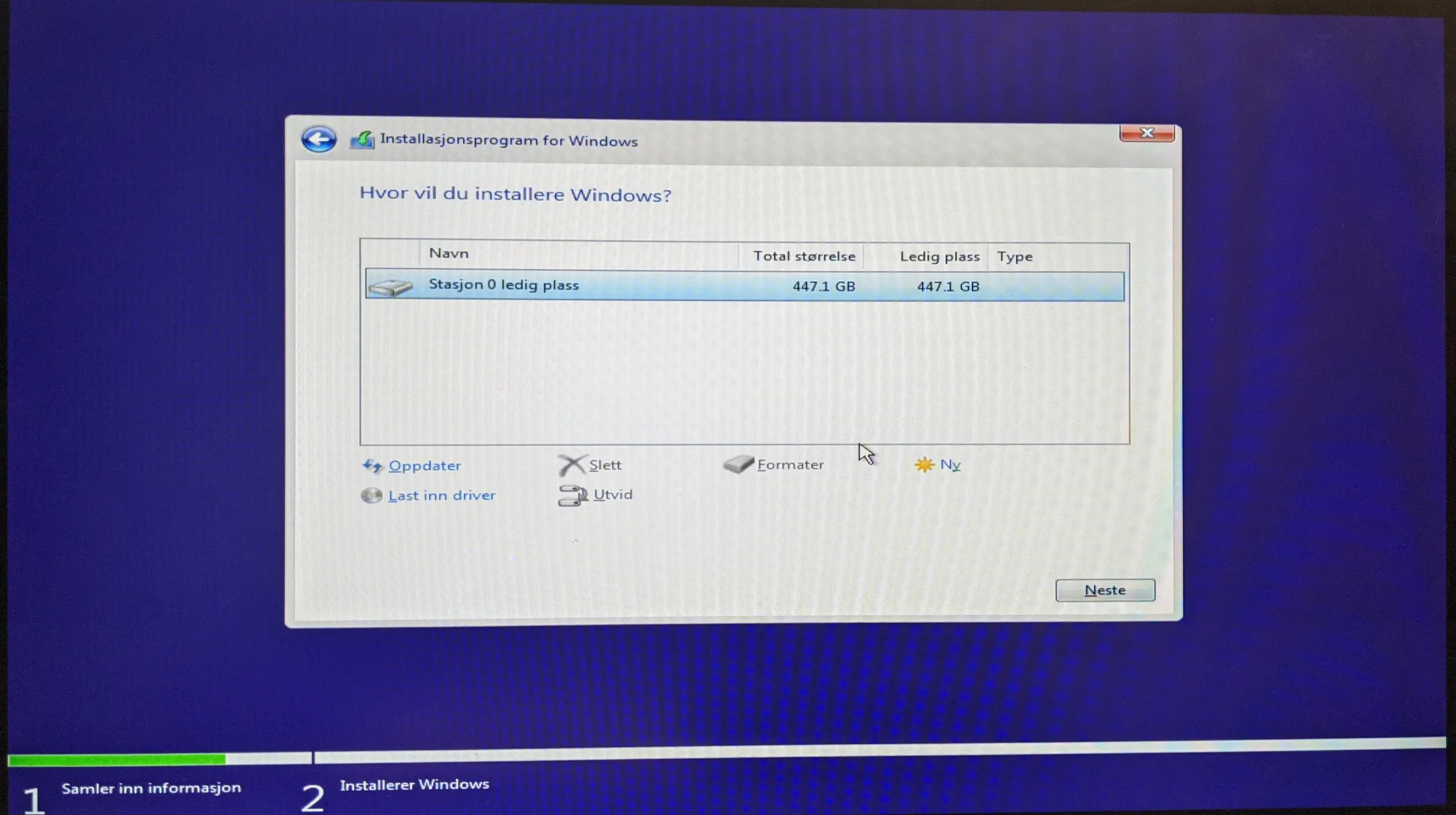
If you are doing a clean installation, identify the correct drive before deleting partitions. If the machine has multiple drives, the wrong choice can erase files you meant to keep. Delete partitions on the correct system drive only when you are certain the backup works, and do not modify other drives shown in setup. If you are unsure, stop before clicking Delete. Formatting, deleting or creating new partitions destroys data.
After installation
When Windows starts, run Settings > Windows Update > Check for updates until there are no more important updates. Also check Advanced options > Optional updates for drivers. Then install correct drivers from the manufacturer's support pages if Wi-Fi, audio, graphics, touchpad, fingerprint reader or special keys are missing. Avoid random driver packs and automatic driver tools from unknown websites.
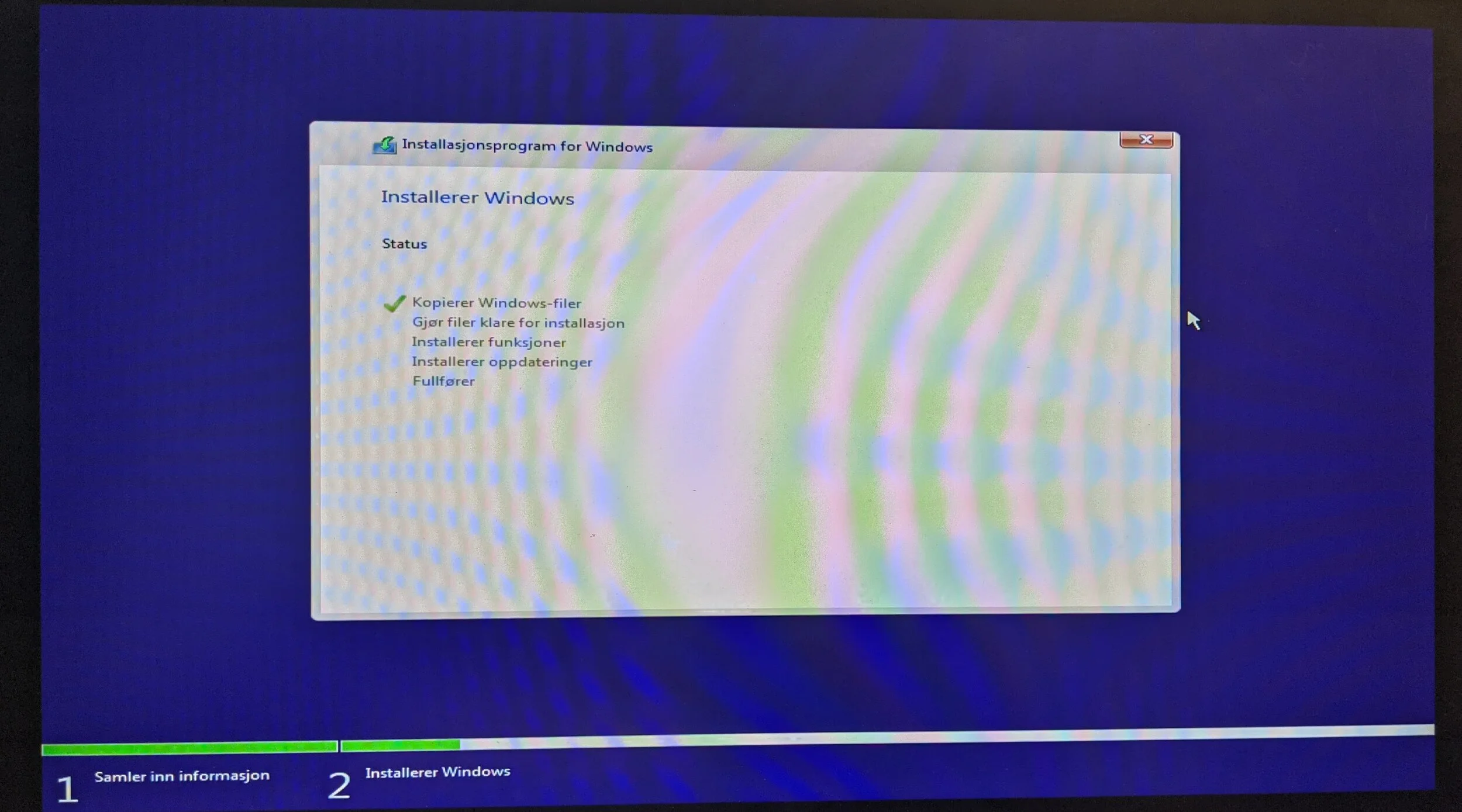
When the machine restarts during installation, you can usually remove the USB drive the first time Windows starts from the internal drive. If the machine returns to the installer again, it probably booted from USB again.
Confirm activation in Settings > System > Activation, and confirm that user folders, photos, documents, desktop files, browser data and specialist software are actually back before deleting the backup. Microsoft account, network and password requirements vary between Windows versions and editions. If you want a local user, check which choices the installer actually offers before erasing the old installation.
Windows 10 is no longer a good default choice after support ended on October 14, 2025. For machines that support it, Windows 11 should be considered first. If the machine does not support Windows 11, assess whether continued use, extended support, upgrading or replacement is safest. EasyPC can handle installation, driver setup and file transfer, and you can always bring the machine in for a free diagnosis before choosing reinstall.