
When a laptop only works with the charger connected, the battery is often suspected. The same symptom can come from the wrong charger, a USB-C or MagSafe issue, a loose charging port, battery connector, charge limit, firmware/driver or a power circuit fault on the motherboard.
The goal is to find out whether the machine is safe to test, whether the battery is actually worn, and whether the port or motherboard should be checked before buying a battery. Start with the observations below, especially if the files on the machine matter. Back up while it still starts with the charger.
1. Stop first for heat, smell, liquid or swollen battery
Do not continue normal testing if the casing bulges, the trackpad does not click normally, the machine gets hot near the battery or charging port, smells unusual, has had liquid inside, or the charger/port gets abnormally hot. Disconnect the charger and do not keep charging unnecessarily.
A swollen lithium battery should not be pressed, bent or punctured. Microsoft recommends stopping use immediately if the battery expands beyond the device enclosure. Do not open the machine if the battery may be under pressure below the bottom cover. Bring it to EasyPC for a free diagnosis instead, so we can make it safe before further troubleshooting.
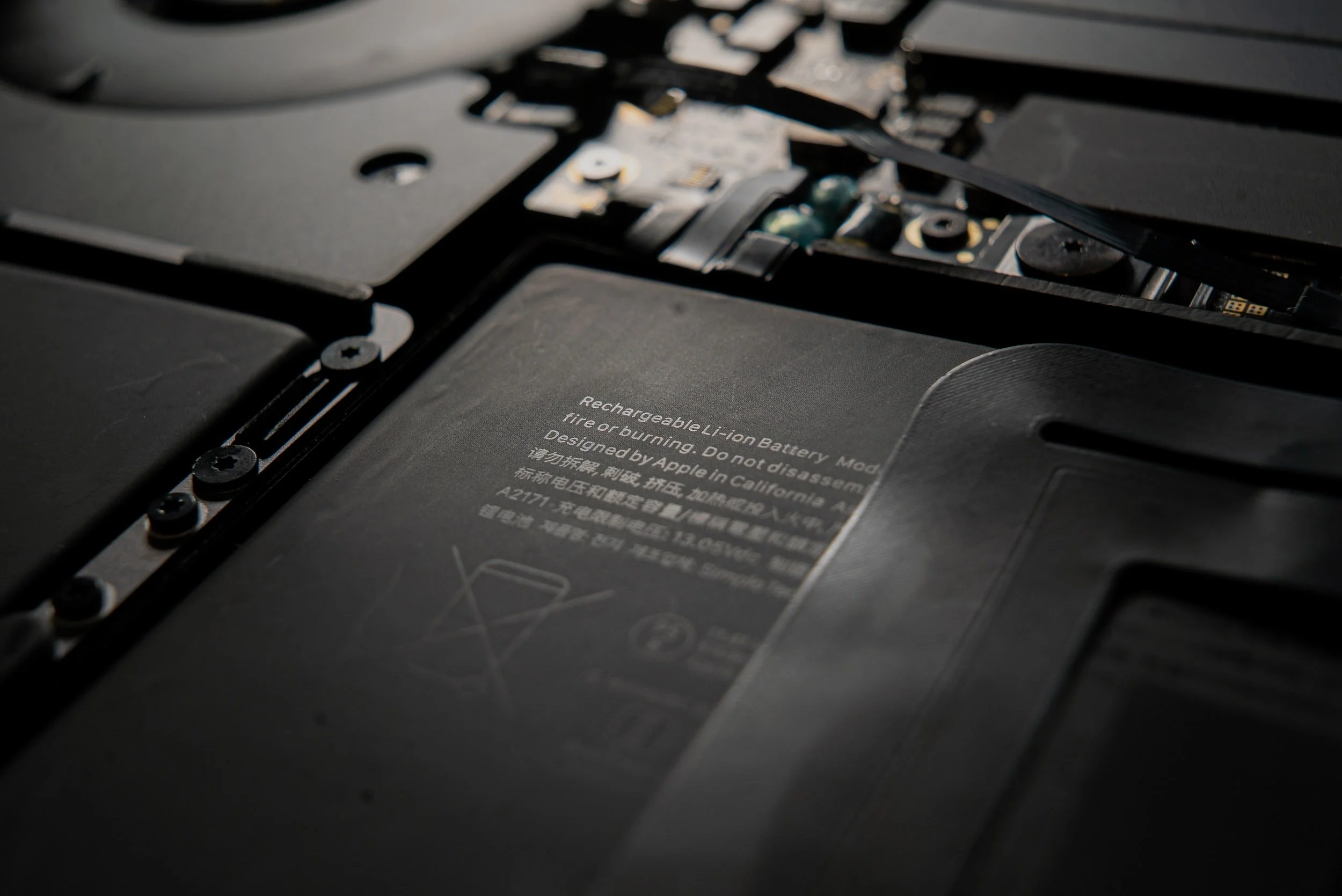
2. Place the symptom correctly
If the machine starts with the charger connected but shuts down as soon as it is unplugged, the battery, battery connector or battery management is likely. If it runs for a while on battery and then shuts down under load while still showing 30-80 percent, the battery is often worn or unstable. If the percentage freezes, jumps, stays at 0 percent, or Windows/macOS cannot find the battery, it can also be connector, firmware or motherboard.
If charging drops out when the cable moves, the plug must be held at an angle, the machine charges only from one USB-C port, or the area around the port gets hot, the issue is not only the battery. Check charger, cable, port and power circuitry before battery replacement makes sense. Also note whether the shutdown happens immediately, after a few minutes, only during games/heavy use, or only when the cable moves.
3. Check charger, cable and port without opening
Use a known correct charger with enough wattage for the model, preferably original or manufacturer-approved. Test directly in a wall outlet, without dock, hub, display or extension lead first. With USB-C, both charger and cable must support enough power; a phone charger can show signs of life but still be too weak for a laptop.
Some USB-C ports on a laptop do not support charging. Use the port with a charging symbol if there are several. On MacBook, charging may use USB-C or MagSafe depending on model, but Apple explains that a Mac charges from only one source at a time and uses the source that provides the most power. Multiple chargers at once do not make it charge faster. Messages such as Slow Charger, Charging On Hold or Charge Limit can mean too little wattage or normal charge optimization, not necessarily a bad battery.
4. Windows 11: Power & battery and battery report
Open Settings > System > Power & battery. Check whether Windows detects the battery, whether the percentage changes, and whether the manufacturer app has Smart charging, Conservation mode or a charge limit that stops around 60-80 percent. Microsoft explains that lithium-ion batteries age better when frequent deep discharges are avoided and the battery is often kept roughly between 20 and 80 percent. A charge limit can therefore be intentional battery protection, not a fault.
For a more useful check, press Start, type Command Prompt, choose Run as administrator and run `powercfg /batteryreport`. Open the HTML file path shown in the command window. Look at Installed batteries, Design capacity, Full charge capacity, Recent usage and Battery usage. If Installed batteries is missing, Windows does not see the battery. If Full charge capacity is far below Design capacity, that points toward wear. If Recent usage shows abrupt stops, that matches an unstable battery or power supply. The report still does not prove that the charging port and motherboard are healthy.
5. MacBook: battery health, charging and SMC
In macOS, the battery menu or System Settings > Battery can show battery health, charge limit, charging on hold or service warnings. Apple silicon Macs use battery health management, and maximum capacity drops as the battery chemically ages. "Service Recommended" means the battery holds less charge than when new or is not functioning normally. You can often continue using the Mac if it is otherwise safe, but very low capacity, random shutdowns or a swollen battery should be physically checked.
If the Mac does not respond normally, unplug accessories and hold the power button for about 10 seconds before trying again. Apple says the SMC manages the power button, battery, charging, USB power, thermal features and lid sensors, but separate SMC key-combination resets mainly apply to Intel-based Macs. On Mac with Apple silicon, SMC resets automatically through restart or shutdown, so do not use old Intel steps on the wrong model.
6. Safe tests before repair
Try a simple power reset: disconnect charger and accessories, hold the power button for 20-30 seconds, and reconnect the charger. On older laptops with a removable battery, remove the battery first. On Lenovo and some other models, there may be a small reset hole underneath; use it only if the manual or marking confirms that it is actually the reset button. Then test calmly: start with charger, let the battery pass 20 percent if it charges, unplug once and note whether shutdown happens immediately or only under load.
Avoid BIOS updates, firmware updates, reset or reinstall on a machine that can shut down without warning unless data is secured and power is stable. If important files do not exist elsewhere, back up while the machine still starts with the charger, or bring it in for a free diagnosis before riskier attempts. Do not drain the battery to zero repeatedly just to test; it can make a weak cell or drive issue worse.
7. When battery replacement is worth it
Battery replacement is often worth it when the machine otherwise works well, has a good screen, enough performance, a healthy SSD and no signs of charging port or motherboard faults. Battery report findings, service warning, low capacity or shutdowns without charger make the battery more likely, but a physical check is still wise before ordering the part.
If the machine is old, slow, has a poor display, loose charging port, liquid damage or several faults at the same time, assess the total value first. At EasyPC, you can always bring the machine in for a free diagnosis before deciding on battery replacement, port repair, data recovery or a new machine.