
When a PC will not turn on, the fault can be simple or serious. It may be the charger, power supply, battery, RAM, display, storage, BIOS issue or motherboard. Start with the safe checks before opening the machine.
1. Drain residual power
Disconnect the charger or power cable. Hold the power button for 20-30 seconds. Connect power again and try to start. On a desktop, also check the switch on the power supply and that the cable is firmly seated.
Some laptops also have a small reset pinhole that can be pressed with a paperclip or needle. On older laptops with a removable battery, disconnect the charger, remove the battery, hold the power button and then test with only the charger connected first.
If the battery is internal, it is safer to stop here unless you are used to opening laptops. The battery connector is often wider than other internal connectors, but incorrect handling can damage the cable, connector or battery.
2. Look for signs of life
Notice whether fans start, keyboard lights blink, charger lights turn on, or the machine makes beep codes. These signs help separate power faults, display faults and startup faults.
3. RAM and connections can stop startup
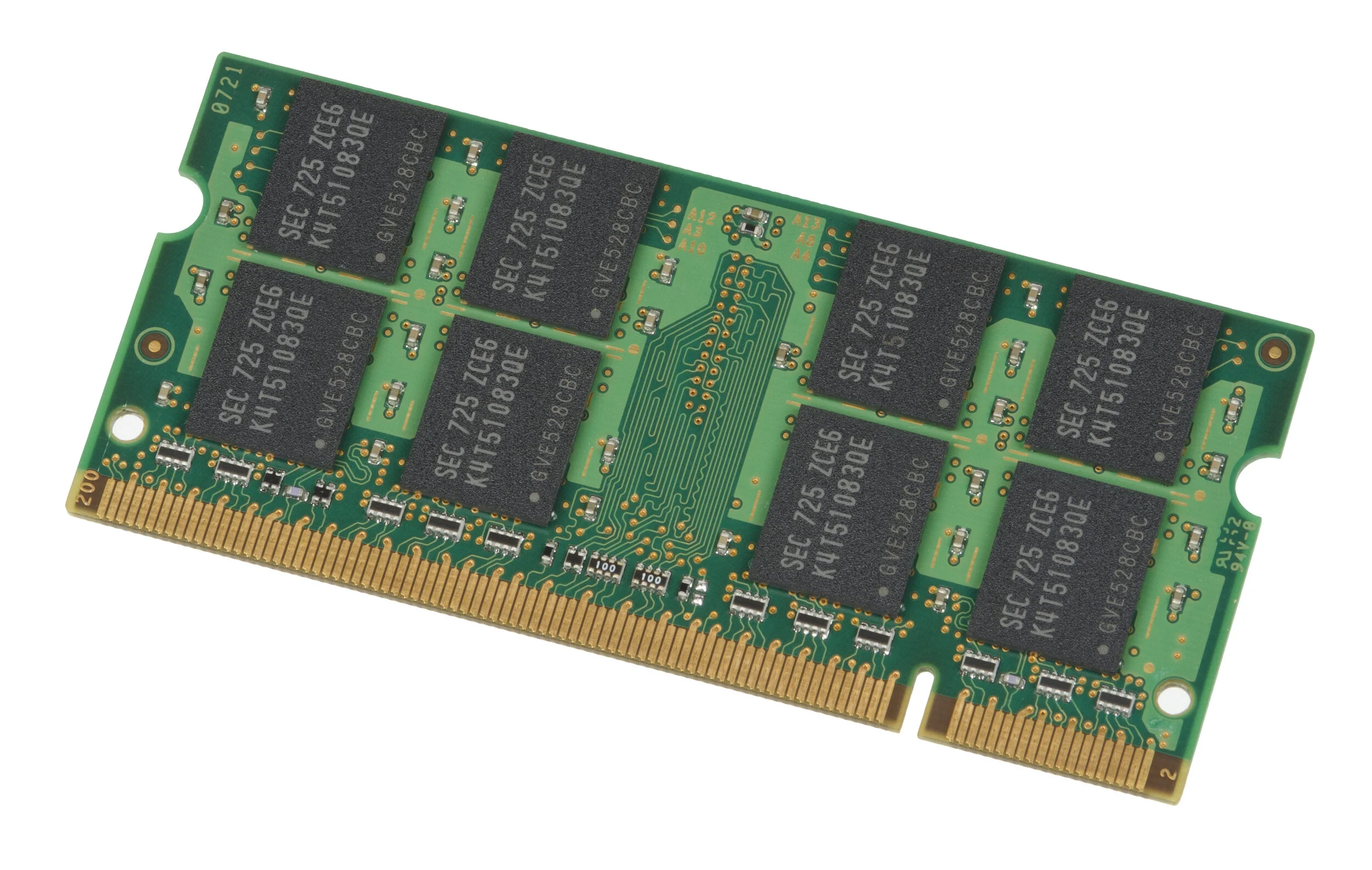
On machines with accessible RAM, poor contact can prevent a proper start. If you are comfortable doing so, RAM can be removed and reseated. Always disconnect power first, and do not open the machine if you are unsure.
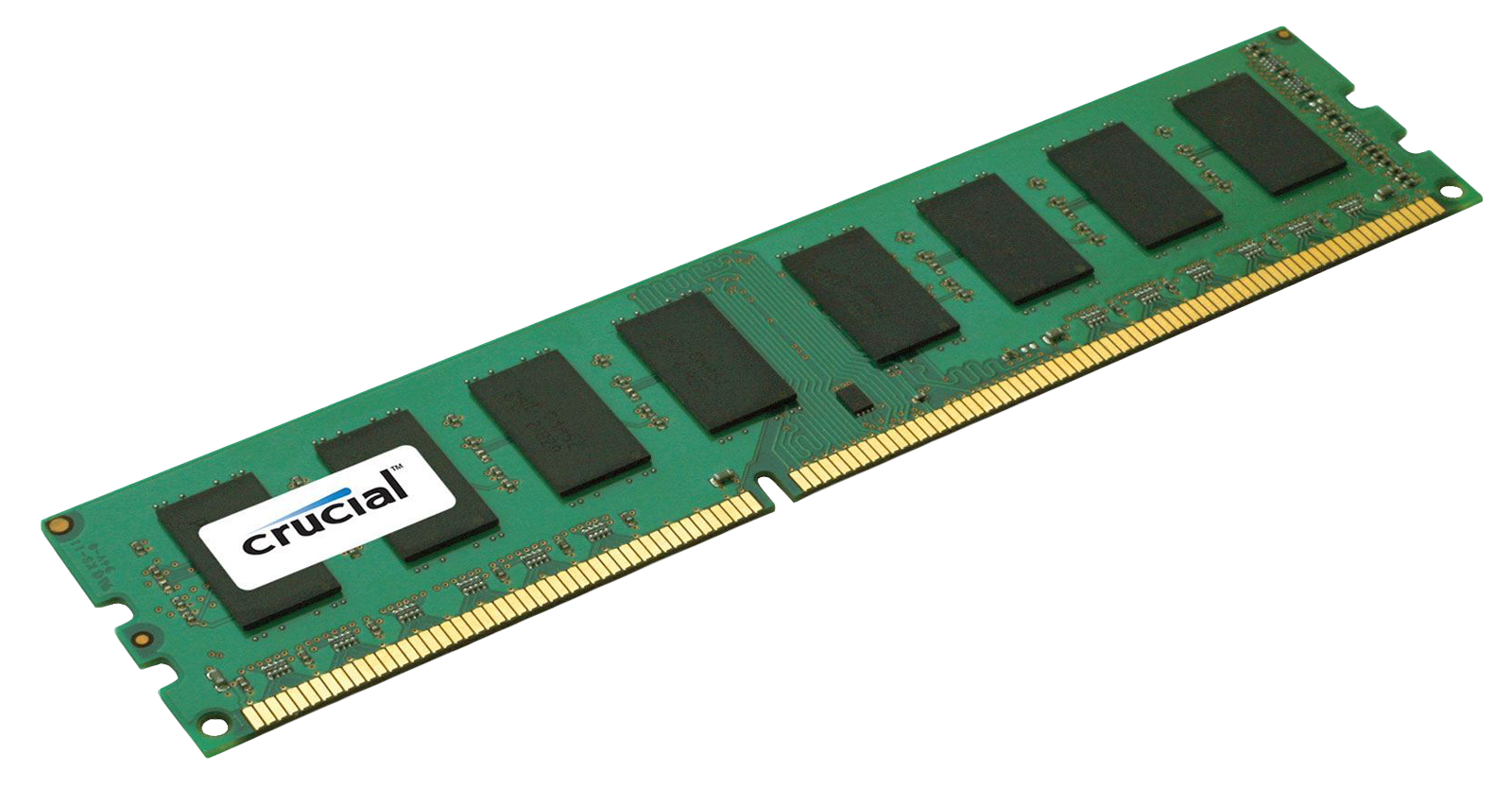
RAM may sit under its own cover on older laptops, or behind the side panel on desktop PCs. If the machine has several RAM sticks, one faulty stick can be enough to prevent startup. Some RAM sticks have heat spreaders, so only the gold contacts along the bottom may be visible. Never move RAM while power is connected.
When should a workshop diagnose it?
Bring it in if it smells burnt, has liquid damage, gets warm without starting, only flashes briefly, or you have tested the correct charger/power without result. We measure power, check for shorts and give a price before we continue.
After a drop or impact
If the machine was recently dropped, an internal connector may have come loose. This can involve the battery, display cable, storage or other motherboard connectors. The machine then has to be opened methodically and relevant connectors checked without pulling on cables. If you look for a teardown video yourself, search with the exact model number plus “disassembly”, not only the series name.
Liquid and component faults
After liquid damage, do not keep trying to start or charge the machine. Motherboard, power supply, charging port and other components can also fail without obvious outside damage. Those faults require measurement and experience, not just replacing parts on suspicion.