
Whether PC repair is worth it is not only about the price of one part. A good assessment starts with files and risk, then whether the machine still has a sensible Windows future, and finally whether the repair gives you a PC you actually want to keep using.
Do not start with reset, reinstalling Windows, disk repair, BIOS changes or random parts if the PC has important files, BitLocker, clicking storage, liquid damage, burnt smell or a swollen battery. In those cases, a free diagnosis at EasyPC is safer than trying more at home.
1. Start with files, backup and BitLocker
If the files matter more than the machine, data must be assessed before repair. Copy documents, photos, desktop files, downloads, accounting files and project folders to an external drive or cloud if the PC is still stable. Open a few files from the copy afterwards so you know the backup actually works.
Stop if the drive clicks, disappears from BIOS or Windows, freezes during copying, shows "No boot device", or folders suddenly disappear. Do not run chkdsk, Diskpart, reset or reinstall Windows on a possibly failing drive if files matter. Extra load can make recovery harder.
Check BitLocker before drive replacement, BIOS/UEFI changes, Secure Boot, TPM, RAID/AHCI, reset or reinstall. Go to Settings > Privacy & security > Device encryption, or search for BitLocker. Microsoft describes the recovery key as a 48-digit key, often stored in a Microsoft account, work/school account, printout or USB drive. Microsoft Support cannot recreate a lost key.
2. Check whether the PC has safe Windows life left
Windows 10 reached end of support on October 14, 2025. A Windows 10 PC can still start, but without normal support and security updates it is a poor default choice for banking, school, work and daily use. Repair is more attractive if the PC can run supported Windows 11, or if the use is deliberately limited.
If you want to keep Windows 10 a little longer, check whether the machine can use Microsoft’s Windows 10 Consumer Extended Security Updates. Treat that as a temporary bridge, not a repair for old hardware: it does not improve battery life, SSD speed, RAM, drivers or long-term value. For banking, work, school and everyday web use, supported Windows 11 or a new/used PC should still be considered.
If Windows starts, check Settings > Windows Update and consider using PC Health Check. Microsoft’s Windows 11 requirements include a supported 64-bit processor, at least 4 GB RAM, at least 64 GB storage, UEFI with Secure Boot capability, TPM 2.0 and compatible graphics. RAM and SSD can often be upgraded, but CPU and TPM are usually not realistic laptop upgrades.
If the repair value mostly depends on Windows problems, start with the least destructive options. On newer Windows 11 installations, Settings > System > Recovery > Fix problems using Windows Update > Reinstall now can repair system files while preserving apps, files and settings. Reset, clean install or `setup.exe /product server` should be considered only after backup, the BitLocker key, stable power and a healthy drive are confirmed. With drive clicking, heat shutdowns or important files without backup, a free diagnosis is safer.
3. Repairs often worth diagnosing
SSD replacement, more RAM, battery replacement, charger, charging port, keyboard, screen, hinge, fan, cleaning, thermal paste and Windows repair are often worth checking if the rest of the machine is good. Diagnosis does not mean you must repair; it gives a better basis than buying a new PC on guesswork.
A PC with a mechanical hard drive can become dramatically more usable with an SSD. A PC with 4-8 GB RAM can get more headroom with extra memory if the model supports it. A good laptop with poor runtime can be worth a battery replacement if the display, keyboard, trackpad, charging, storage and motherboard are otherwise healthy.
For a working laptop that still fits your needs, upgrading can be cheaper and more sensible than buying a new PC. A typical SSD or storage upgrade with Windows setup and data transfer often costs around NOK 2,500-4,000, depending on storage size, drive health, data volume and whether the machine also needs cleaning, RAM or a battery. We do not recommend upgrading if diagnosis shows the total does not make sense.
4. Symptoms where you should stop first
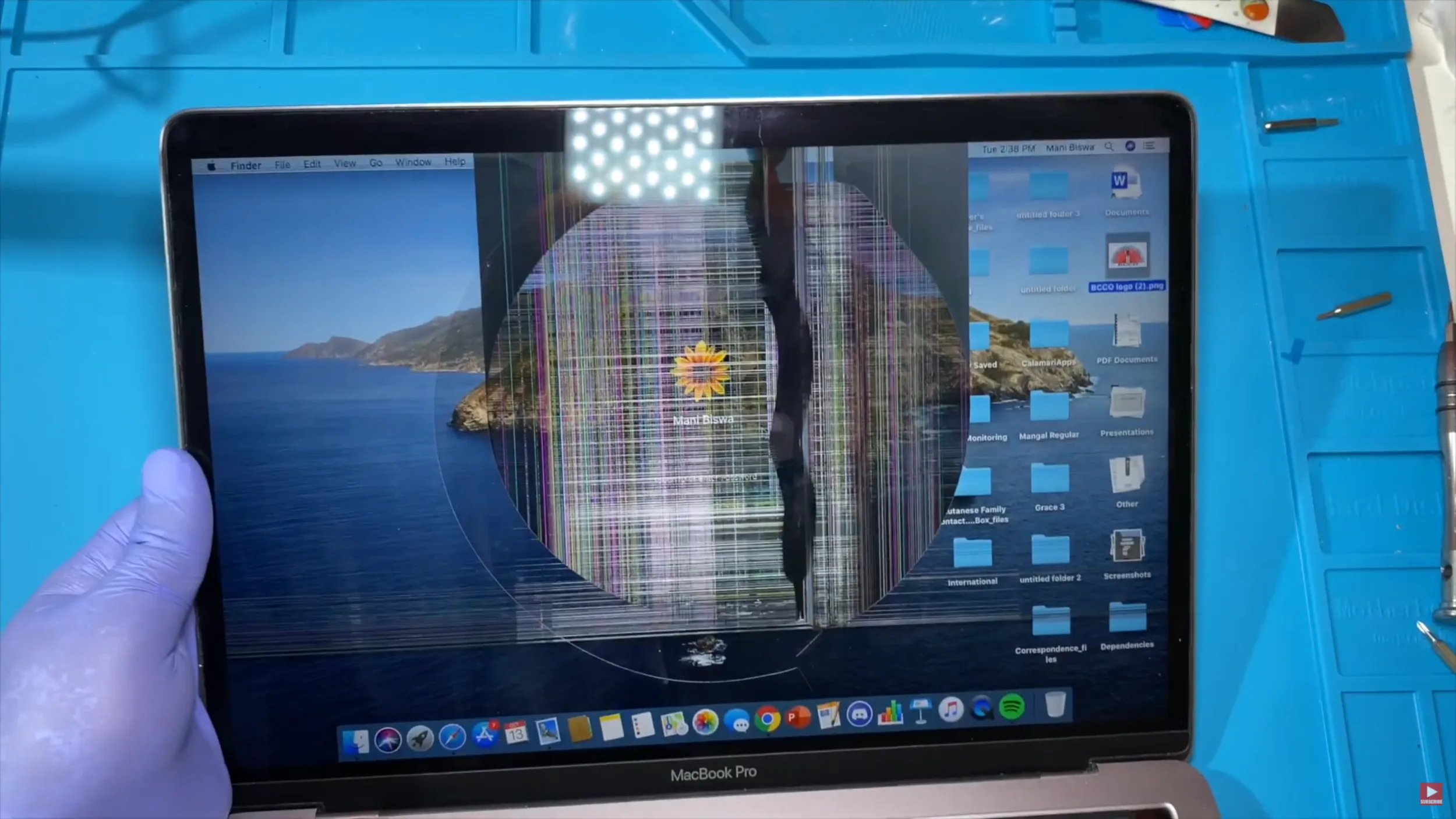
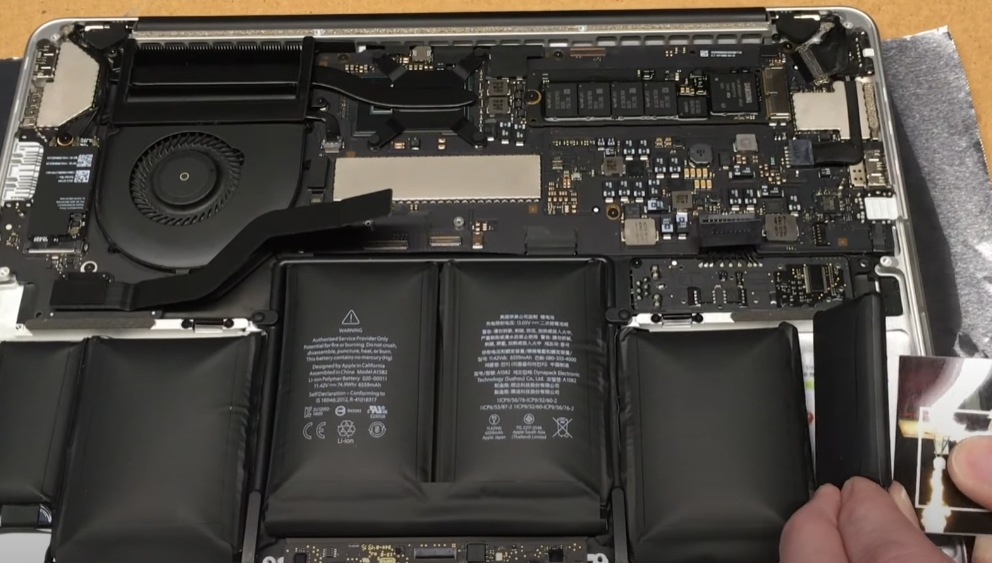
A swollen battery, burnt smell, liquid, drive clicking, very hot charger, loose charging port, display that flickers at certain angles, or a PC that shuts down during light use are not good candidates for random testing. Disconnect the charger if there is heat, smell or liquid, and do not press a swollen battery flat.
5. Do not buy parts before the symptom is separated
Many faults look alike. A black screen can be the display panel, display cable, backlight, RAM, graphics, storage, BIOS or motherboard. Charging faults can be charger, cable, USB-C or charging port, battery or power circuit. A slow PC can be full storage, mechanical hard drive, low RAM, heat, Windows Update, malware or drive failure.
If you order a screen, battery, charger, RAM or SSD before the fault is confirmed, you can end up with the right part for the wrong problem. This is common with USB-C charging, black screen, machines that will not start, random blue screens and PCs that are both slow and hot.
6. When a new or used PC is smarter
A new or used PC is often right if repair does not solve the main problem: weak performance, too little non-upgradable RAM, missing Windows 11 support, poor display, poor battery, expensive motherboard fault or several expensive faults at once.
Before replacing the machine, plan file transfer, accounts, email, BankID, browser data, license keys and specialist programs. Do not erase or recycle the old PC before you have opened the most important files on the new machine.
When should EasyPC assess the machine?
Bring the PC to EasyPC for a free diagnosis if files matter, the BitLocker key is missing, the drive clicks or disappears, the PC will not start, the machine has liquid or burnt smell, the battery is swollen, or you are unsure whether repair, upgrade, data recovery or a new PC is worth it. You get a price and recommendation before further work.