
MacBook Pro 13 A1502 is the 13-inch Retina model from Late 2013, Mid 2014 and Early 2015. Many units can still handle simple work, but in 2026 the machine should be assessed carefully: data, battery, SSD, display, heat and macOS support all matter before buying parts.
Stop before further testing if the battery is swollen, the Mac smells burnt, has had liquid inside, cannot find the SSD, or contains important files without backup. A free diagnosis at EasyPC is safer than charging further, running Disk Utility repeatedly or opening the machine yourself.
Apple lists the A1502 variants as model identifier MacBookPro11,1 for Late 2013 and Mid 2014, and MacBookPro12,1 for Early 2015. That matters because display, trackpad, SSD solution, battery, accessories and newest official macOS are not identical between the years.
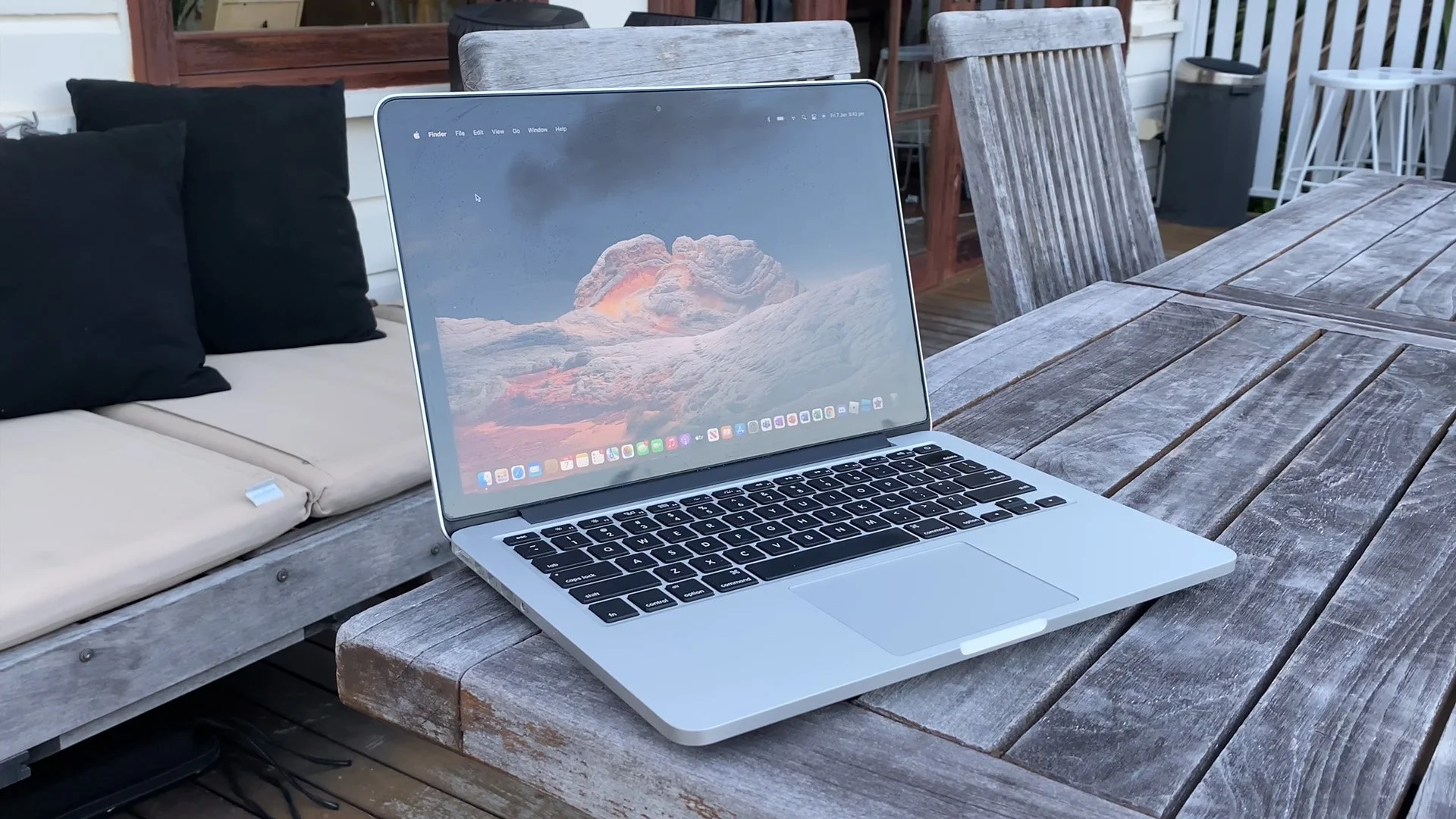
1. Identify the exact model before ordering parts
If the Mac starts: open Apple menu > About This Mac and note the year, serial number and macOS version. Then hold Option, click Apple menu > System Information and check Model Identifier. If it does not start, use the serial number on the underside and compare the model with Apple’s identification page.
Do not rely only on the A1502 number on the bottom cover. Late 2013, Mid 2014 and Early 2015 can look very similar, but the wrong display, trackpad cable, SSD adapter or battery part can create more work than the repair itself.
2. Back up and check FileVault before SSD work
Before SSD replacement, reinstalling macOS, Disk Utility First Aid, erase operations or OpenCore, make sure you have a tested backup. Use Time Machine, an external copy or another known backup, and open a few important files from the backup before trusting it. If FileVault is enabled, the password and recovery key must be under control before the drive is removed.
If Time Machine asks to erase an external drive, that means the drive is being prepared as a backup disk. Do not choose a drive that contains the only copy of files you want to keep. If you choose encrypted backup, store the password safely; without it, the backup can be unusable when you need to restore.
If the Mac freezes, shows a question mark, only starts sometimes, the SSD disappears, or copy jobs fail, secure the data before pushing the machine harder. Do not run long clone attempts or repeated First Aid on an unstable SSD if the files matter.
3. Check battery, charger and swelling
Apple lists up to 1000 charge cycles for these 13-inch Retina MacBook Pro models. Check cycle count by holding Option, choosing Apple menu > System Information > Power. Also check Battery Health in System Settings if the installed macOS version has that menu.
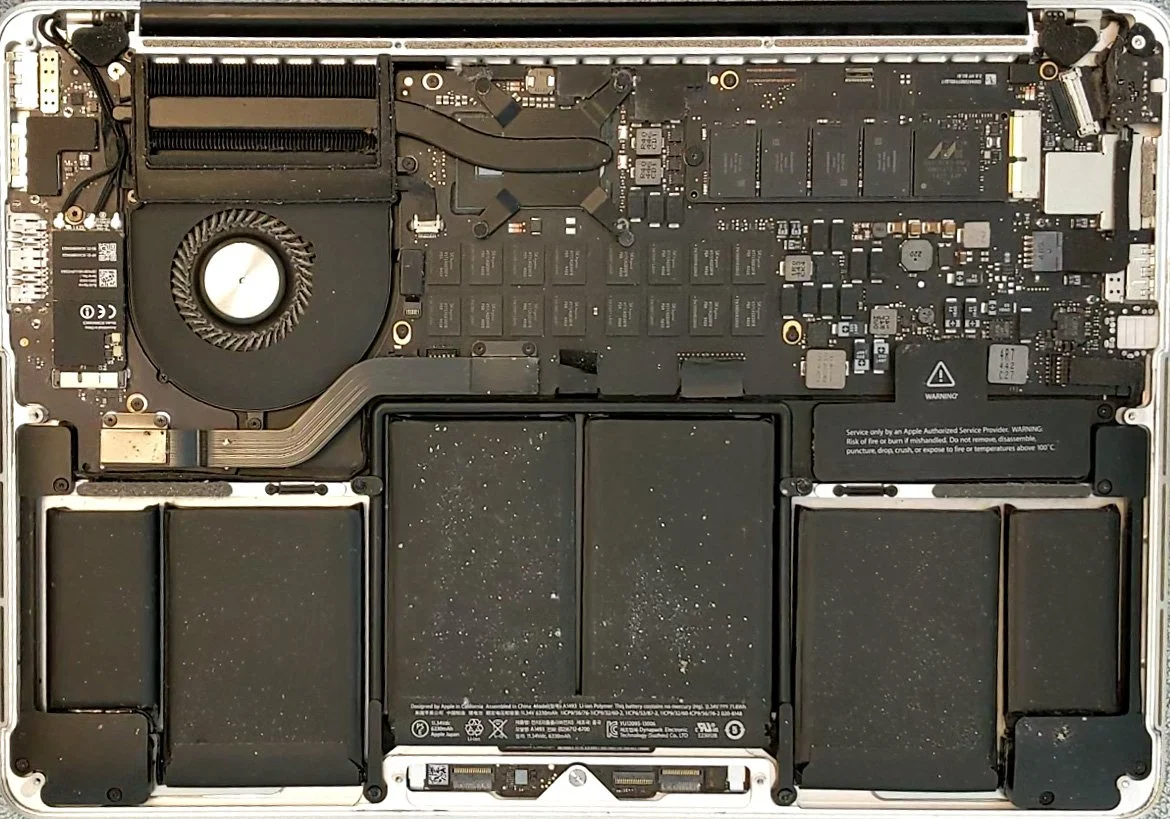
Short runtime alone does not mean the whole Mac is bad. But if the bottom cover bulges, the trackpad lifts, the keyboard is pushed upward, or the machine becomes hot while charging, stop. The battery is glued into the top case, and poor disassembly can puncture cells or damage the trackpad, speakers and logic board.
4. Assess SSD, RAM and speed realistically
A1502 shipped with PCIe-based flash storage, usually 128 GB, 256 GB or 512 GB, and some Early 2015 configurations could be ordered with 1 TB. Storage can often be upgraded, but part choice matters. Original Apple SSDs, used original parts and M.2 adapters have different tradeoffs for sleep behavior, stability and troubleshooting.
RAM is soldered to the logic board. If the machine has 8 GB, it cannot easily become 16 GB later. If the problem is many browser tabs, modern Teams/Office, photo work or heavy websites, SSD replacement and cleaning can help, but the RAM limit still belongs in the calculation.
5. Display, coating, keyboard and trackpad
All A1502 models have a 13.3-inch Retina display with 2560 x 1600 resolution. Common display issues include cracked glass or panel, anti-reflective coating stains, lines, flickering or an image that changes when the lid moves. A cracked or failed display is often replaced as a complete display assembly, and the exact year should be checked before ordering parts.
Early 2015 has a Force Touch trackpad, while 2013/2014 models use the older trackpad feel. If the trackpad lifts or clicks poorly, check battery swelling before ordering a trackpad. Keyboard faults after liquid should be assessed together with the logic board and battery, not only as a keyboard replacement.
6. Heat, fan and Apple Diagnostics
High fan noise, slowness and heat can come from dust in the heatsink, old thermal paste, heavy software, an aging SSD or a battery issue. Start with safe checks: backup, Activity Monitor, free storage and a normal restart. Do not open the machine if the battery is swollen or you do not have the right Pentalobe and Torx tools.
Apple Diagnostics can be started on this Intel Mac by turning it on and holding D, or Option-D if the first method does not work. Disconnect unnecessary devices first and place the Mac on a hard surface. Reference codes can help, but a test with no code does not rule out a weak SSD, battery swelling or intermittent heat faults.
7. macOS support and OpenCore
Apple lists the newest compatible operating system as macOS Big Sur for Late 2013 and Mid 2014, and macOS Monterey for Early 2015. That means A1502 does not run the current macOS release through Apple’s normal update path. For banking, work and school, that should weigh heavily in the repair decision.
OpenCore Legacy Patcher can run newer macOS versions on some older Macs, but it is an unofficial solution. Before choosing it, assess backup, FileVault, Wi-Fi, graphics, camera, sleep, security updates and rollback options. For a work machine, stability can matter more than the newest macOS.
The OCLP documentation says the model must be checked by model identifier and that the Mac should be updated to its latest official macOS first to get the newest firmware. After later macOS updates, Post-Install Root Patches may need to be rerun if Wi-Fi, graphics, camera or other functions disappear.
When is repair worth it?
Repair is most likely to make sense when the fault is limited: battery on an otherwise healthy machine, cleaning and thermal paste for heat, a known good display part, a stable SSD upgrade or a simple MagSafe fault. It is less attractive when the same Mac has a weak battery, display fault, too little RAM, unstable SSD, liquid damage and macOS limitations at the same time.
Bring the MacBook Pro A1502 to EasyPC for a free diagnosis if data matters, FileVault is unclear, the battery is swollen, charging is unstable, the SSD disappears, the display is damaged, the machine gets hot, or you are unsure whether battery, SSD, display, cleaning, OpenCore or a newer Mac is the right path. You get an assessment before further repair.