
Sooner or later, the battery in a MacBook Pro gets weaker. Symptoms can include short runtime, unexpected shutdowns, slow performance on low battery, or a machine that only behaves reliably when the charger is connected.
Capacity is not the same as battery life
MacBook Pro models have different battery capacities, usually listed in watt-hours (Wh). A larger value means the battery can store more energy, but it does not automatically mean the computer lasts longer in real use. Display size, processor, graphics, brightness, fans, Wi-Fi, Bluetooth, temperature and the apps you run all affect power draw.
As a rough guide, many 13-inch MacBook Pro models from 2012-2015 are around 63-75 Wh, while 15-inch models from the same period are often around 95-99.5 Wh. 13-inch USB-C models from 2016-2020 are often lower, around 49-58 Wh, while 14- and 16-inch Apple Silicon models typically have larger batteries again, with the 16-inch model close to 100 Wh.
That is why two MacBooks with different battery sizes can feel similar in everyday use, while the same machine can go from good to poor runtime if the battery is worn or macOS is busy in the background.
How to check battery health
Hold the Option key, click the Apple logo and open System Information. Choose Power in the sidebar. There you can see cycle count, condition and capacity information. On newer macOS versions, battery health is also available in System Settings.
If capacity is shown in mAh, it must be assessed together with battery voltage. Watt-hours are more useful when comparing models. A large gap between original capacity and current capacity means the battery has lost performance over time.
Pay attention to high cycle count, reduced maximum capacity, service warnings, unusual heat or a battery percentage that drops suddenly. If the bottom cover bulges, the trackpad lifts or the machine no longer sits flat, stop using it until the battery has been checked.
Why MacBook Pro batteries are difficult to replace
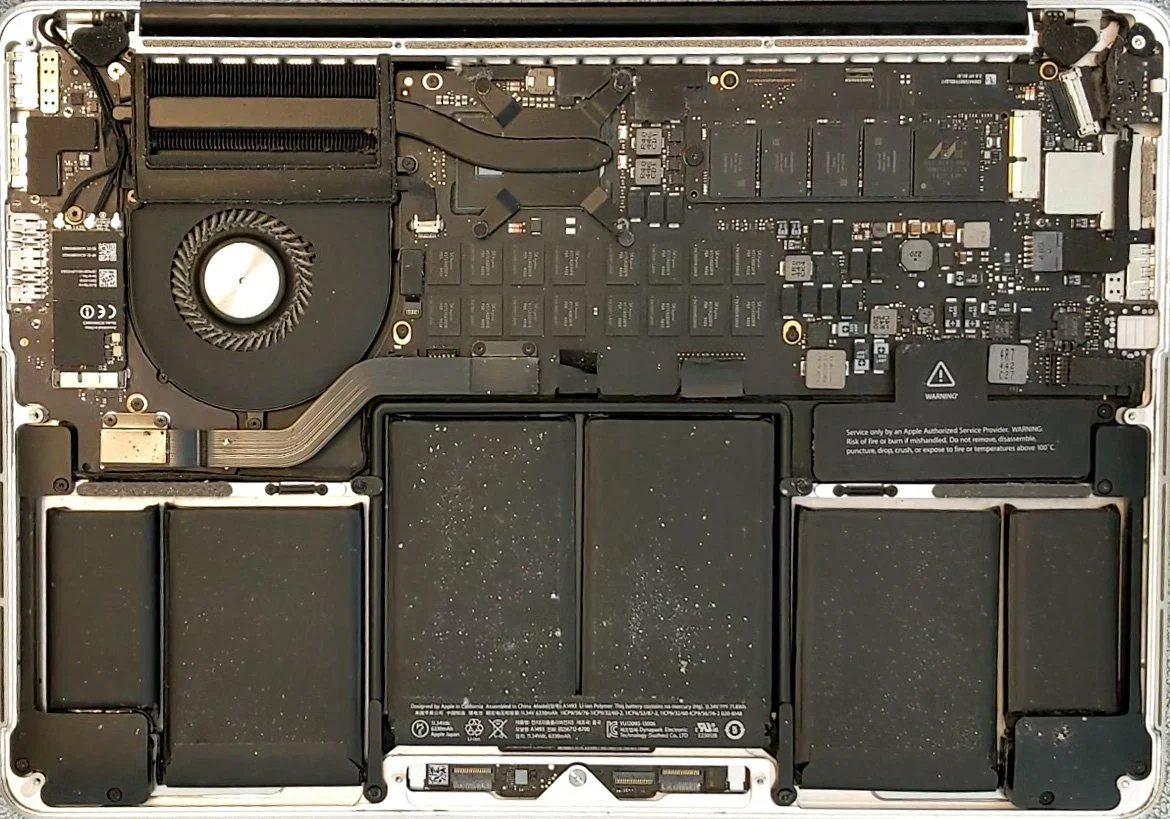
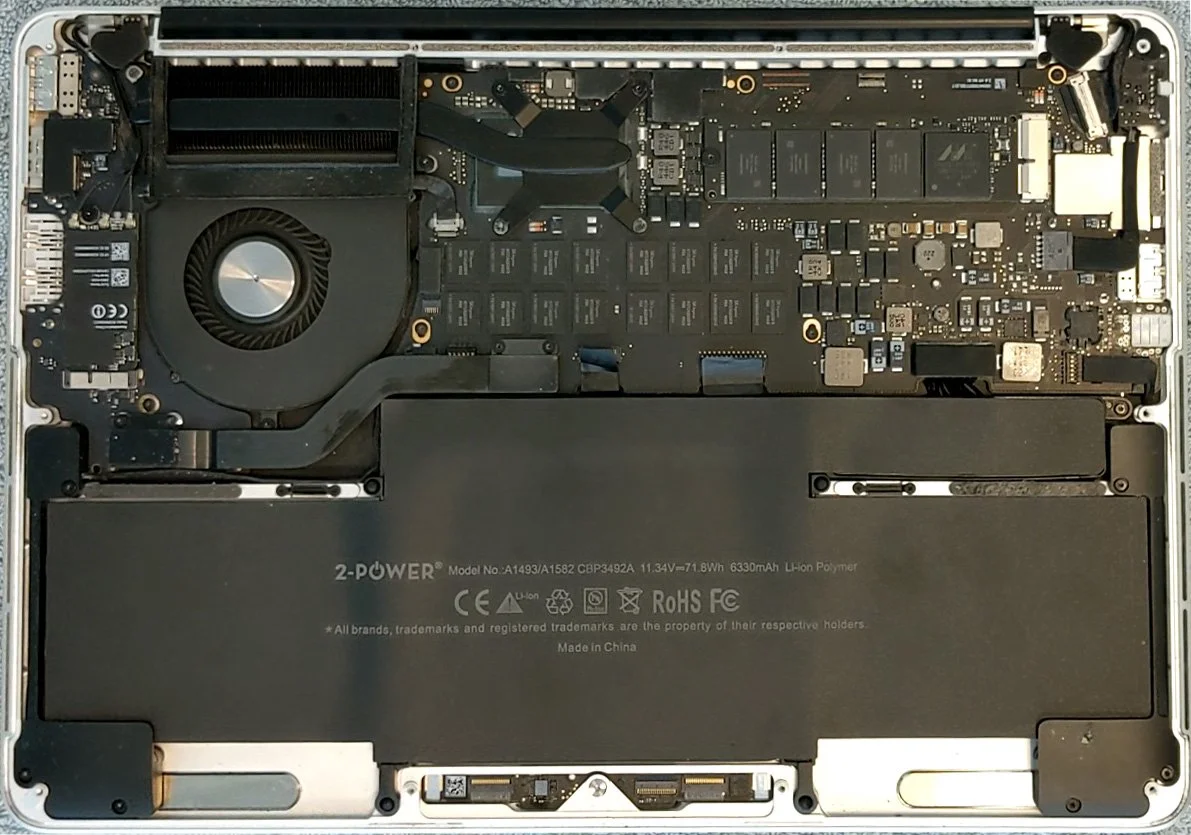
On many MacBook Pro models, the battery cells are glued into the top case. That makes the job more risky than on laptops where the battery is only held by screws. The bottom cover must be removed, the battery disconnected, obstructing parts moved aside and the adhesive released without damaging cables, speakers, the trackpad or the logic board.
Tools and process
You typically need the correct Pentalobe and Torx bits, plastic tools, control over screw placement and a safe method for releasing the adhesive under the battery cells. On some 15- and 16-inch models, several internal parts must be loosened to remove and install the battery safely.
Common tools include P5 for the bottom cover, T5 for several internal screws, plastic cards/tools and isopropyl alcohol to weaken the adhesive. The important point is simple: do not use metal tools against the battery cells, keep liquid away from electronics and wait until the area is fully dry before installing the new battery.
After installation, charge the machine fully, use it down for a while and charge it again. Test that it starts without the charger, that the percentage reading is stable, that the trackpad works normally and that the bottom cover sits correctly.
When should the battery be replaced?
Battery replacement usually makes sense when the computer otherwise works well and the main issue is short runtime or a clear battery warning. If the machine also has display damage, liquid damage or other expensive faults, assess the whole repair before ordering parts.