
When keyboard lights, charging indicators or fans start but the screen stays black, the machine is getting some power. That does not automatically mean the display panel is broken. The cause can be display mode, brightness, graphics driver, Windows 11, external monitor mode, RAM, BIOS/UEFI, display cable, backlight, panel or motherboard.
Stop before more testing if the machine has had liquid inside, smells burnt, gets hot near the charging port or battery, has a swollen battery, has had a hard impact, or contains important files without backup. Do not start with reset, reinstalling Windows, BIOS changes or opening the machine in those cases. Bring it to EasyPC for a free diagnosis instead.
1. Find out whether it is fully black, faint image or Windows fault
Turn on the machine and wait one to two minutes. Try Caps Lock or Num Lock and see whether the light changes. Listen for Windows sounds, sign-in sounds, notifications or a fan changing speed. If the keyboard responds, Windows may have started without visible image. If the machine restarts repeatedly, stops at the logo, shows a blinking cursor or shuts off, this is more of a startup fault than a pure display fault.
A black screen with a mouse pointer often means Windows or the graphics driver has stalled after sign-in. A black screen with only a blinking text cursor before the Windows logo more often means BIOS/UEFI cannot find the correct boot drive. That is not a normal display-panel fault, so do not start by replacing the screen. If the screen shows a Windows message such as "Your device ran into a problem and needs to restart", note the stop code or driver name first; that is a crash/stop-code fault, not the same as a blank screen with no text.
Shine a phone flashlight at the display from the side. If you can see a very faint desktop, logo or mouse pointer, the backlight or display cable may be the issue. If the panel is completely dark, it can still be display mode, driver or internal display failure. Do not keep bending the lid back and forth to "get image"; that can make a cable or hinge-area fault worse.
2. Test an external monitor and display mode
Connect an external monitor or TV with HDMI, DisplayPort or USB-C, preferably directly without a dock first. Check that the monitor uses the correct input. Wait a little after startup. Not every USB-C port supports video; try HDMI or the port marked with a display/thunderbolt symbol if USB-C gives no signal. Press Windows + P, press P once more and Enter to switch display mode. Repeat calmly a few times. Microsoft describes these choices as PC screen only, Duplicate, Extend and Second screen only.
If the external display works but the internal screen is black, suspect the display panel, display cable, backlight, hinge area or the internal display being disabled. If both internal and external displays are black, the panel alone is less likely. Then separate Windows, RAM, graphics, BIOS/UEFI, power and motherboard faults.
If the external display gives image, use it first to back up files and note error messages before opening the machine. Go to Settings > System > Display and see whether Windows detects the internal display. Do not uninstall the graphics adapter or reset Windows just because the internal screen is dark; a working external display is an important clue toward cable, panel or backlight.
3. Try the safe Windows keys first
If Windows seems to have started, press Windows + Ctrl + Shift + B. Microsoft describes this shortcut as a way to wake a device when the screen is blank or black; you may hear a beep or see a flicker if Windows responds. Wait a few seconds before trying again, and do not treat it as proof that the display hardware is healthy. Also try Ctrl + Alt + Del. If the security screen appears, the display and Windows are partly working, and the issue may be Windows Explorer, driver or sign-in related.
If Ctrl + Alt + Del or Ctrl + Shift + Esc shows Task Manager, try Processes > Windows Explorer > Restart. If Windows Explorer is not listed, choose Run new task, type `explorer.exe` and press Enter. If the desktop returns, back up files before updating the display driver, uninstalling recent apps or making larger changes.
Also check brightness keys and any Fn key for display on/off. Some laptops can be dimmed all the way down or left in external-display mode after docking. If the image comes back after Windows + P, brightness or graphics-driver restart, note what helped before updating drivers or changing more.
4. Do a safe power reset without opening the machine
Disconnect charger, USB devices, memory cards, external drive, dock and external display. Hold the power button for 20-30 seconds, reconnect the charger and try again. On models with a removable battery, remove the battery first. On modern laptops with an internal battery, do not open the machine just for this unless you are sure. Do not repeat hard power tests many times if the drive clicks, the machine gets hot, or Windows starts repairing the drive; at that point the data matters more than another attempt.
5. If the screen goes black after logo or sign-in
If you see the manufacturer logo or Windows logo before the screen goes black, the issue may be display driver, update, resolution, user profile or Windows. Enter the recovery menu by interrupting Windows startup two to three times, or hold Shift while choosing Restart from the sign-in screen if you can reach it.
In Windows 11, choose Troubleshoot > Advanced options. Try Startup Repair first. If the fault started after an update, try Uninstall Updates. Then use Startup Settings > Restart > 3/F3 for low-resolution video, 4/F4 for Safe Mode or 5/F5 for Safe Mode with Networking. If low-resolution video gives image, suspect resolution, refresh rate or display driver. If Safe Mode works, back up files first and roll back or uninstall the recent display driver, app or update.
On newer Windows 11 installations, Advanced options may also show Quick Machine Recovery. Microsoft describes this as a Windows Recovery feature that can connect to the network and download a targeted repair from Windows Update for known startup failures. Try it before reset if the option is available and networking works, but do not treat it as backup or data recovery.
If you cannot open the recovery menu from the internal drive, create Windows 11 installation USB on another PC with Microsoft Media Creation Tool. Start the laptop from the USB, choose language, and select Repair my PC instead of Install now. This opens Windows Recovery Environment without starting a clean installation, and is the right route when the goal is repair or Safe Mode.
If Safe Mode works and the issue started after a display driver, open Device Manager > Display adapters > Properties > Driver. Try Roll Back Driver if available. If you uninstall the driver, restart and install the correct driver from Windows Update, the PC manufacturer or the graphics manufacturer. Avoid random driver packages from unofficial websites.
If BitLocker asks for a recovery key, find it before changing more. Microsoft describes this as a 48-digit key that is often stored in a Microsoft account, work/school account, printout or USB drive. Without the key, files may become inaccessible even if the screen fault itself can be repaired.
If an external monitor, low-resolution video or Safe Mode gives you the desktop, back up files before larger repair. On newer Windows 11 installations, then try Settings > System > Recovery > Fix problems using Windows Update > Reinstall now. Microsoft describes this as repairing the same Windows version while preserving apps, files and settings. If the option is missing and Windows is otherwise stable, `setup.exe /product server` from a mounted Windows 11 ISO can be used as an advanced in-place workaround to keep files and apps, but only with a fresh backup, power connected, the BitLocker key and a healthy drive. Do not use it with drive clicking, heat shutdowns, an unstable machine or unsecured files; bring it to EasyPC for a free diagnosis instead.
6. If you never get image on internal or external display
When keyboard lights and fan turn on but no screen ever shows a logo, the fault is often before Windows: RAM, graphics, BIOS/UEFI, graphics circuitry, power management or motherboard. On some laptops, an SSD or another internal device can also stop startup if it shorts, but this should not be diagnosed randomly if the data matters.
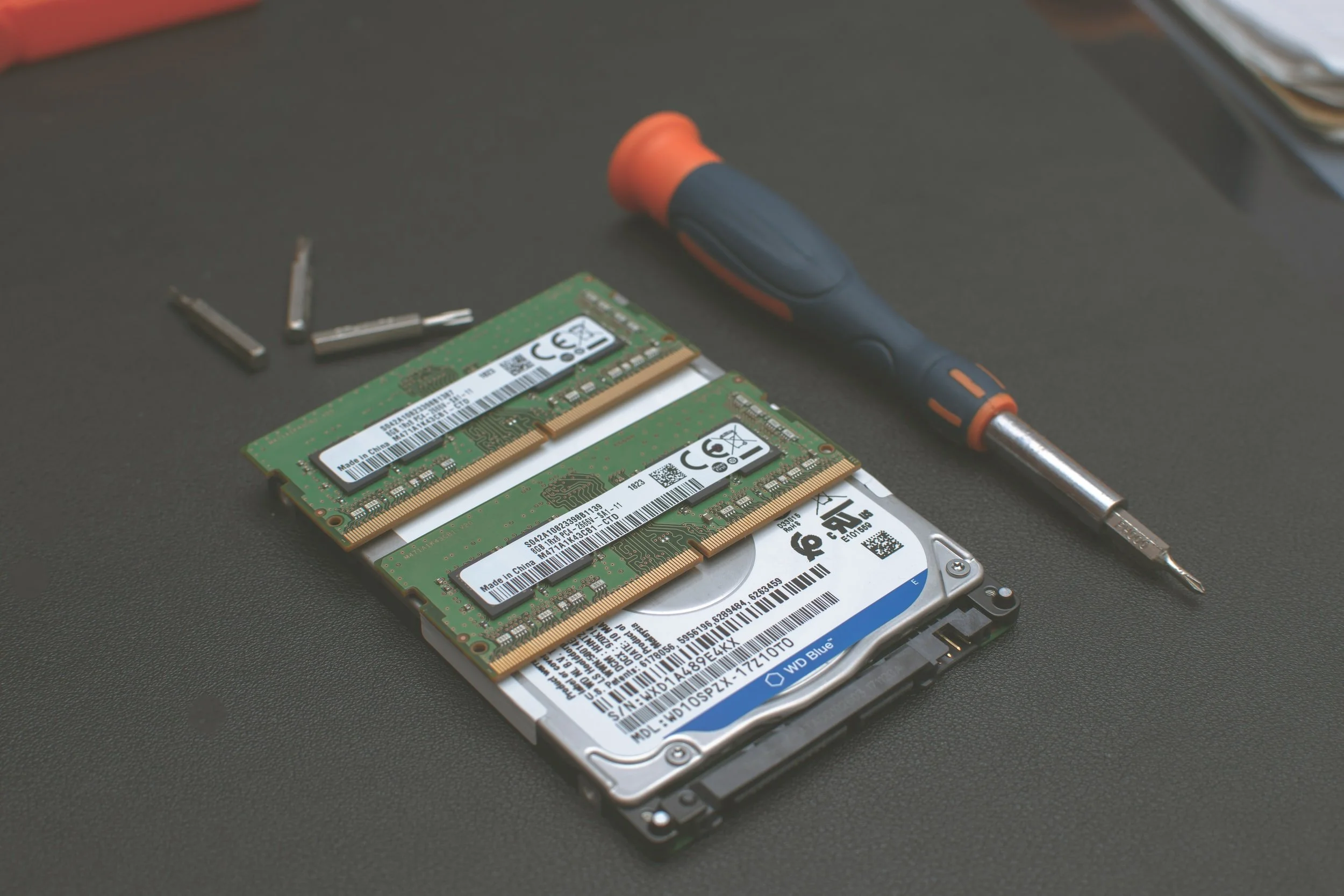
Poor RAM contact can give lights and fans but no image. On desktop PCs, RAM can often be removed and reseated. On laptops it varies a lot: some have accessible RAM, while others have soldered memory or require heavy disassembly. Always disconnect power, use the right tools and stop if force is needed. Do not update BIOS on a machine that freezes, has no image or may shut down during the update.
7. When display, cable or hinge is most likely
If the external display works reliably but the internal display is dark, flickers, shows lines, only works at certain angles, or reacts when the lid moves, suspect the internal display, display cable, backlight or hinge area. Do not order a panel from screen size alone. Model number, serial number and often the panel number must match connector, resolution, mounting tabs, brightness, touch and refresh rate.
When should you bring it in?
Bring it in if the machine has had impact or liquid damage, external monitor does not help, image appears and disappears when the lid moves, the BitLocker key is missing, BIOS/UEFI is unclear, or important files are not backed up. EasyPC can do a free diagnosis and separate display, cable, backlight, RAM, drive, Windows, graphics and motherboard faults before you order parts.