
An older PC is not automatically useless. Many machines become slow because they still use a mechanical hard drive, have too little free storage, too little RAM, clogged cooling, old thermal paste, too many startup apps or a Windows installation that has carried old faults for years. The right repair can make a big difference, but the wrong repair can waste money or increase the risk of data loss.
1. Start with files, BitLocker and drive health
Before cloning a drive, reinstalling Windows, replacing an SSD or running repair commands, copy important files to a safe location. Do not assume an old slow drive will survive several attempts if it clicks, freezes, disappears from BIOS or takes a very long time to open folders.
Check BitLocker before making changes. Go to Settings > Privacy & security > Device encryption, or search for BitLocker from Start. If encryption is on, find the recovery key first. Without the correct key, files can become inaccessible after a drive replacement, BIOS change or repair attempt.
If the computer contains important photos, accounting, schoolwork or business files, and you do not have a recent backup, stop here and bring the machine to EasyPC for a free diagnosis. It is cheaper to assess the drive first than to damage a possible recovery with the wrong attempt.
2. Find the bottleneck in Windows 11
Start with Windows checks that cost nothing. Press Ctrl + Shift + Esc to open Task Manager. On the Processes tab, check whether CPU, Memory or Disk stays high while you are not doing much. On the Performance tab, check whether the system drive is HDD or SSD, how much memory is installed, and whether Disk sits at 100% for a long time.
Then go to Settings > System > Storage. If the C: drive is nearly full, clean temporary files, downloads and large folders before buying parts. Also go to Settings > Windows Update > Check for updates, then Advanced options > Optional updates for relevant driver updates. Do not install optional drivers blindly when the computer is stable, but missing chipset, graphics or storage drivers can cause poor performance and errors.
Open Windows Security > Device performance & health. Windows reports on storage capacity, battery, apps/software and some system services. On laptops you can also go to Settings > System > Power & battery > Power mode. Best performance can help under heavy load, but often creates more heat and shorter battery life.
3. An SSD is often the biggest improvement
If the computer still uses a mechanical hard drive, an SSD is usually the most noticeable upgrade. Startup, Windows Update, browsers, Office apps and file handling often become much faster because the SSD does not wait for mechanical read heads.
When replacing storage, we choose between cloning and a clean installation. Cloning preserves programs, settings and files, but also carries old Windows faults, clutter and possible file system damage. A clean installation often gives the tidiest result, but programs must be installed again, and choosing the wrong drive during setup can delete data. Make a backup first, and get help if you are unsure which drive is which.
If the old drive has warnings, noises, freezes or read errors, recover the files before cloning. Do not run heavy disk repairs just to try. Bring it in for a free diagnosis instead, so we can assess drive health and the safest order of work.
4. RAM helps only when memory is actually full
More RAM does not make a slow hard drive fast, but it helps when Windows has to move data between RAM and disk all the time. In Task Manager > Performance > Memory, it is a clear sign if memory often sits close to full while normal apps are open.
For light use, 8 GB is often a minimum that can still work. For many browser tabs, Teams, online banking, photos, schoolwork and normal multitasking, 16 GB is more comfortable. Heavy photo work, development, CAD and virtual machines may need more. On many newer laptops the memory is soldered, so this must be checked before buying parts.
5. Heat can make an otherwise good PC slow
A computer that runs hot lowers its speed to protect the processor and graphics. Typical signs are a loud fan, a warm keyboard, a machine that is fast just after startup but slow after a few minutes, or shutdowns under load.
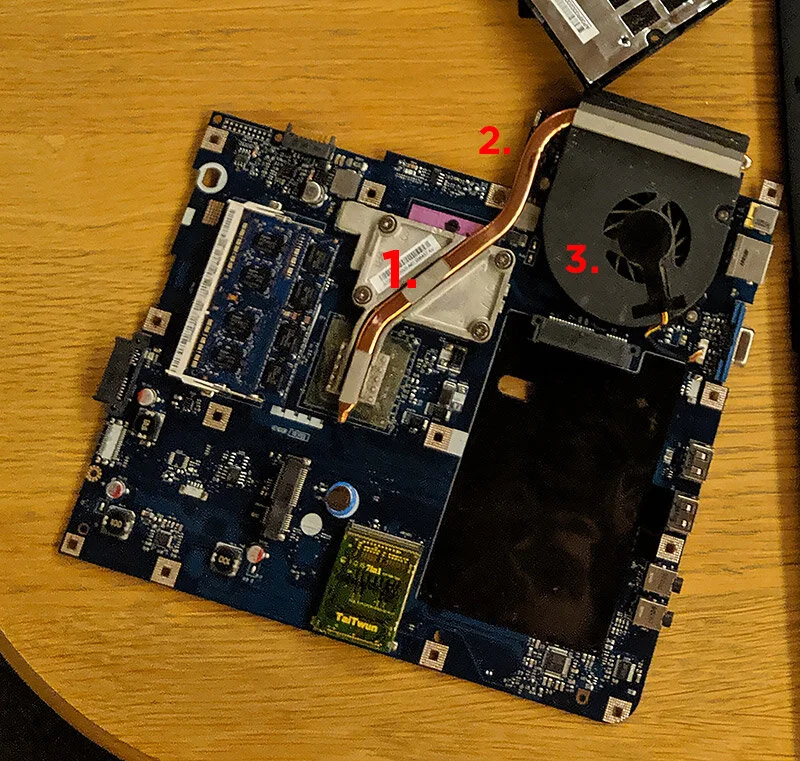
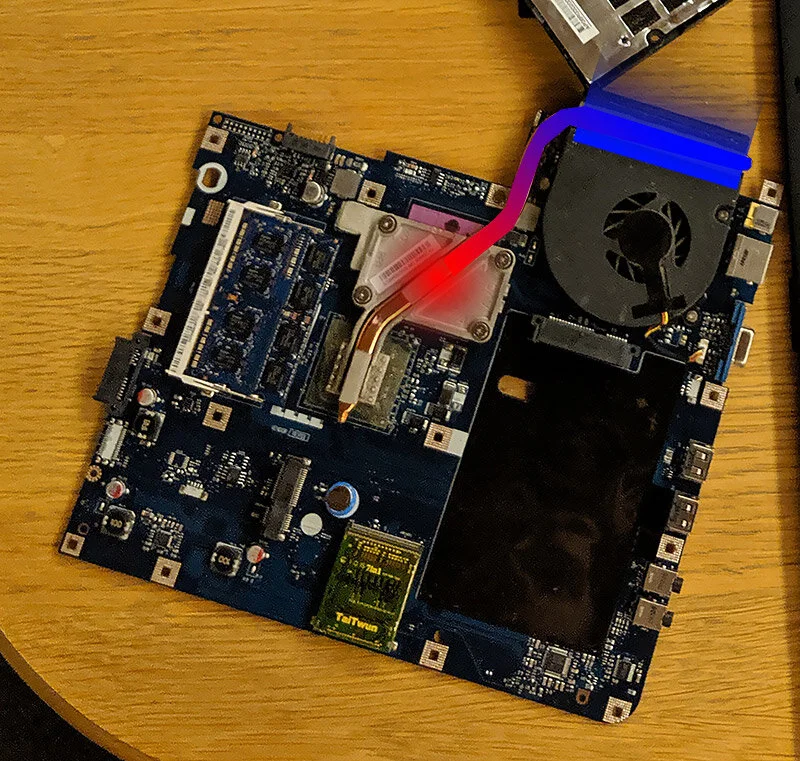
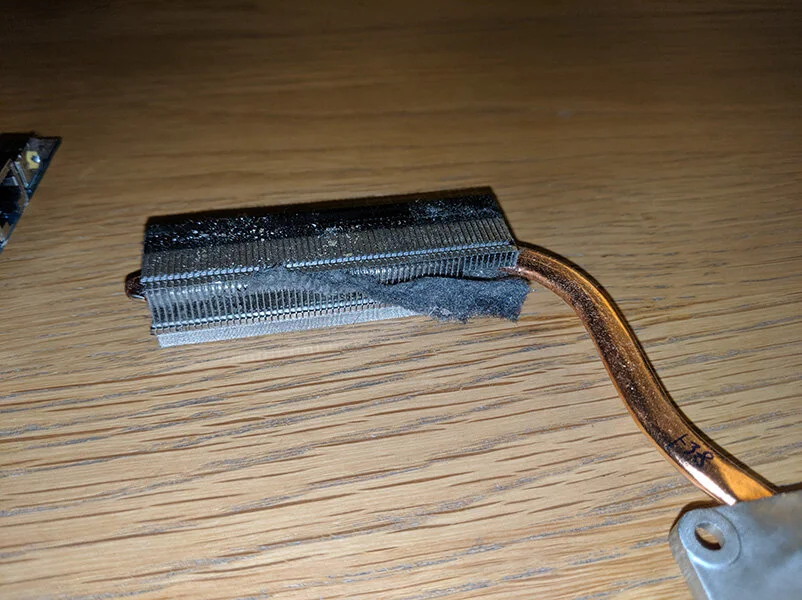
A cooling system consists of the part that gets hot, thermal paste and heatsink that move heat, and a fan/air path that blows the heat out. If dust blocks the heatsink, the fan runs poorly, or the thermal paste is dry, reinstalling Windows will not solve the real problem.
6. Cleaning and thermal paste: only do it if you can do it safely
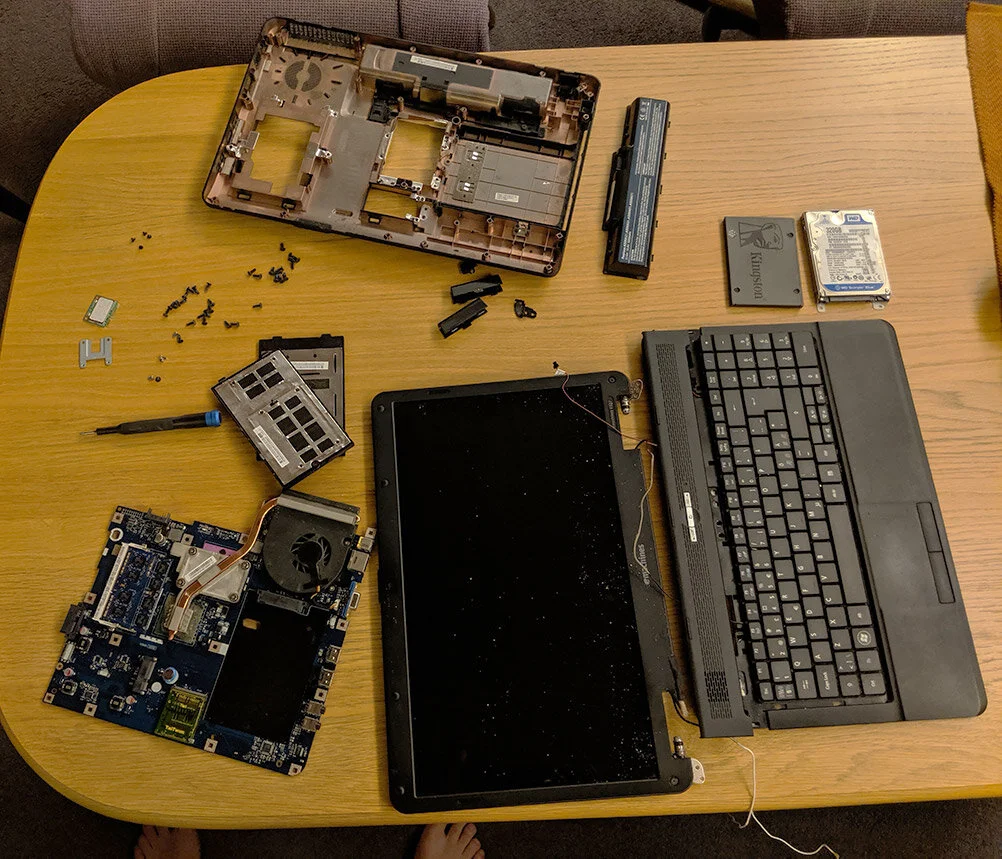
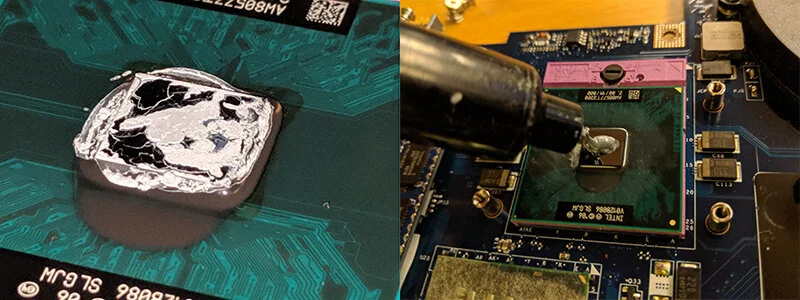
Cleaning the fan and heatsink and replacing thermal paste can make an older machine quieter and faster. But laptop disassembly has risk: the battery should be disconnected, screws must go back in the correct places, flat cables can tear, and some coolers sit underneath the motherboard.
If you blow dust through the vents, hold the fan still and use short bursts of air. Do not let the fan spin uncontrolled, and do not use wet cleaning products inside the computer. If the machine must be opened to remove the dust, or you are unsure about battery and cables, EasyPC can do a free diagnosis before recommending cleaning, fan replacement or thermal paste.
7. When a clean Windows installation is better than repair
If the machine has an SSD, enough RAM, normal temperature and still feels slow, the cause may be old software, damaged system files, failed updates or too many leftovers from old programs. In that case, a tidy reinstall of Windows 11 can be better than chasing individual faults.
Before reset or clean installation, try the least destructive repair first on newer Windows 11 installations: Settings > System > Recovery > Fix problems using Windows Update > Reinstall now. Microsoft describes this as a repair that reinstalls the same Windows version, repairs system files and preserves apps, files and settings. Keep the PC connected to power and internet the whole time. The option can be missing on work/school-managed PCs or older Windows 11 installations.
Reset, clean installation and choosing the wrong drive are more risky. Reset this PC with Keep my files removes apps and settings, while Remove everything and a clean USB install can delete files. Confirm backup, license keys, sign-ins, the BitLocker recovery key and drive health before starting. If you want to keep apps and files while upgrading to Windows 11 on an older machine, there is also an advanced in-place method using setup.exe /product server from a mounted Windows 11 ISO, but it is unofficial and should never be used on a PC with drive clicking, freezes during copying, heat shutdowns or unsecured files.
8. Example: old PC before and after service
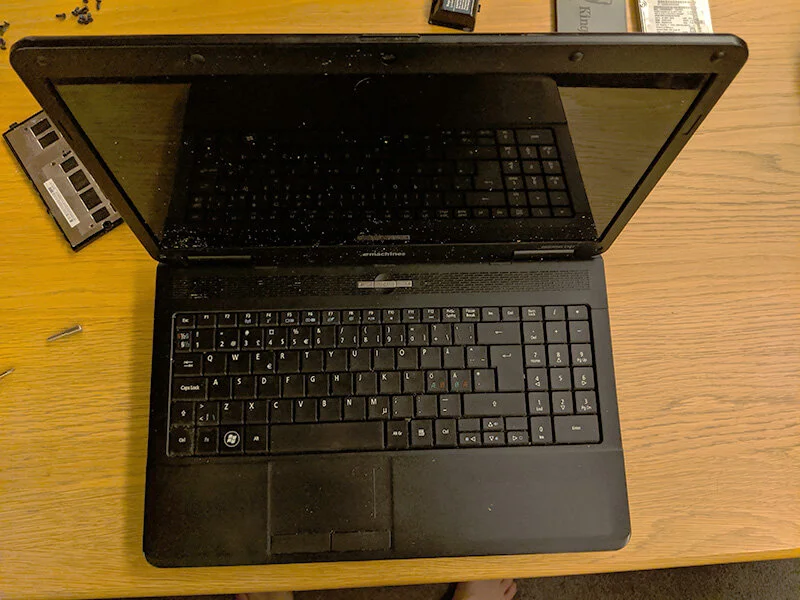
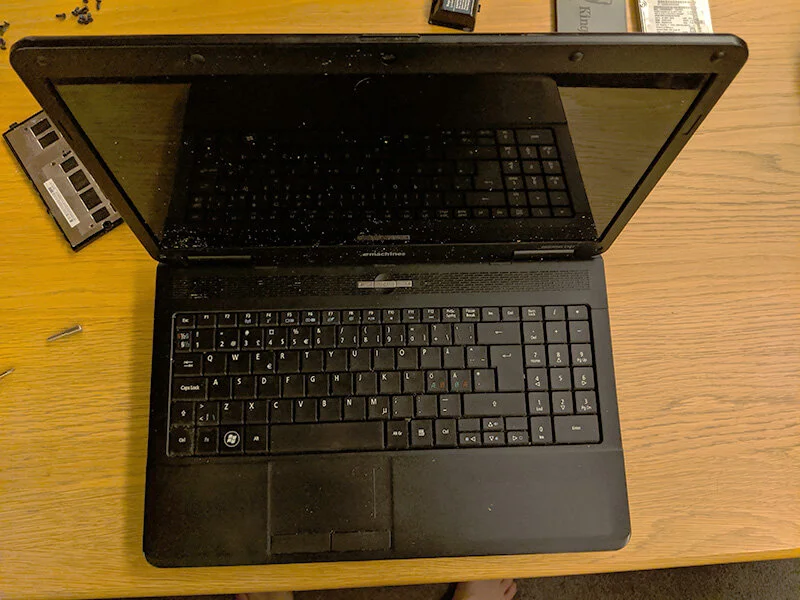
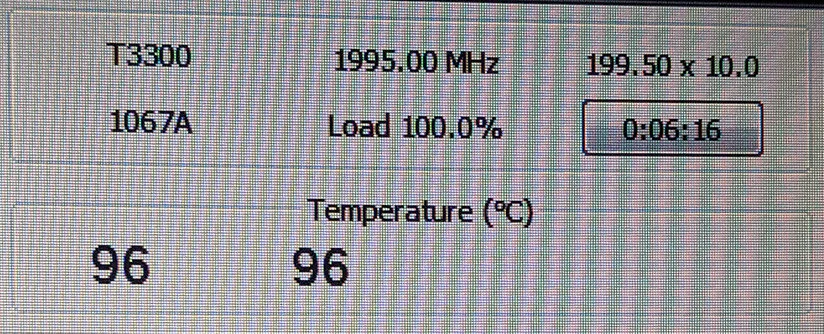
In the example, an Acer eMachines from 2010 was tested before and after service. Before service, the stress test was stopped after just over six minutes because temperature approached 96 degrees Celsius. After cleaning and fresh thermal paste, the machine stayed below 68 degrees under a similar load.
The test measured three practical things: temperature under load, time from fully powered off to Windows being ready, and how long Google Chrome took to open. These measurements are useful because they show the difference the customer actually feels, not only technical specifications.
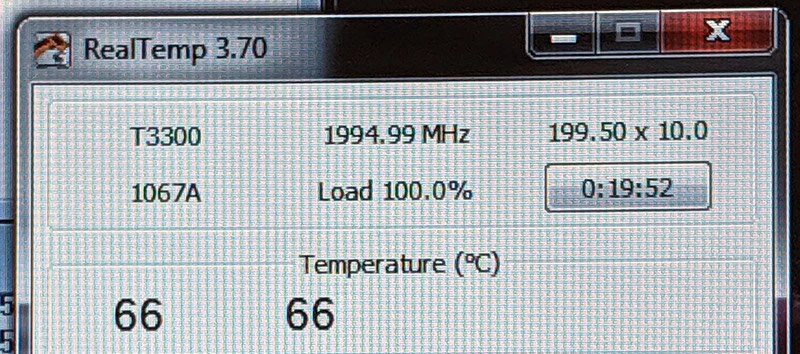
In that example, startup improved from 42 to 23 seconds, and opening Chrome improved from 31 to 5 seconds. Those numbers are not a promise for every machine, but they show why SSD and healthy cooling are often noticeable in normal use.
For many working laptops, this is an affordable alternative to buying a new PC. A typical SSD or storage upgrade with Windows setup and data transfer often costs around NOK 2,500-4,000, depending on storage size, drive health, data volume and whether the machine also needs cleaning, RAM or a battery. A free diagnosis clarifies whether upgrading makes sense before you buy a new machine.
9. When replacing the PC is better
Service is not always worth it. Regular Windows 10 support ended on October 14, 2025. Microsoft points to Windows 11, a new PC or Windows 10 Consumer Extended Security Updates as possible paths when the machine does not meet the requirements. ESU can be a short bridge, but it does not make a slow or worn-out PC faster and is not a long-term solution for normal internet use over several years.
Consider a new machine if the old one cannot run Windows 11 safely and reliably, if battery, screen, hinges and motherboard have several faults at the same time, or if performance no longer fits school, work, BankID, online banking or the apps you actually use. A free diagnosis can separate a sensible SSD/RAM/cleaning job from a machine that should be replaced before you spend money on the wrong fix.
Windows 11 requires, among other things, a supported 64-bit processor, TPM 2.0, Secure Boot, at least 4 GB RAM and 64 GB storage, but minimum requirements do not mean the computer will feel pleasant to use. For many older PCs the question is not only whether Windows can be installed, but whether the machine will have security updates, drivers and good enough response for the next several years.
What EasyPC checks before recommending anything
During diagnosis we check drive health, SSD options, RAM, temperature, fan, thermal paste, battery, Windows condition, drivers, updates, BitLocker and whether the machine still fits your needs. The goal is not to upgrade as much as possible, but to find the repair that actually makes sense.
A full service can therefore mean different things from machine to machine: some need only an SSD and tidy Windows, while others need cleaning, thermal paste, fan, battery or RAM. If diagnosis shows repair is not worth it, we say that too. You can bring the machine to EasyPC for a free diagnosis before deciding.