
Many older iMacs shipped with hard drives or Fusion Drive, and that is often the main reason they feel slow today. An SSD can make a major difference, but an iMac is not like a normal desktop PC: the display often has to be opened, adhesive must be replaced, and files must be protected before the drive is touched.
The goal is to find out whether storage is actually the bottleneck, whether data is safe, and whether internal SSD, external SSD, cleaning or a newer Mac is the right choice. If the iMac freezes during copying, does not start reliably, has important data without backup or FileVault is unclear, bring it to EasyPC for a free diagnosis before more testing.
1. First check whether the drive is the bottleneck
Open Apple menu > About This Mac to find the model year and macOS version. Then open Activity Monitor > Disk and Memory while the iMac feels slow. If Disk stays high during normal use, apps take a long time to open, or startup takes several minutes, hard drive, Fusion Drive or low free space are likely candidates.
Also check System Settings > General > Storage. If the drive is nearly full, the iMac can feel slow even with a healthy drive. If there is more than 15-20 percent free space and it is still very slow, the hard drive or Fusion Drive becomes a stronger suspect. Do not delete from Photos libraries, iCloud Drive, email archives or project folders just to free space unless you know what is backed up.
2. Make a Time Machine backup and check FileVault
Before drive replacement, cloning, Disk Utility or reinstalling macOS: back up. Apple recommends Time Machine with an external drive, ideally with at least twice the Mac storage capacity. On macOS Ventura and later, go to Apple menu > System Settings > General > Time Machine > Add Backup Disk. Wait until the backup is complete, then open a few important files from it afterwards.
If Time Machine asks to erase an external drive, that means the drive is being prepared as a backup disk. Do not choose a drive that contains the only copy of files you want to keep. If you choose encrypted backup, store the password safely; without it, the backup can be unusable when you need to restore.
Check FileVault in System Settings > Privacy & Security > FileVault. If FileVault is on and you do not have the password, iCloud access or recovery key, stop before drive replacement or reinstalling. Apple warns that files and settings can be lost forever if both the password and FileVault key are missing.
3. Check drive health before cloning or opening it
Open Disk Utility and choose View > Show All Devices. Apple recommends First Aid on volumes, containers and then the drive itself, and also recommends backup before disk repair. If Disk Utility cannot see the drive, finds errors it cannot repair, or the iMac freezes during First Aid, stop. Data should be assessed before more load is placed on the drive.
Apple Diagnostics can also be run before upgrading: shut down, disconnect unnecessary accessories, make sure there is good ventilation and hold D at startup on an Intel iMac, or Option-D if regular D does not work. On newer Macs with Apple silicon, use startup options and Command-D. Note any reference codes. A passed test does not prove the hard drive is healthy, but storage, fan, temperature or power reference codes are useful before deciding.
4. Internal SSD, external SSD or clean install?
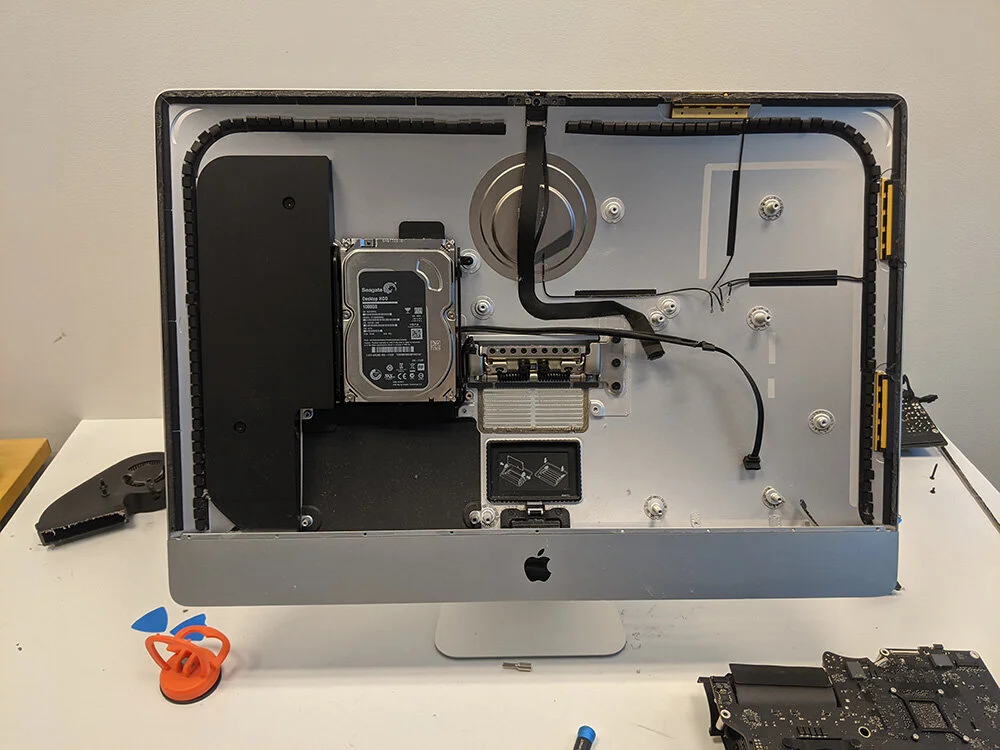
Internal SSD is the cleanest option if the iMac is otherwise worth keeping. The old hard drive can be replaced, macOS can be installed cleanly, or content can be restored from Time Machine or a clone if the drive is healthy enough. The benefit is better performance without an external drive behind the machine. The downside is opening the display, adhesive, cables and power supply.
External SSD can be a good compromise on some iMacs if you want to test whether SSD helps before internal opening, or if the total price of internal work is not worth it. Use a fast port, such as Thunderbolt or USB 3 where the model supports it. External SSD is less elegant and can be unplugged by mistake, but can give noticeable improvement without opening the display.
5. Why opening an iMac should be planned
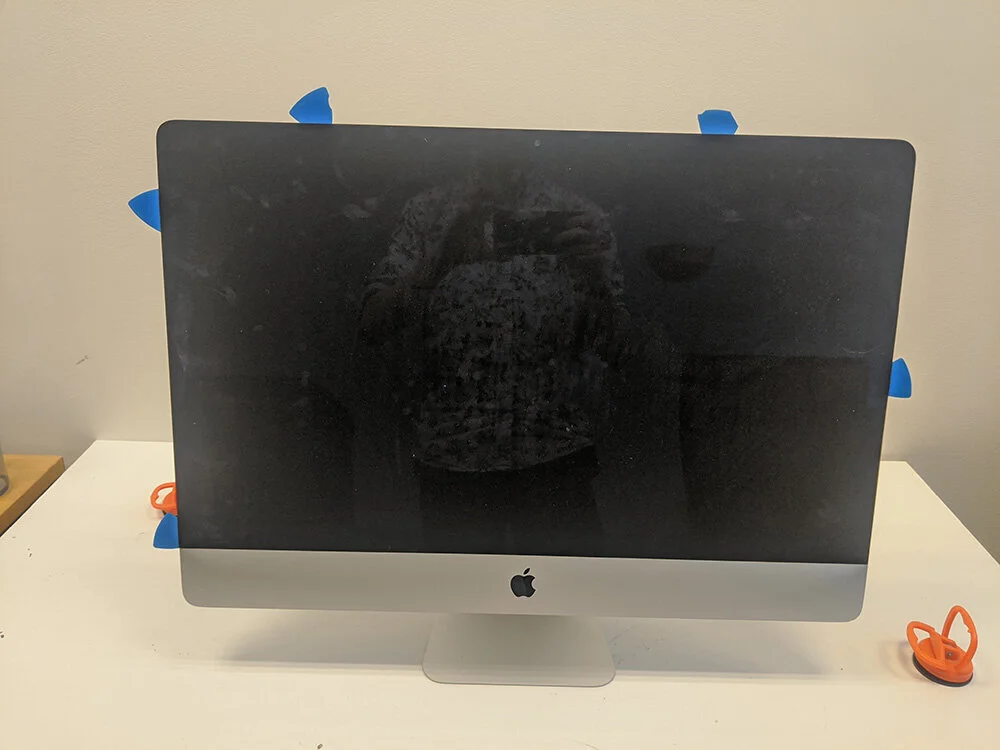
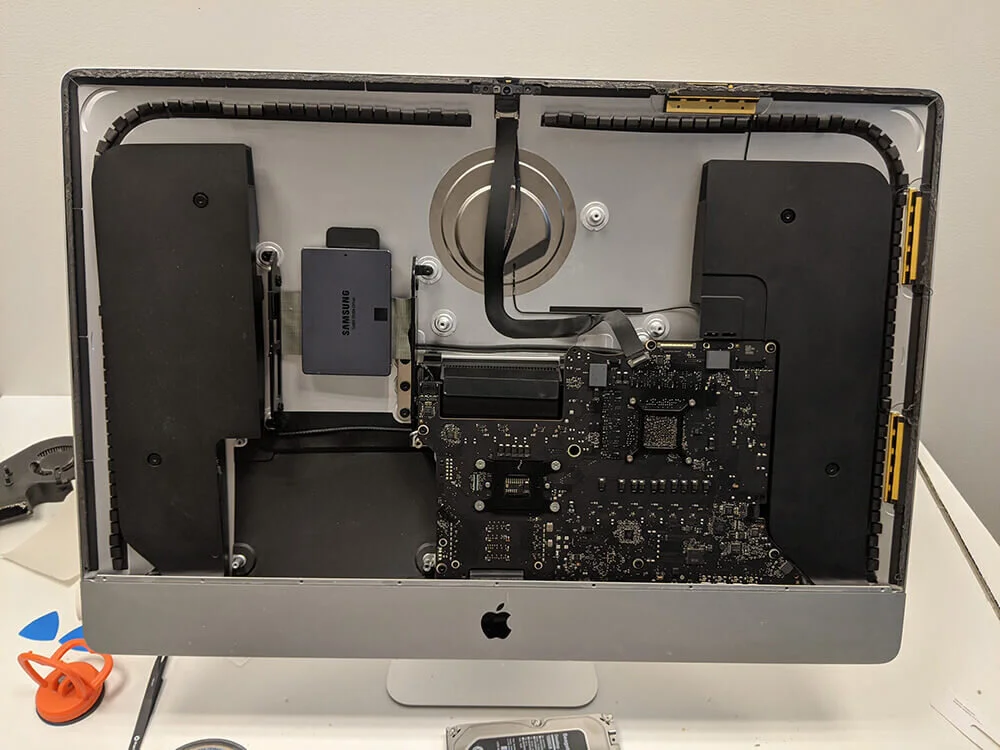
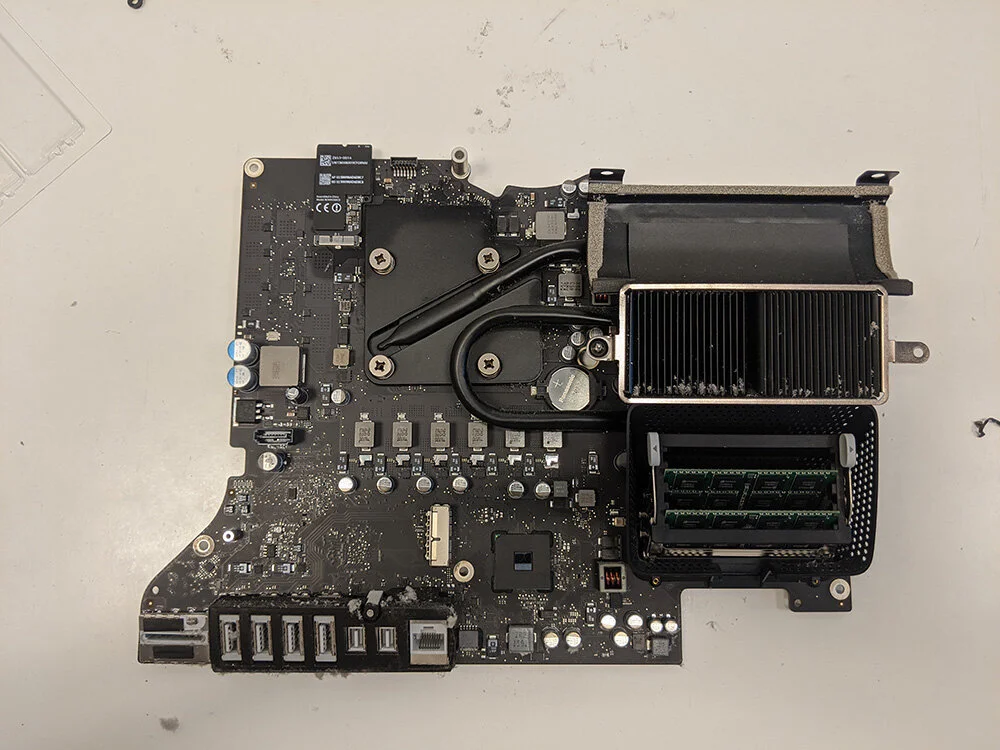
On many iMac models, the display is glued in place. Opening the machine means cutting the adhesive in a controlled way, lifting the display without cracking the glass, and disconnecting display cables before setting the panel aside. Once open, the power supply, speakers, fan, hard drive and motherboard must be handled without pulling on small connectors.
Unplug power and let the machine sit before work. The power supply in an iMac must be treated with respect. A wrong screw, pinched display cable, dust in the adhesive surface or poor adhesive installation can create a new fault afterwards. If you are unsure, get a free diagnosis at EasyPC before opening it.
6. Cleaning and thermal paste should be considered too
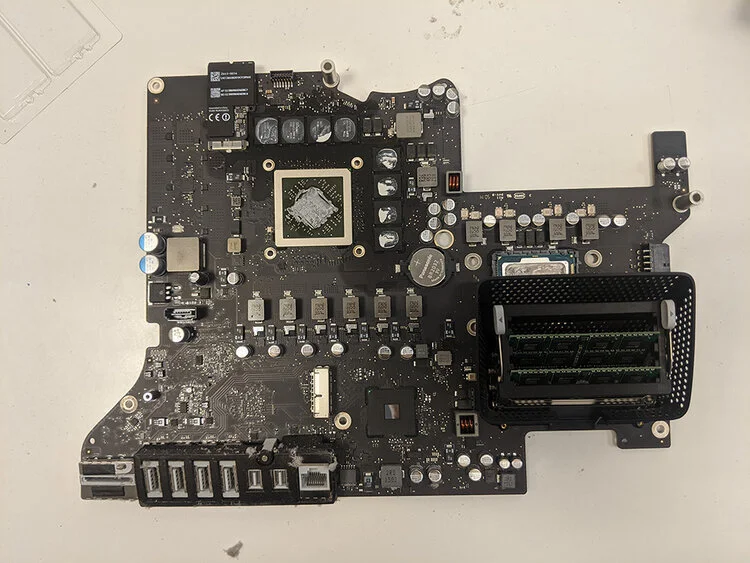
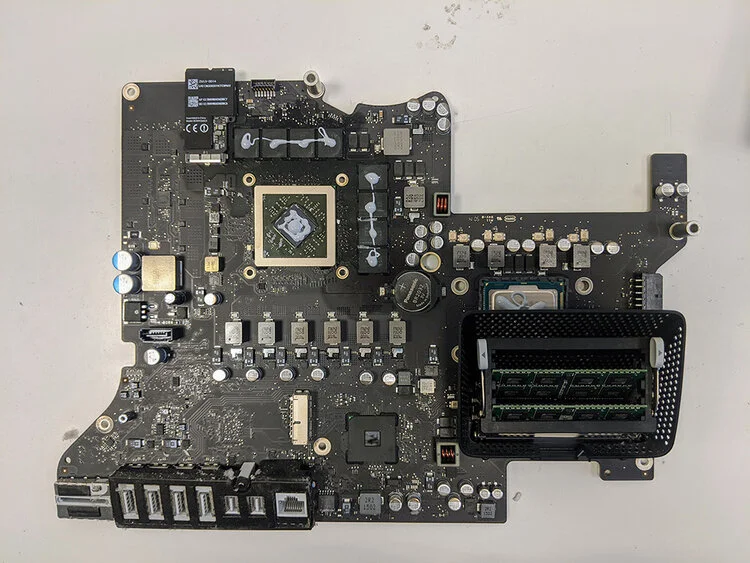
When the display is already open, it often makes sense to remove dust and assess thermal paste. Poor cooling can make the iMac noisy, hot or slower under load. Signs include loud fan noise, a hot back cover, slowness after a few minutes of use, or shutdowns under load.
Old thermal paste is removed before fresh paste is applied. On some designs, the processor or heatsink can stick to old paste, so parts must be loosened calmly and reinstalled with correct alignment and pressure. This is also a good time to check fan, air channels, internal dust mats and whether a previous repair left loose cables.
7. When SSD upgrade is not worth it
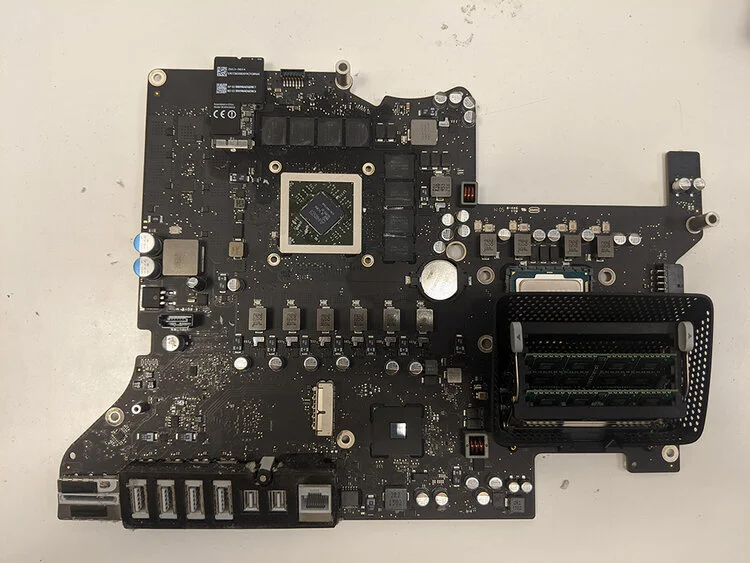
SSD upgrade makes less sense if the display is damaged, the motherboard has faults, the GPU causes image problems, the power supply is unstable, the model cannot run the software you need, or the total price approaches a newer used Mac. Slowness caused by modern websites, too little RAM or too old macOS is not always solved by SSD alone.
If the iMac is used for work, accounting, photos, music production or specialist apps, also check macOS support and app compatibility before upgrading. Apple shows macOS version and model under Apple menu > About This Mac, and Apple publishes compatibility lists for newer macOS versions.
When should you bring it in?
Bring the iMac to EasyPC for a free diagnosis if data matters, Time Machine is not confirmed, FileVault is unclear, Disk Utility shows errors, the machine does not start reliably, the fan is noisy, it gets hot, or you are unsure about internal SSD, external SSD, cleaning or whether a newer Mac is better. You get an assessment and price before the display is opened.