
When a Lenovo PC will not start, first identify where startup stops. Is the machine completely dead, does it get power but show a black screen, or does it reach the Lenovo logo, BitLocker, a blue screen or Automatic Repair in Windows 11? The answer decides which steps are safe.
These steps match current Windows 11 behavior. Old F8 advice from the Windows 7 era is no longer the normal route to Safe Mode; repair tools, startup settings and Safe Mode normally run through Windows Recovery Environment, the blue recovery menu. Do not start with reset, factory recovery, BIOS changes or disk commands if files are not secured.
1. Start with charger and power reset
Disconnect USB devices, memory cards, docking station, external monitor and all other accessories. Use the original Lenovo charger or a USB-C charger with enough wattage for the model; a small phone charger is often not enough. Look for a charging light near the charging port or on the side of the laptop, and leave it charging for 10-15 minutes before trying again.
Unplug the charger. Hold the power button for 30 seconds. Connect the charger again and try to start. If the charge light never turns on, test another wall outlet and look for a loose charging port, broken USB-C plug or heat at the connector. If the charge light is present but the machine does not react, the fault is more likely a locked power state, battery, motherboard or short circuit than Windows alone.
If the model has a removable battery, remove it before holding the power button. If the battery is internal, do not open the machine just for this unless you are comfortable doing so. Also stop if the battery is swollen, the machine smells burnt, or the charging port gets hot; a free diagnosis is safer than repeated start attempts.
2. Use Lenovo reset hole or Novo button correctly
Many Lenovo models have a small emergency reset hole on the underside. Disconnect the charger, press gently into the hole with a paper clip for a few seconds, reconnect the charger and try to start. Do not use force; if the pin does not hit a button, it is probably the wrong hole. Check the model underside or manual if you are unsure.
Some Lenovo laptops also have a Novo button, often near the power button or as a small side hole. When the machine is fully off, the Novo button can open a menu with Normal Startup, BIOS Setup, Boot Menu or System Recovery. Use Normal Startup for a normal boot and Boot Menu if you need to start from Windows USB. Do not choose System Recovery, factory recovery or reset unless important files are already backed up.
3. If the keyboard lights up but the screen is black
Connect an external monitor or TV with HDMI or USB-C. Wait a little after startup, and try the display-switch key if your model has one. You can also press Caps Lock or Num Lock and see whether the light responds. If the keyboard reacts and external image works, the fault often points to the laptop display, display cable or backlight. If both internal and external screens stay black and the keyboard does not react, RAM, BIOS, graphics or motherboard are more likely.
If you see the Lenovo logo and then everything turns black, Windows or the display driver may be stopping. First let the machine sit for a few minutes, then press Windows + Ctrl + Shift + B to restart the graphics driver if Windows has actually reached sign-in or the desktop. If that does not help, it is safer to continue to the Windows 11 recovery menu than to start opening the machine.
4. Enter the Windows 11 recovery menu
If Windows starts loading but stops, you can often enter the recovery menu by turning the machine off when the Windows logo or spinning dots appear, and repeating this two to three times. When the menu appears, choose Troubleshoot and then Advanced options. If you can reach the sign-in screen, hold Shift while choosing Restart.
If BitLocker is enabled, Windows may ask for a 48-digit recovery key before any tools can be used. Take a photo of the key ID shown on screen, especially the first 8 characters, and find the key through https://aka.ms/myrecoverykey, a work or school account, printout or USB drive where it was saved. Microsoft Support cannot retrieve or recreate a lost BitLocker key for you.
On newer Windows 11 installations, you may also see Quick Machine Recovery in Advanced options. It tries to connect to the internet from the Windows recovery environment and download a Microsoft remediation when the fault is a known, widespread startup issue. Try it if the option is present, especially after a failed Windows update, but do not expect it to fix hardware faults, drive faults or a PC with no network.
If the Lenovo will not reach the blue menu, create Windows 11 installation USB on another PC with Microsoft Media Creation Tool. Start the Lenovo from the USB through the Novo button or Boot Menu, choose language, and select Repair my PC instead of Install now. That opens Windows Recovery Environment without starting a clean installation.
5. Use Advanced options in the right order
Try Startup Repair first: Troubleshoot > Advanced options > Startup Repair. Microsoft describes this as the tool for missing or damaged system files, BCD boot errors, MBR errors, driver problems and similar startup faults. If the fault started right after a Windows update, use Uninstall Updates and start with the latest quality update. If System Restore is available, it can roll back system files and drivers without being the same as a full reset.
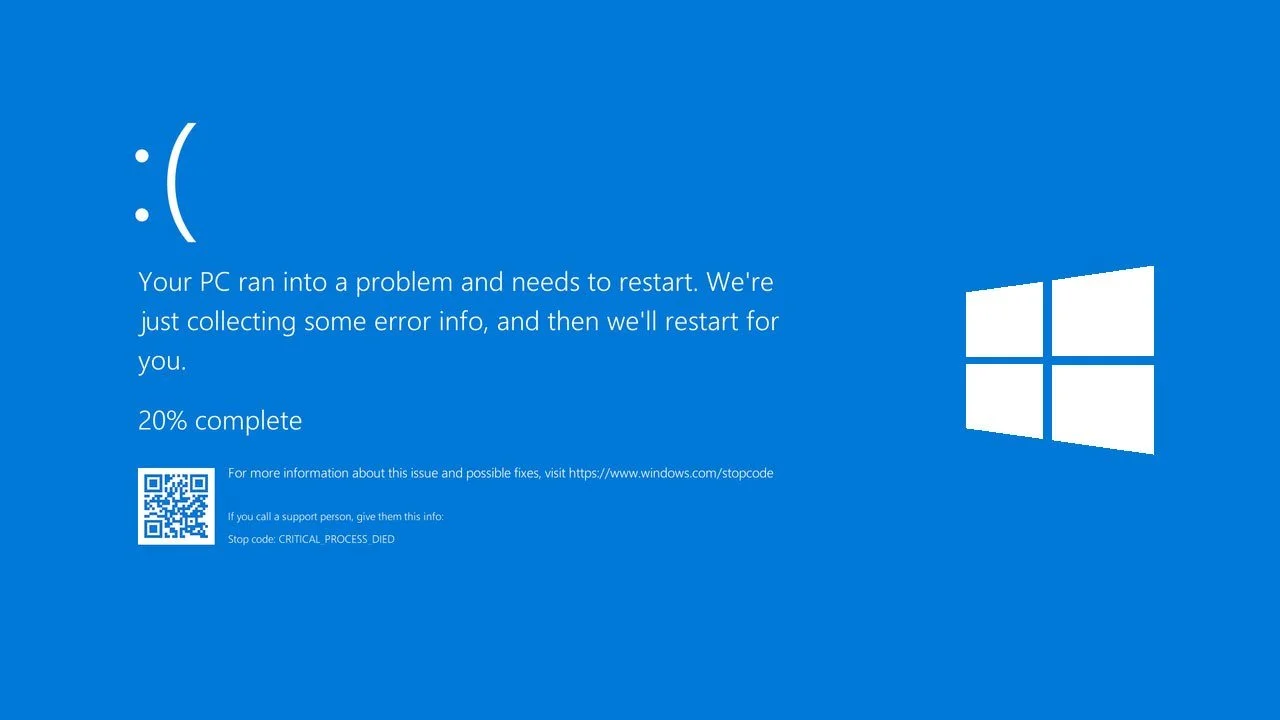
Next, use Startup Settings > Restart > 4 for Safe Mode or 5 for Safe Mode with Networking. For a black screen after the logo, the low-resolution video option can also help, and in a blue-screen loop, Disable automatic restart on system failure can make the error code visible. If you get into Windows, back up important files before uninstalling the latest driver, app, startup app or update.
Wait with Command Prompt commands such as `chkdsk`, `bootrec` or manual partition changes unless you know the drive is healthy and the files are copied. The wrong command on the wrong disk, or repair on an SSD/HDD that is already failing, can make data recovery harder. Bring the machine in for a free diagnosis if files, drive health or BitLocker are unclear.
6. Be careful with Reset this PC
Reset this PC in Windows 11 is not the same as restarting the machine. Keep my files removes apps and settings, and can still fail if the drive is damaged. Remove everything deletes files. Do not choose Remove everything, factory recovery or a new Windows installation before important files are secured.
If Windows starts again but remains unstable after updates, try the official repair first: Settings > System > Recovery > Fix problems using Windows Update > Reinstall now. Microsoft describes this as reinstalling the same Windows version, repairing system files and preserving apps, files and settings. The PC needs power and internet, and the option may be missing on work/school-managed PCs or older Windows 11 installations.
If the official repair is not available or is not enough, and the goal is to upgrade or repair-install Windows 11 without deleting apps and files, one unofficial in-place method is to start Windows 11 installation media from inside Windows and run `setup.exe /product server` from Terminal or Command Prompt as administrator. This only applies when Windows reaches the desktop and is stable enough to complete setup. Use it only with a fresh backup, power connected, enough free space and the BitLocker recovery key confirmed, and make sure Setup actually offers to keep personal files and apps before continuing.
7. When drive, SSD or motherboard needs checking
Messages such as No bootable device, No disk found, Boot device missing or a drive disappearing from BIOS point toward SSD, drive connection or motherboard. If BIOS shows the correct SSD model and size, the issue may be Windows startup, boot order or encryption. If the drive is missing entirely, shows the wrong size, appears and disappears, clicks, or Windows freezes during repair, files should be recovered before more repair attempts.
Do not change SATA/AHCI/RAID, Secure Boot, TPM, Legacy/UEFI or BIOS passwords as a random attempt. Those changes can stop Windows from booting and can trigger BitLocker. If the machine has liquid damage, smells burnt, gets warm without starting, shuts off immediately, or contains files you do not have backed up, stop troubleshooting. You can always bring the Lenovo to EasyPC for a free diagnosis, so we can find out whether the fault is power, display, drive, Windows or motherboard before you decide on repair.