
A faulty PC fan can cause noise, vibration, overheating or sudden shutdowns. Replacing it may be simple in some desktops and more complex in laptops where the cooling system is buried inside the chassis.
Signs that the fan is the problem
Common signs include abnormal fan noise, scraping, vibration, higher temperature than normal, the machine shutting down under load, or a fan that does not start even when the computer becomes hot.
Loud fan noise alone does not always mean the fan is defective. Dust in the heatsink, old thermal paste or an aggressive fan curve can make a healthy fan run hard. Mechanical scraping, ticking or stopping are stronger signs that the fan itself should be replaced.
Find the correct fan first
Use the computer model number and the part number on the fan if available. Fans that look identical can have different connectors, screw positions or thickness. The wrong part may make new noise or not fit at all.
If you need to remove the old fan to find the part number, take photos along the way before cables and screws are removed. This makes correct reassembly easier when the new fan arrives.
Tools and preparation
You usually need the correct Phillips screwdriver, plastic pry tool, isopropyl alcohol, possibly thermal paste and a fan that fits exactly. Shut the machine down, disconnect power, and disconnect the battery on laptops before working near the motherboard.
Also plan how to track screws and cables before starting. Many laptops use several screw lengths, and a screw that is too long in the wrong place can damage the motherboard, keyboard or display mount.
Replacing a fan in a desktop PC
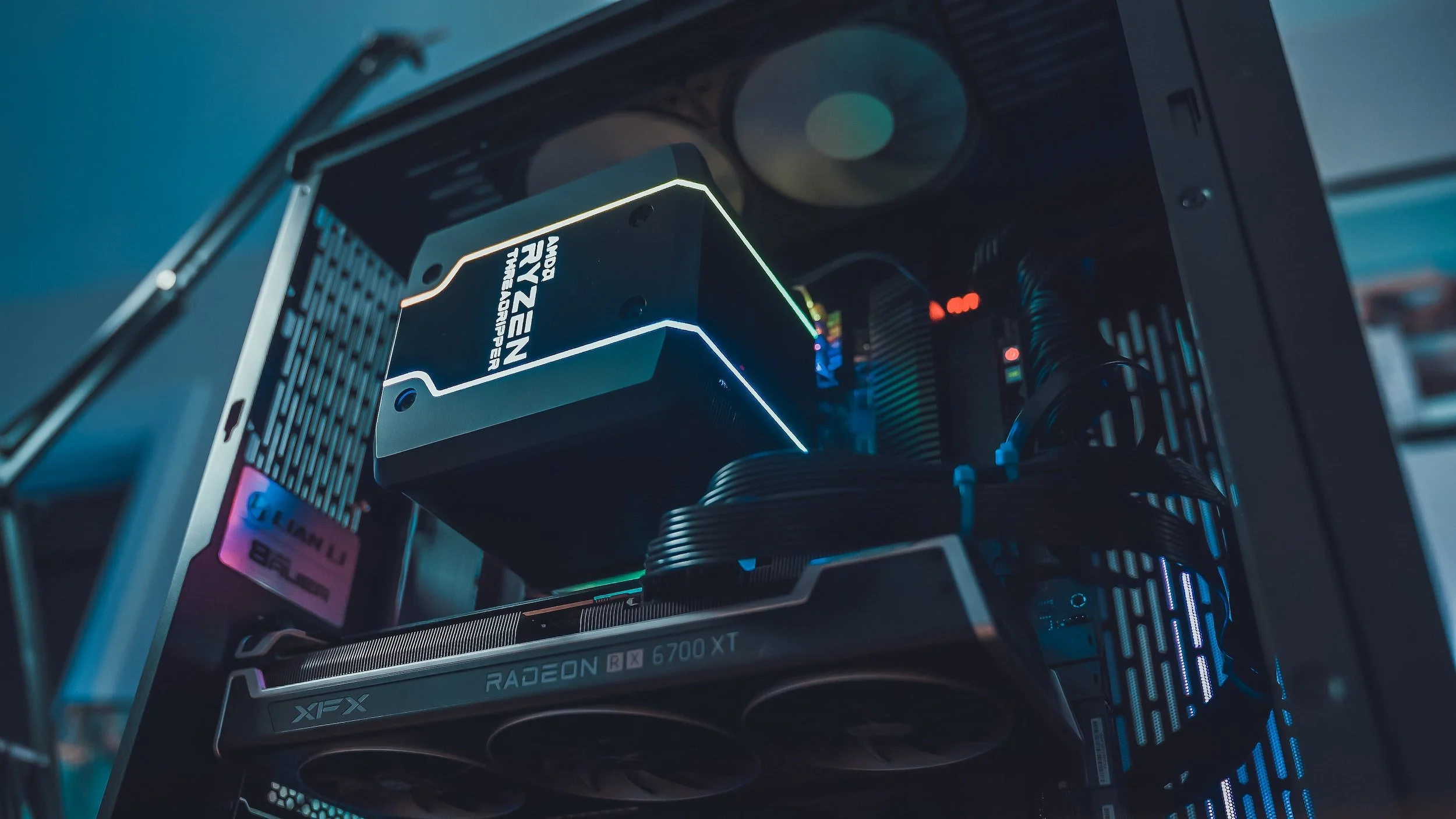
In a desktop PC, case fans are often simple: remove the side panel, disconnect the fan cable from the motherboard or hub, unscrew the old fan and mount the new one with the correct airflow direction. Look for arrows on the fan frame showing airflow.
Some cases hide screws or clips behind the front panel, dust filter or top cover. Do not force the fan if it does not come loose; find how that exact case panel is meant to be removed.
After installation, the fan curve can often be adjusted in BIOS or motherboard software. Look for terms like Fan curve, PWM, DC mode or Smart Fan. Do not set the fan so low that temperatures become unstable.
Replacing a fan in a laptop
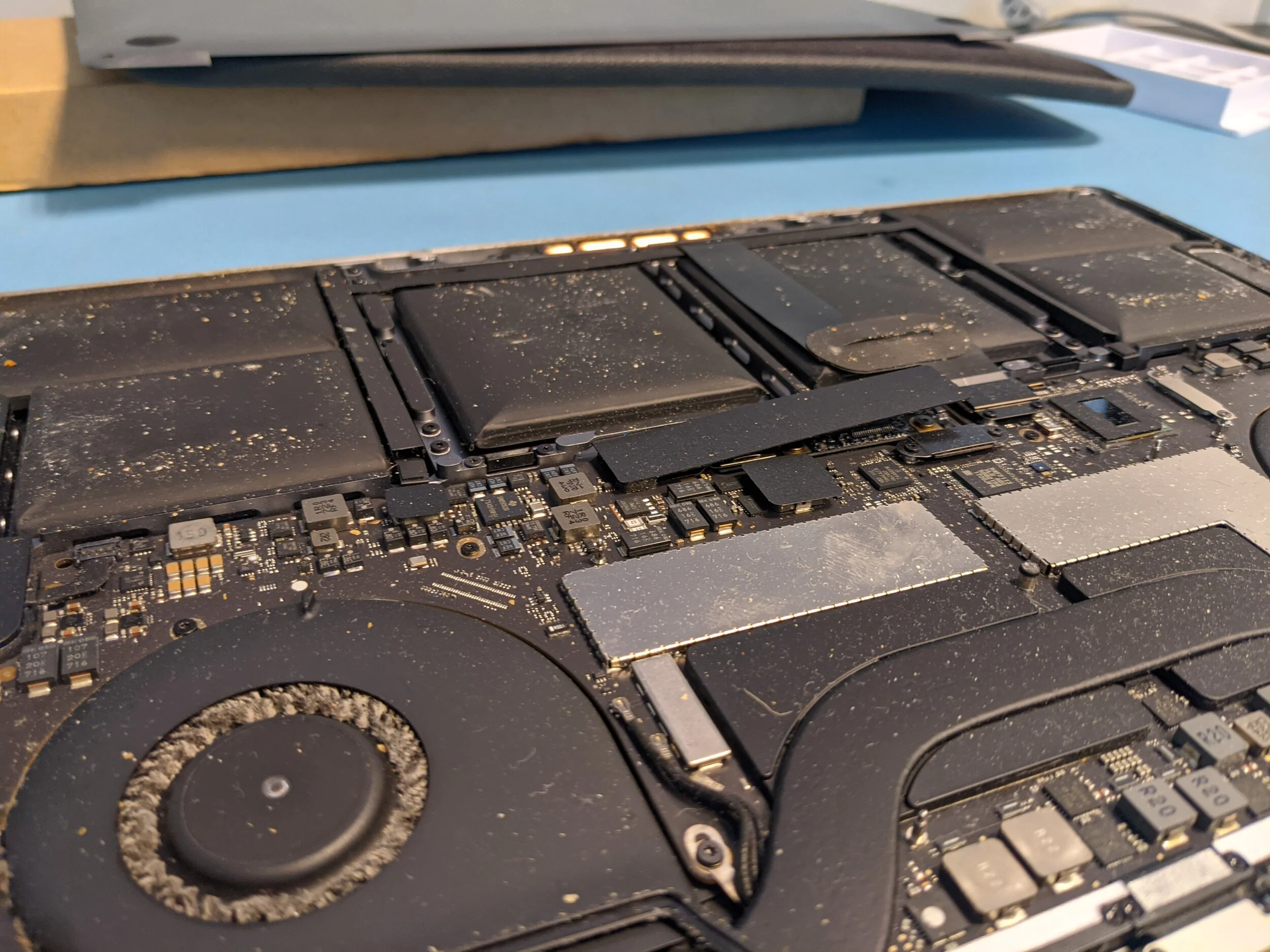
On laptops, the job varies a lot. Some models have the fan directly under the bottom cover, while others must be almost fully disassembled. Find a model-specific guide before starting, and sort screws so the correct length returns to the correct place.
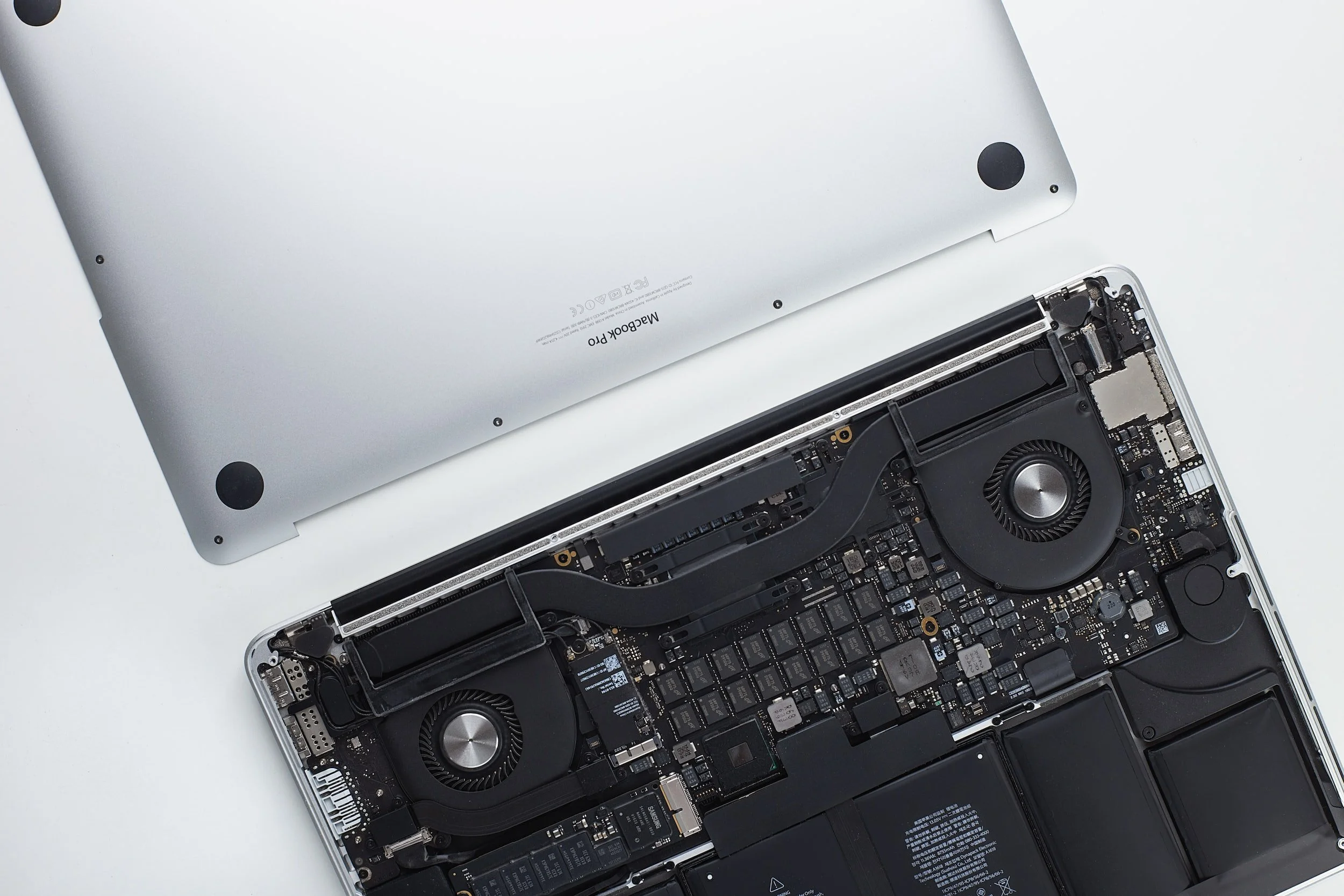
Lift the fan connector carefully, do not pull on the wires. If the fan is held by tape, ducting or heat pipe parts, loosen a little at a time. Use plastic tools around fragile connectors.
Replace thermal paste when the cooler is removed
On many laptops, the heatsink must be removed to replace the fan. Old thermal paste should then be cleaned off and replaced correctly. Too much or too little paste can make cooling worse.
Clean old thermal paste from both CPU/GPU and heatsink with a suitable cloth and isopropyl alcohol. Apply a thin even layer or a small amount in the center of the chip, depending on the cooler contact surface. If the machine uses thermal pads on other components, do not replace those with normal thermal paste.
Test after assembly
Start the machine while the cover is still easy to access, and check that the fan spins, does not scrape, and that temperatures stay normal. Stop if you hear abnormal noise or smell hot electronics.
Maintenance extends fan life
Clean dust regularly, keep air intakes open, and avoid using laptops in beds or sofas where vents are blocked. A desktop PC should not sit directly on a dusty floor if the case pulls air from underneath.
When blowing dust out of a fan, hold the blades still with a plastic stick or finger so the fan does not spin uncontrolled. Use short bursts of air and low power if vacuuming around vents, so bearings and small cables are not damaged.
When a repair shop should do it
Get help if the fan sits under the motherboard, if the battery is difficult to disconnect, or if cables and screws are fragile. A broken connector can turn a simple fan repair into a board repair.